Get your gym up and running
Signup, the gym's identity, your team and your members.
01Register your gym
Signup happens once and takes a few minutes. When you finish you are already inside the dashboard, with 14 days free.
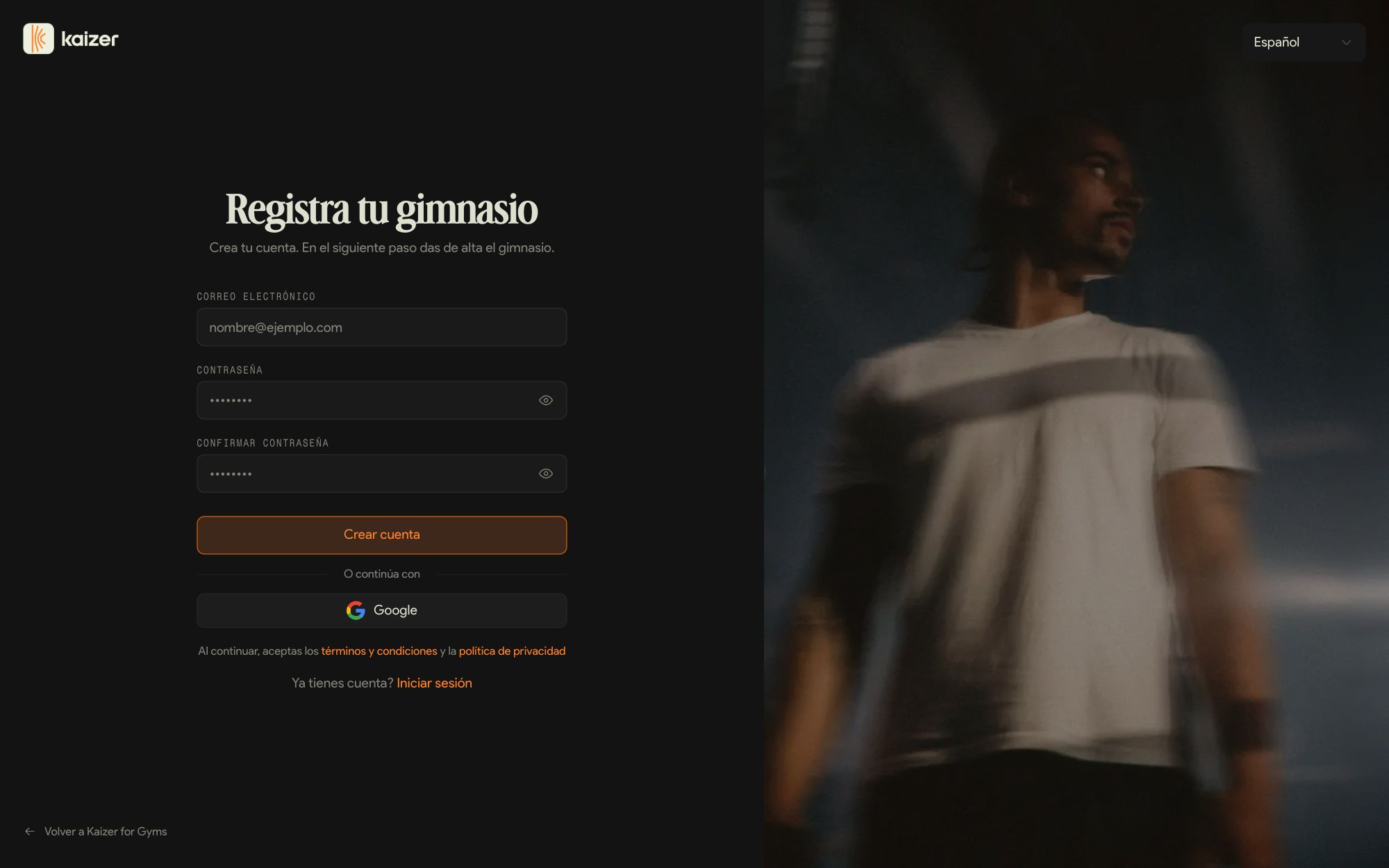
Create your account
At gyms.kaizer.app/signup, with your email and a password or with Google. Then confirm your email from the message we send you.
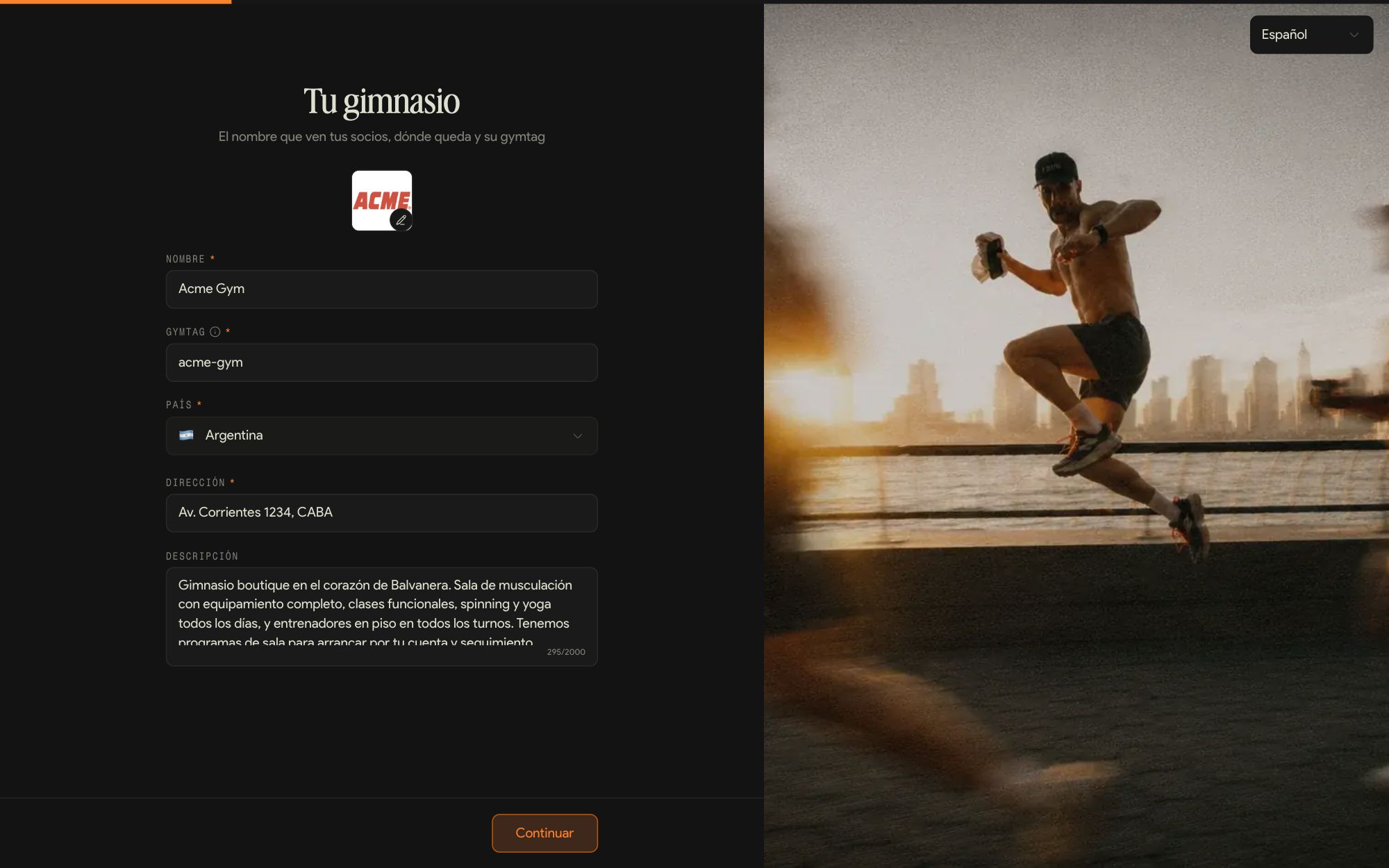
Your gym
Logo, name, gymtag, country, address and a description. This is the step where the gym is actually created: if you leave signup halfway, you pick up where you left off.
Personal profile
Your name and your photo. It is the profile your team sees, not the gym's.
Three questions
How many active members you have, how many locations and what you use to run the gym today. They help fit Kaizer to the way you operate.
Start for free
The last step charges nothing: you go in with a 14-day trial, no card and everything enabled. You choose the plan later, in Billing.
The gymtag is the gym's unique identifier and builds its address: gyms.kaizer.app/g/your-gymtag. Choose it carefully, because it can't be changed later: the sign-up link and any QR codes you print depend on it. The name, the logo and the address can be edited whenever you want.
02The dashboard at a glance
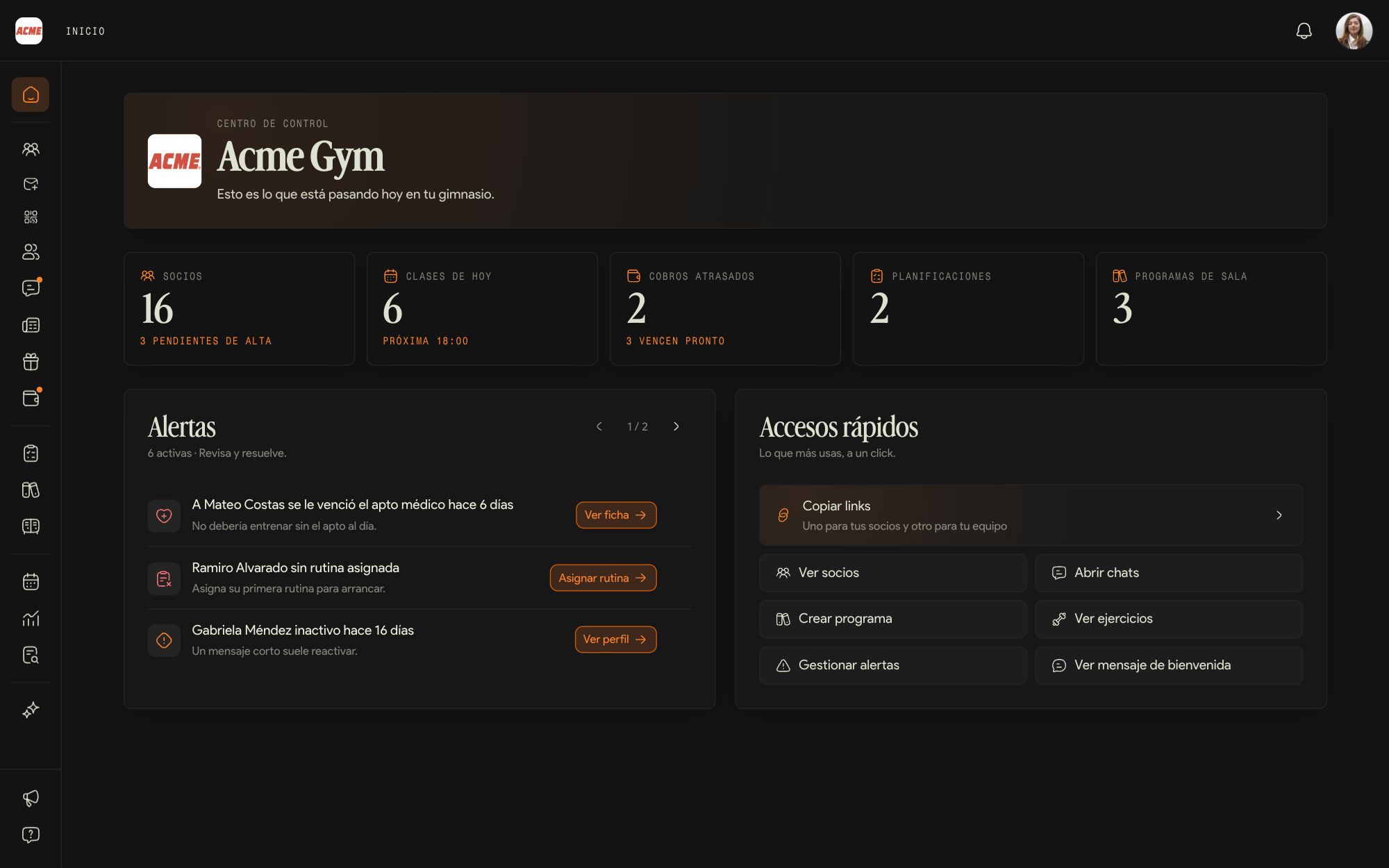
Home is the control center: how the gym is doing today and what needs your attention.
The numbers of the day
Members and pending sign-ups, today's classes with the next one coming up, late charges and the ones due soon, training plans and gym programs.
Alerts
The members who need an action: expired medical clearance, no routine, days without training. Each alert has its own button. Manage alerts chooses which ones fire and how far in advance.
Shortcuts
Copy links, View members, Open chats, Create program, Browse exercises, Manage alerts and View welcome message.
The menu
On top of what a coach sees, you have Invitations, Staff, Exclusive benefits, Payments, Analytics and Reports. If you turn on QR check-in, Check-ins shows up too.
03The gym's identity and features
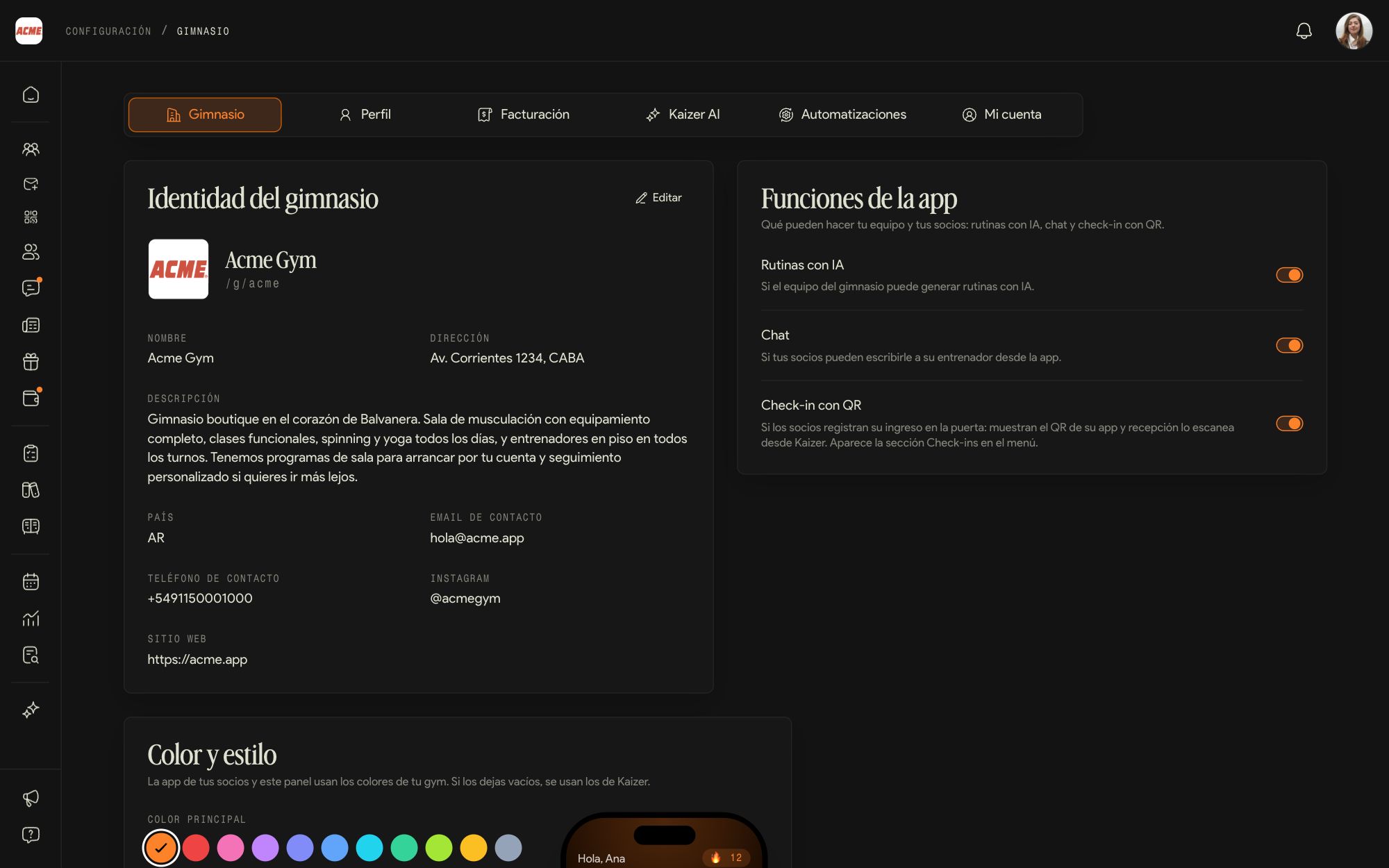
In Settings, Gym tab, you define how the gym looks and which features your members' app has.
Gym identity
Name, logo, address, description, country and contact details: email, phone, Instagram and website. The name and the logo show up in the dashboard, on the sign-in screen and in your members' app.
App features
AI routines, whether the team can generate routines with AI; Chat, whether members can write from the app; and Check-in with QR, check-in with the app's code, which adds Check-ins to the menu.
Color and style
The main color and the background used by your members' app and the dashboard. If you leave them empty, Kaizer's are used.
Your personal details go separately, in the Profile tab: it is what a member sees when they chat with you.
04Add your team
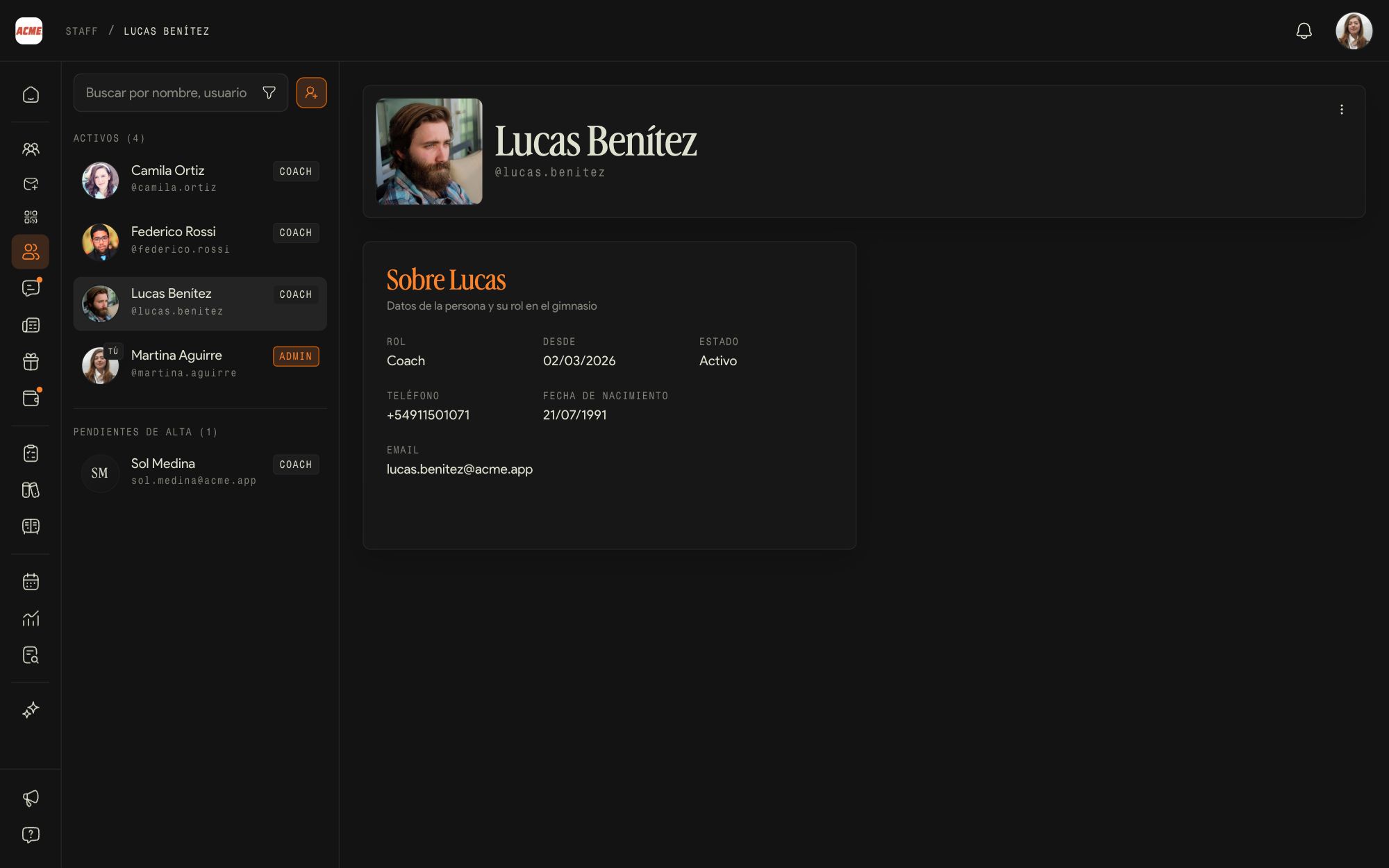
Staff is the list of coaches and admins. The team is added by hand: the sign-up link is for members only.
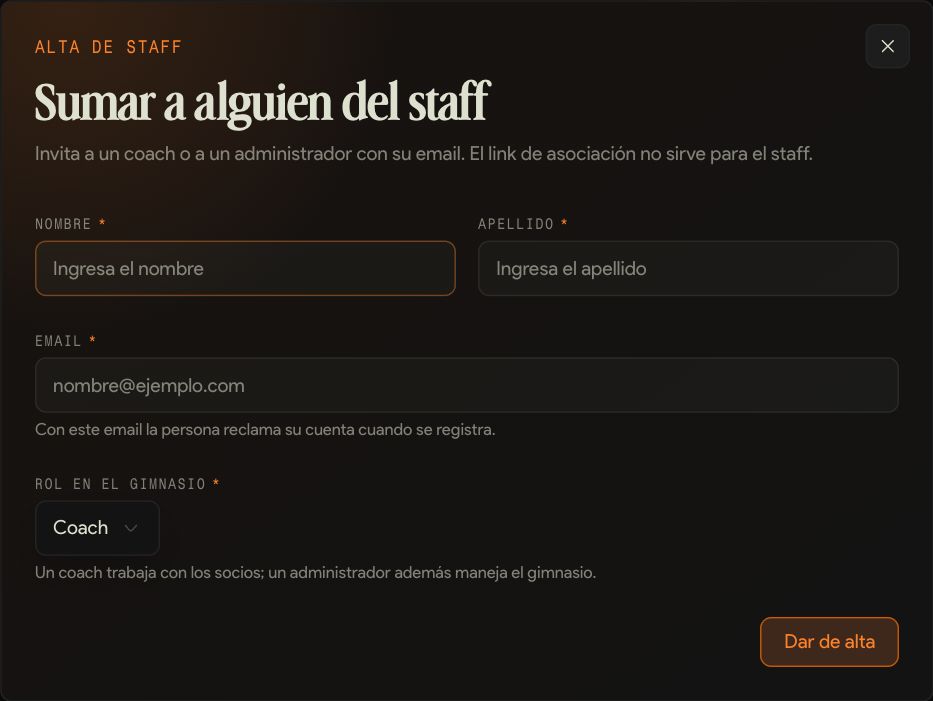
Add staff
First name, last name, email and Role in the gym: Coach or Admin. The email has to be the same one the person will sign up with.
What they receive
An email from Kaizer with your gym's link. If they don't have an account, they create it with that email; the first time they complete their profile and go in. It is a good moment to send them the Coach guide.
Pending sign-ups
Until they sign in, they appear under Pending. If you got the email wrong, withdraw the invitation from their profile.
Change the role or remove someone
From each person's profile. A role change is immediate and changes what they see. If someone leaves, what they created stays: their routines remain assigned and the members they worked with stay in the gym.
It is worth always having more than one admin: if there is only one and you downgrade their role, nobody can manage payments, the plan or the staff.
05Add your members
There are two ways: the sign-up link, so each member joins on their own, and manual registration, so you add them yourself.
The sign-up link
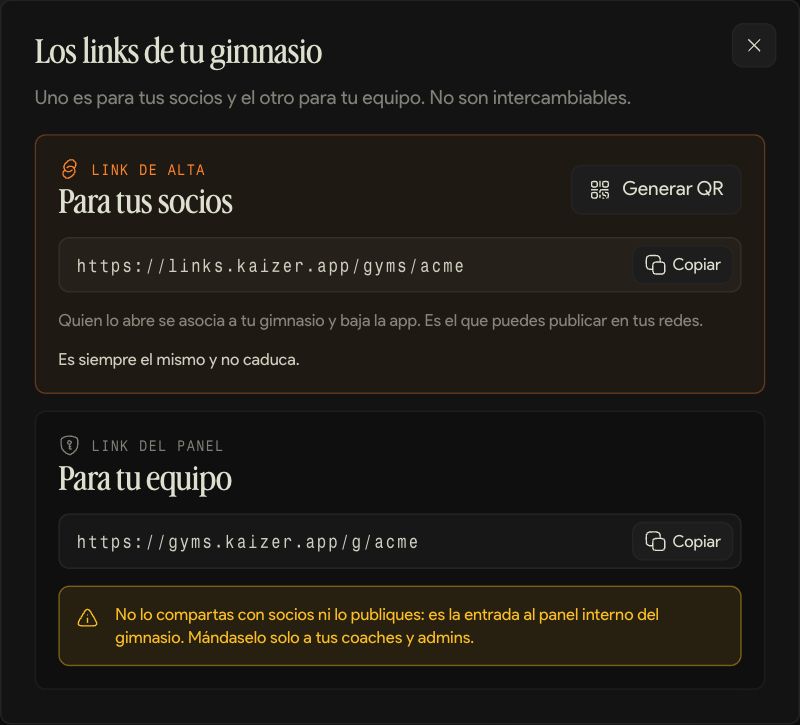
Copy links, on Home, has the sign-up link and its QR code. Whoever opens it joins the gym and downloads the app. It is always the same and never expires: you can post it on social media or print it at the front desk.
The dashboard link
The same dialog has the dashboard link, for your team. Don't share it with members: it is the way into the internal dashboard.
Manual registration
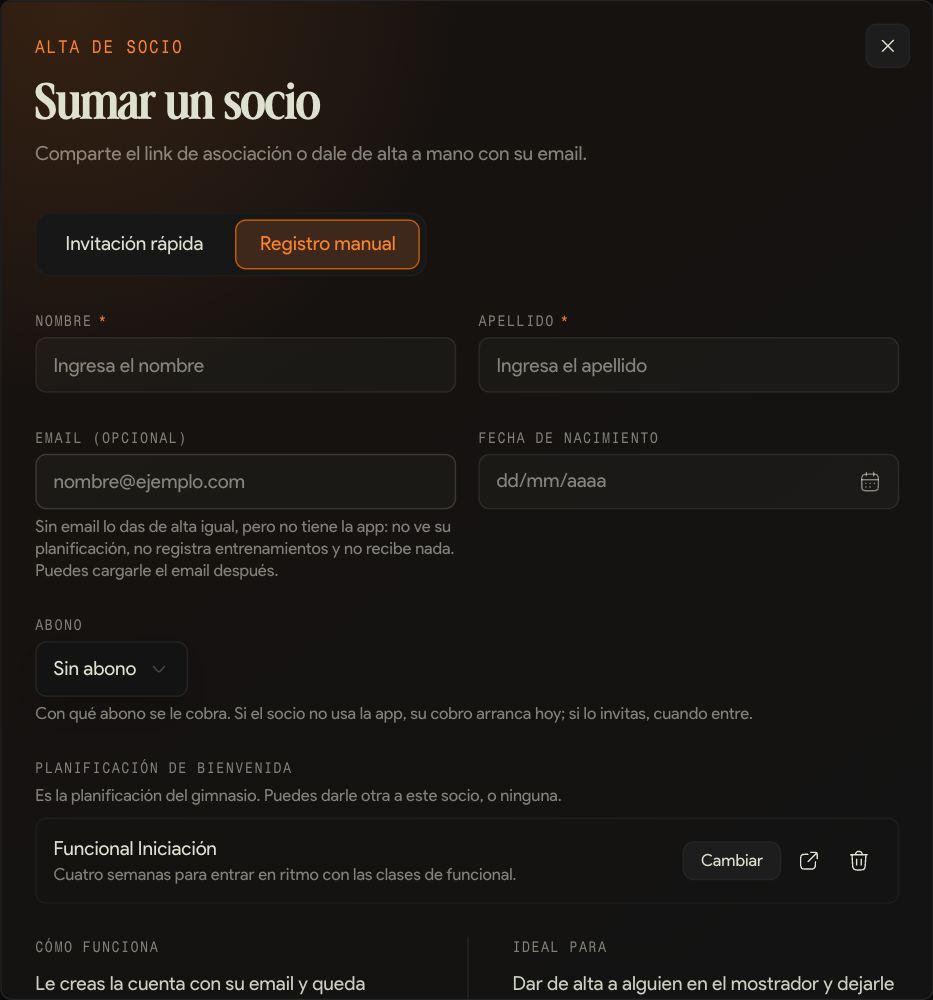
In Members, Add member and then Manual registration: first name, last name, email, date of birth, the membership they are charged and the welcome training plan.
Without an email
You can add someone without an email: they stay on the member list, but without the app, so they don't see their training plan or log workouts. The email can be added later and they keep everything they had.
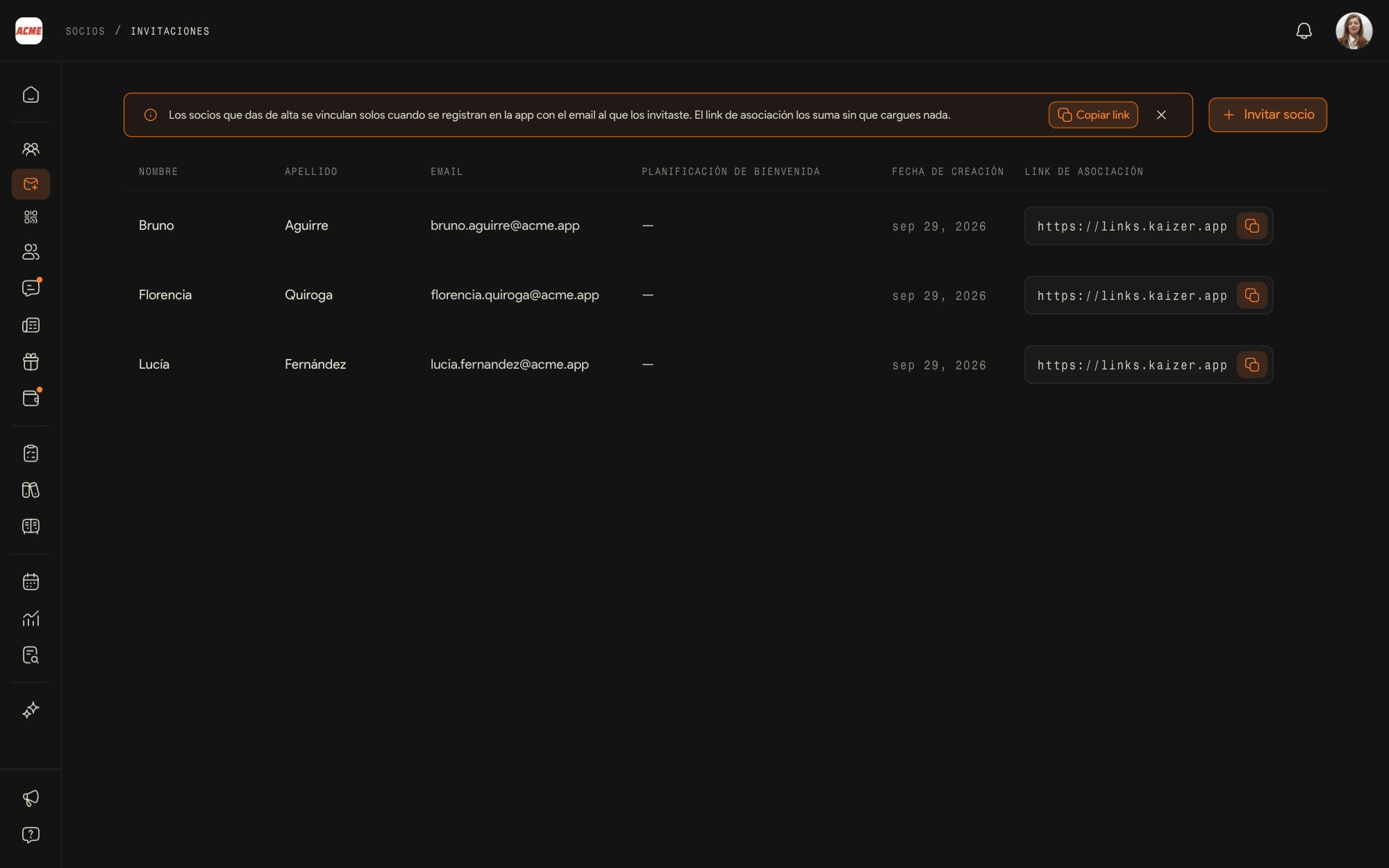
Invitations
The list of people you added who haven't signed up yet, with their join link. Invite member adds another one, and withdrawing an invitation frees up the spot.
The member is linked when they sign up in the app with the same email you added them with. If they use another one, they end up with a separate account and don't show up on your member list.
Programming
What the gym offers for training and what the team builds it with.
06Gym programs and training plans
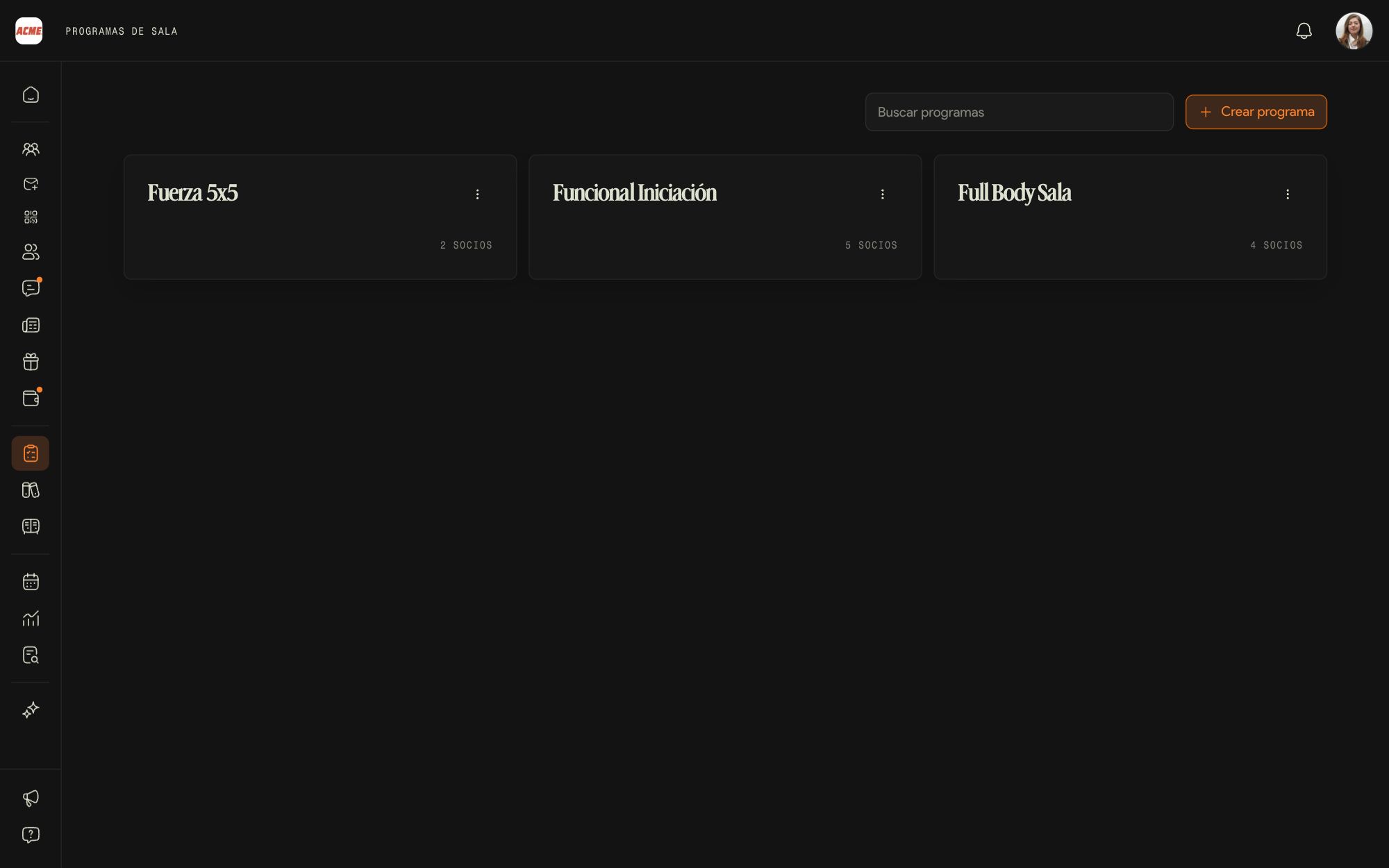
A training plan is visible only to the staff. A gym program is a published training plan: your members see it in the app and can start it on their own.
Create a program
Create program publishes it as soon as you create it, and then you build the sessions in the editor. If you don't want it to show half-finished, build it as a training plan in Templates and convert it when it is ready.
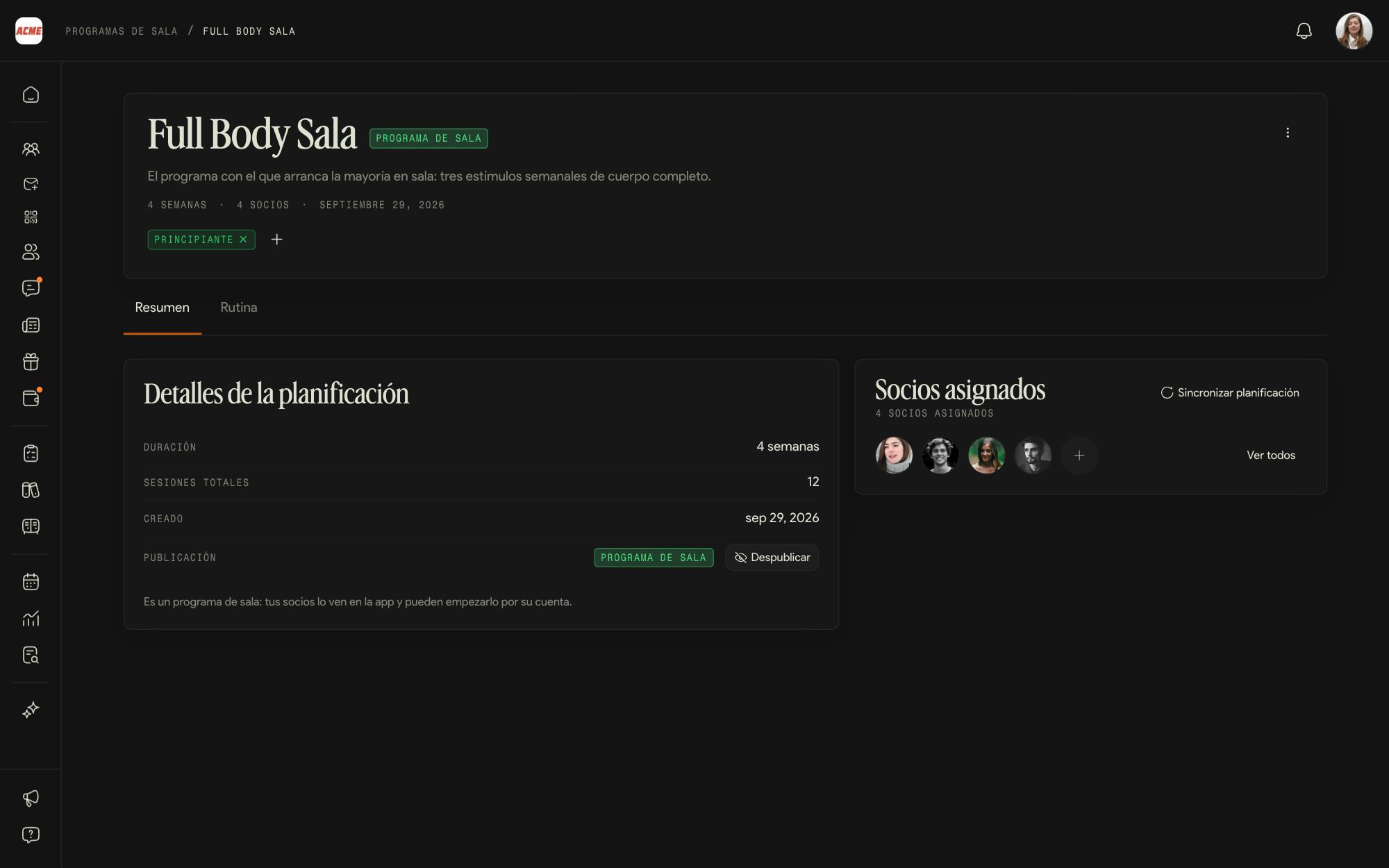
Publish and unpublish
Turn into gym program publishes it. Unpublish removes it from the app and sends it back to Templates; members who already started it keep their routine.
Assign and sync
In Assigned members, the + assigns the program to a member. Sync plan carries the program's changes over to the routines of everyone who already has it.
More actions
The three dots in the header edit, duplicate, export as PDF or delete the program.
A program designed for beginners gives every new member something to train from day one. Choose it as the welcome training plan in Automations.
07Templates and training plans
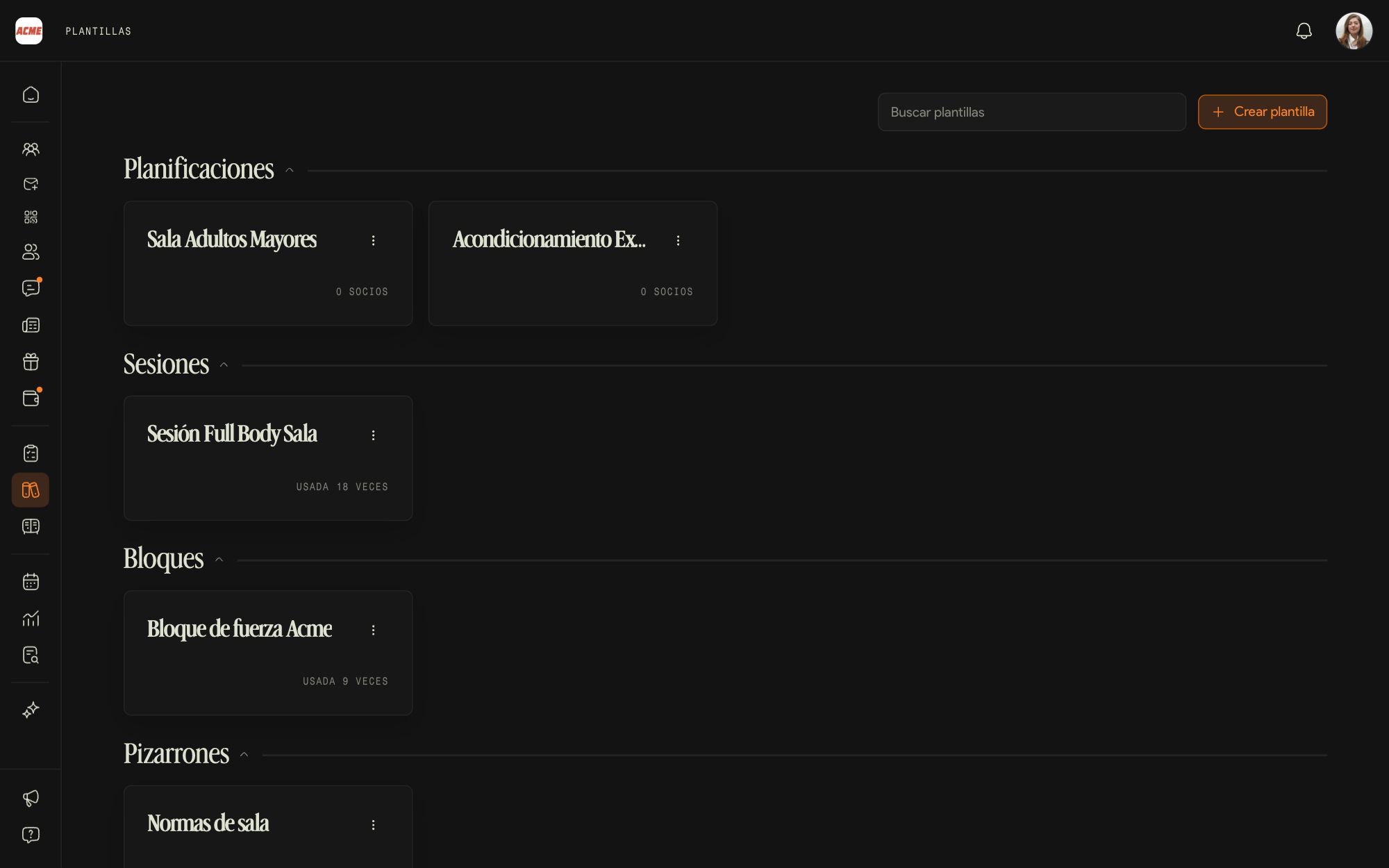
Templates is each staff member's library. As an admin you also see Training plans: the gym's plans that haven't been published yet.
Training plans
Complete training plans, with their weeks and sessions, that only the staff sees until you turn them into a gym program.
Sessions, blocks, circuits and whiteboards
What you save to reuse in any routine. Create template opens the New template steps.
If a coach leaves the gym, their templates are no longer at hand. The ones the gym uses often are worth turning into gym programs before you remove that coach.
08The exercise catalog
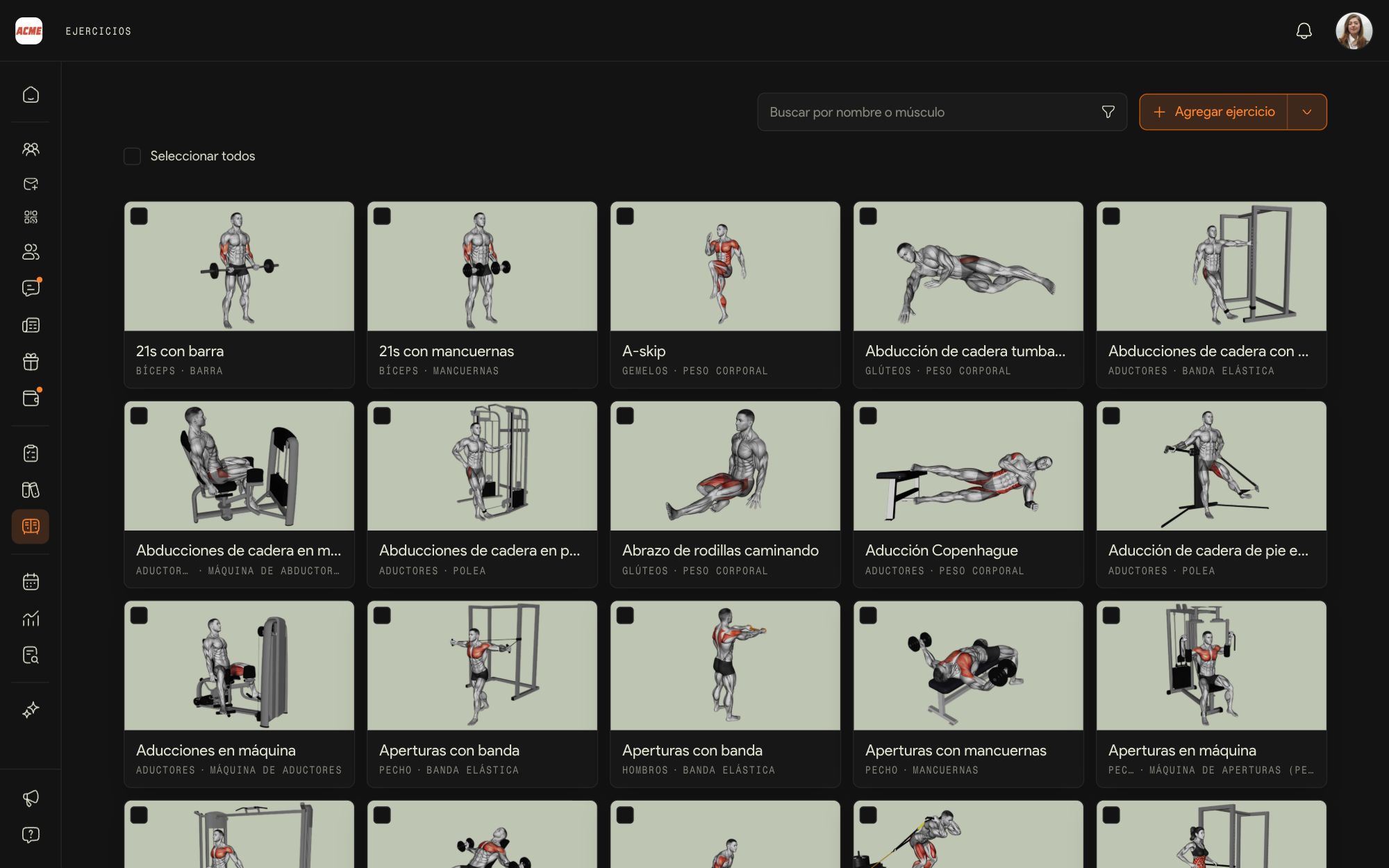
The catalog belongs to the gym and the admin curates it: the whole staff builds routines with the same exercises.
Add Exercise
Name, muscle group, equipment and, if you want, a video: it is what members see in the app when they don't know how to do the movement.
Import exercises
The arrow next to Add Exercise imports several at once.
Actions on several exercises
By ticking the boxes, or with Select all: Add tags, Change videos, Edit names or Delete exercises.
Tags
The gym's own tags, such as Main or Accessory, which the team uses to filter the catalog when building routines.
Daily operations
Members, agenda, check-ins, payments and chat.
09Managing a member
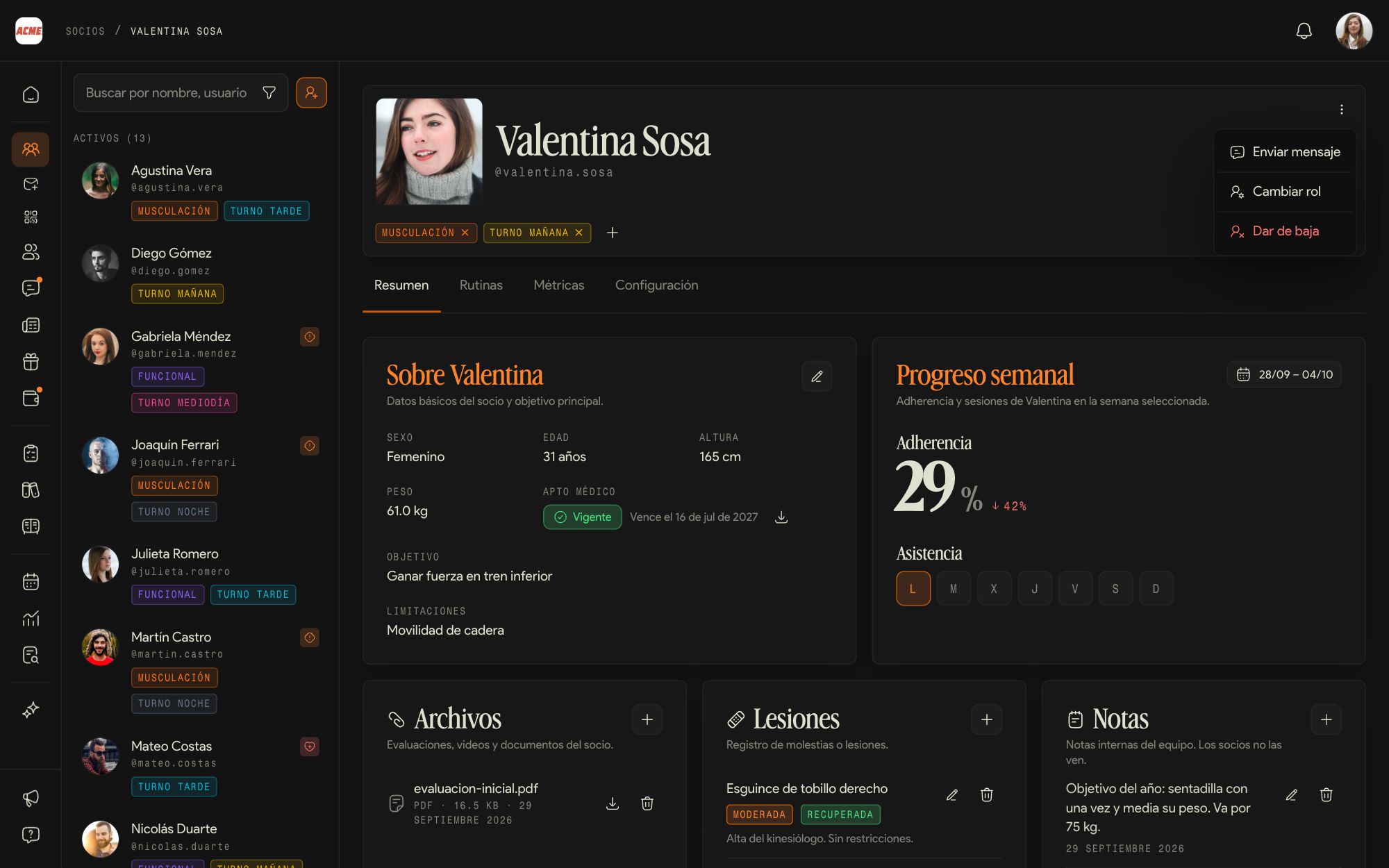
The member profile is the same one a coach sees, with the actions only the admin has.
Tags
With the cross and the + under the name you add or remove tags (shift, activity), which you can then use to filter the member list.
Change role
Turns a member into a coach or an admin, or the other way around. The change is immediate and changes their access; what they created stays where it was.
Remove from gym
They lose access to the gym, but their history and their payments are kept. If they come back, you add them with the same email and they get their place back.
Settings
In their Settings tab you adjust, for that member only, how routines are delivered and updated, separately from what applies to the whole gym.
10Build the agenda
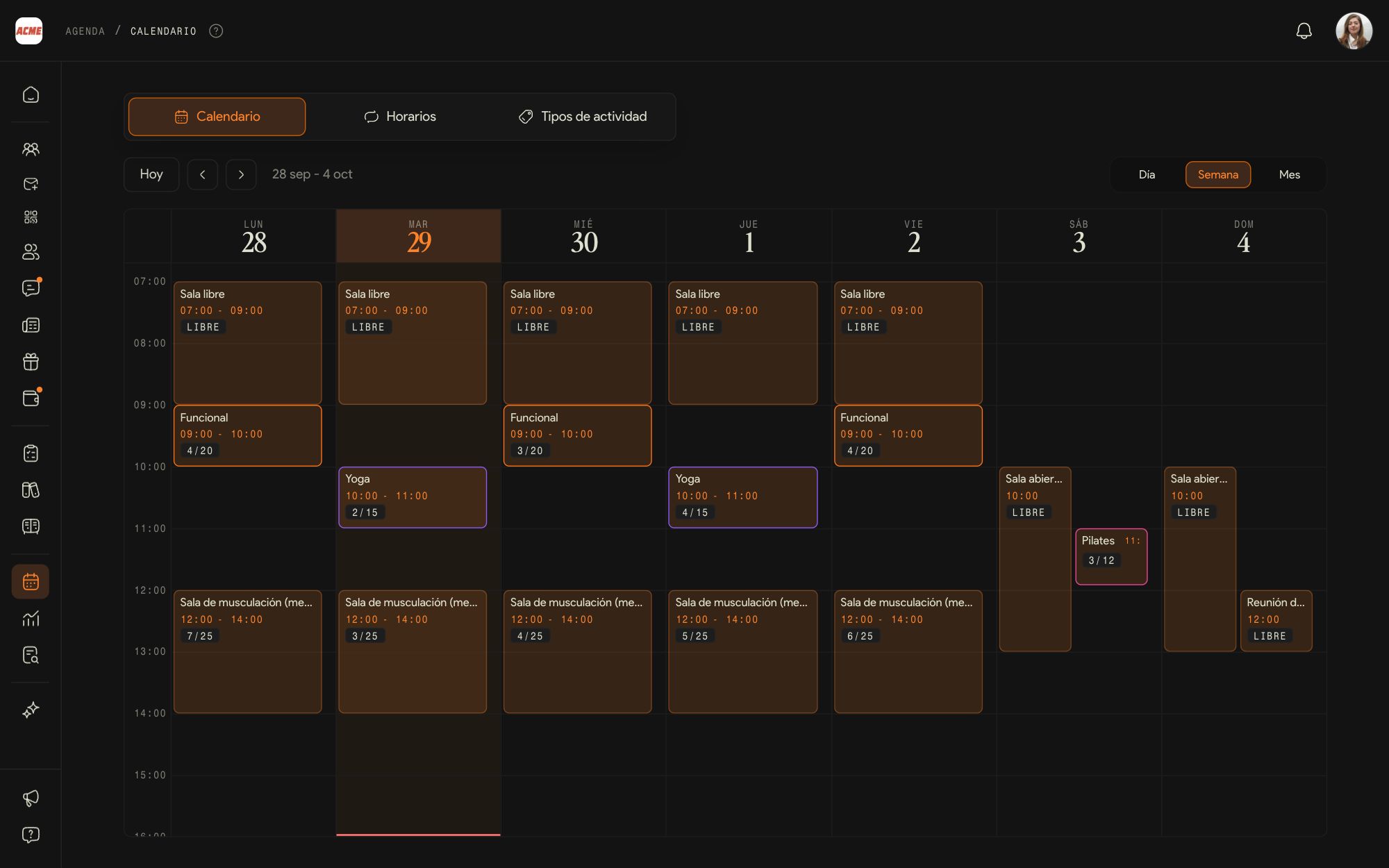
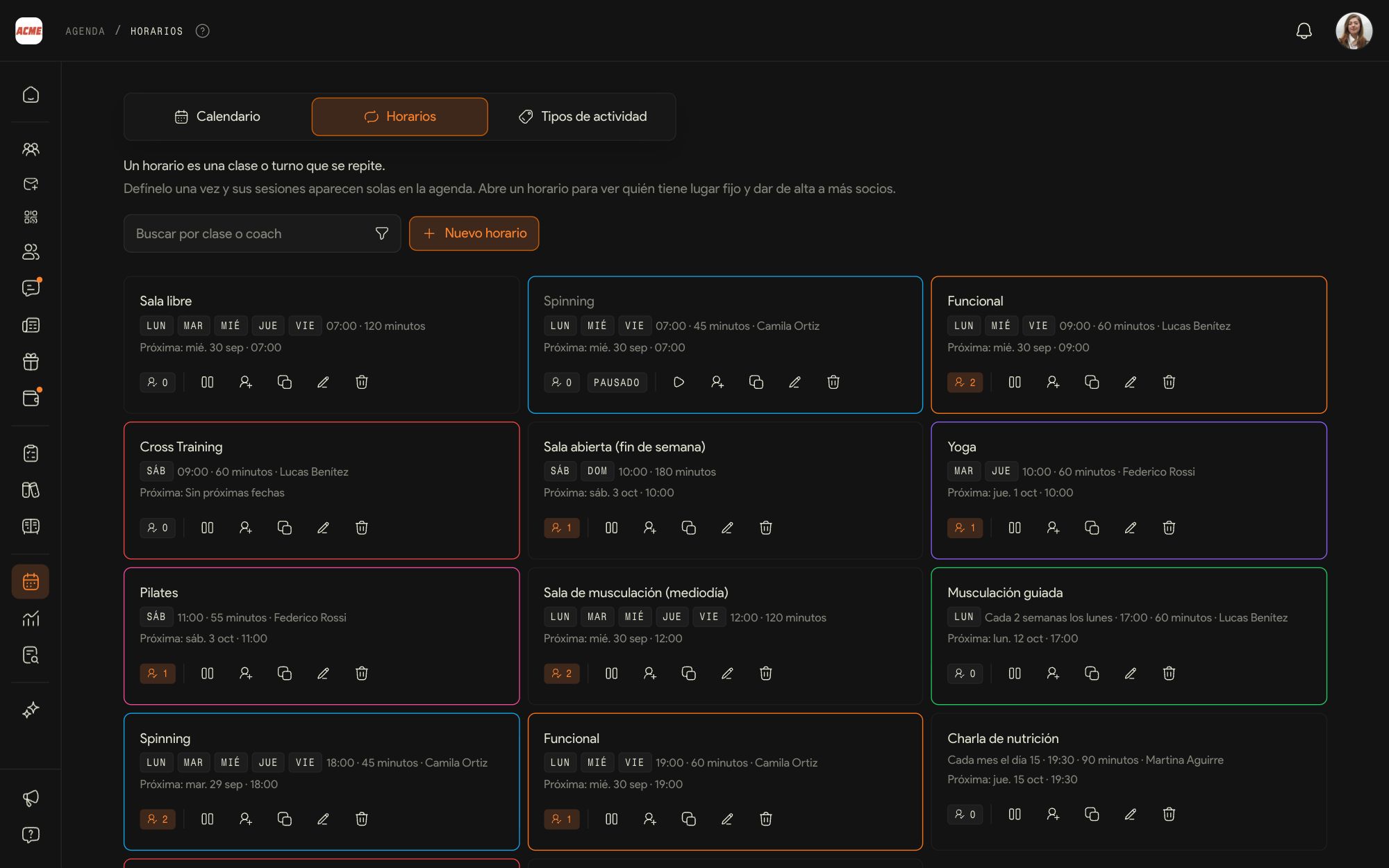
The agenda is built in three layers: activity types, schedules and sessions. The whole staff sees the calendar; Schedules and Activity types are yours alone.
The calendar
Every session of the week, the day or the month, with booked spots over capacity. From an empty slot you create a one-off activity with New activity, and you move a session by dragging it.
Activity types
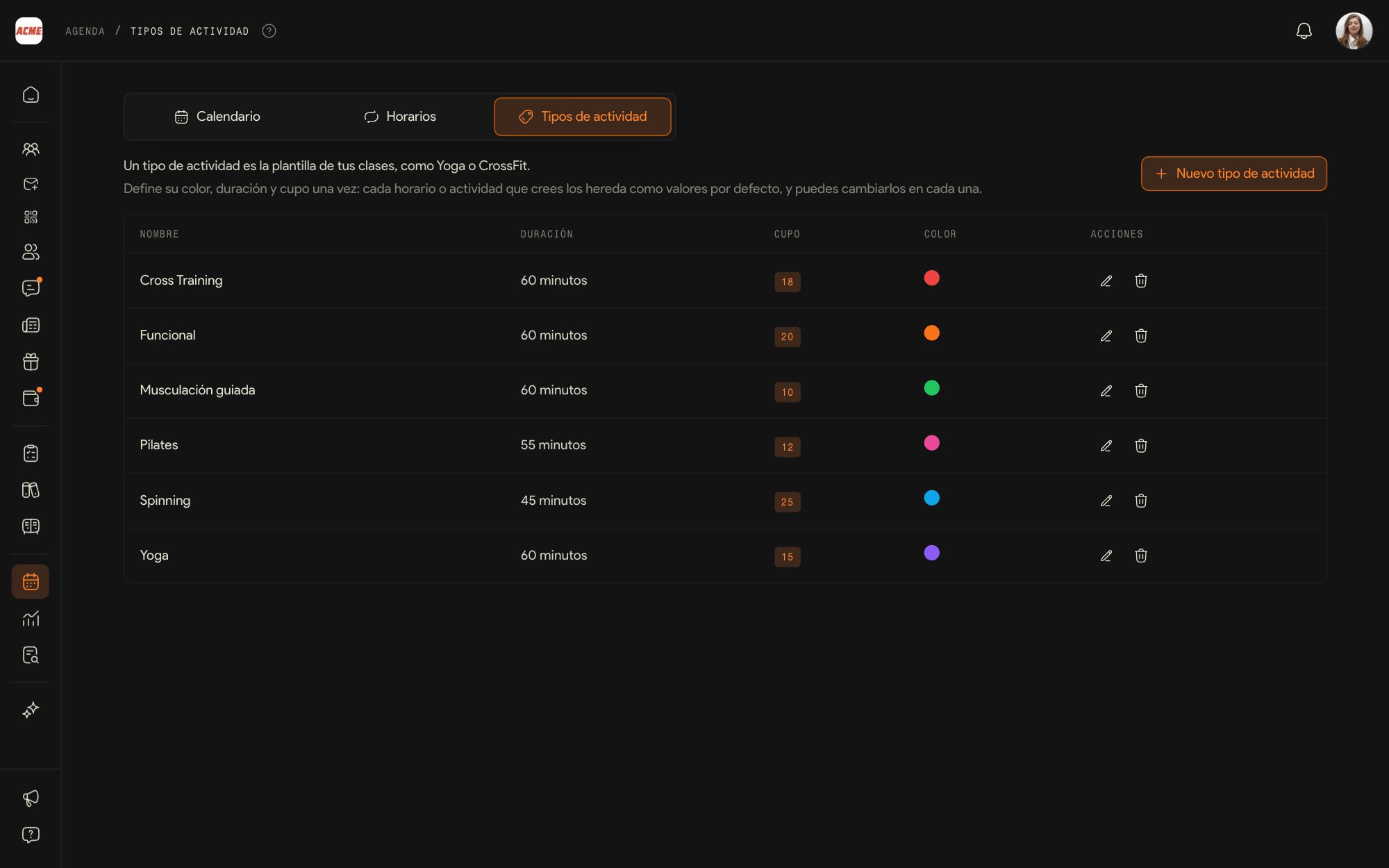
The template for each class: name, color, length and default capacity. New activity type creates one.
Schedules
New schedule defines a recurring class (days, time, coach, type and capacity) and the agenda generates the sessions for the coming weeks on its own. Room slot is the open floor, with no class or coach, and Split into slots divides it into blocks with their own capacity.
Members with a fixed spot
From each schedule you sign up the members who always come: they are booked into every session, without signing up each time.
Pause, duplicate and edit
Pause turns the schedule off without losing its settings or its fixed members, and resuming it books them again. Duplicate schedule creates a similar one.
Who books
With Members can book on, members sign up on their own from the app; with it off, only the gym books them from the dashboard.
For a public holiday, don't pause the schedule: delete just that session from the calendar, with Only this session.
11Check-ins
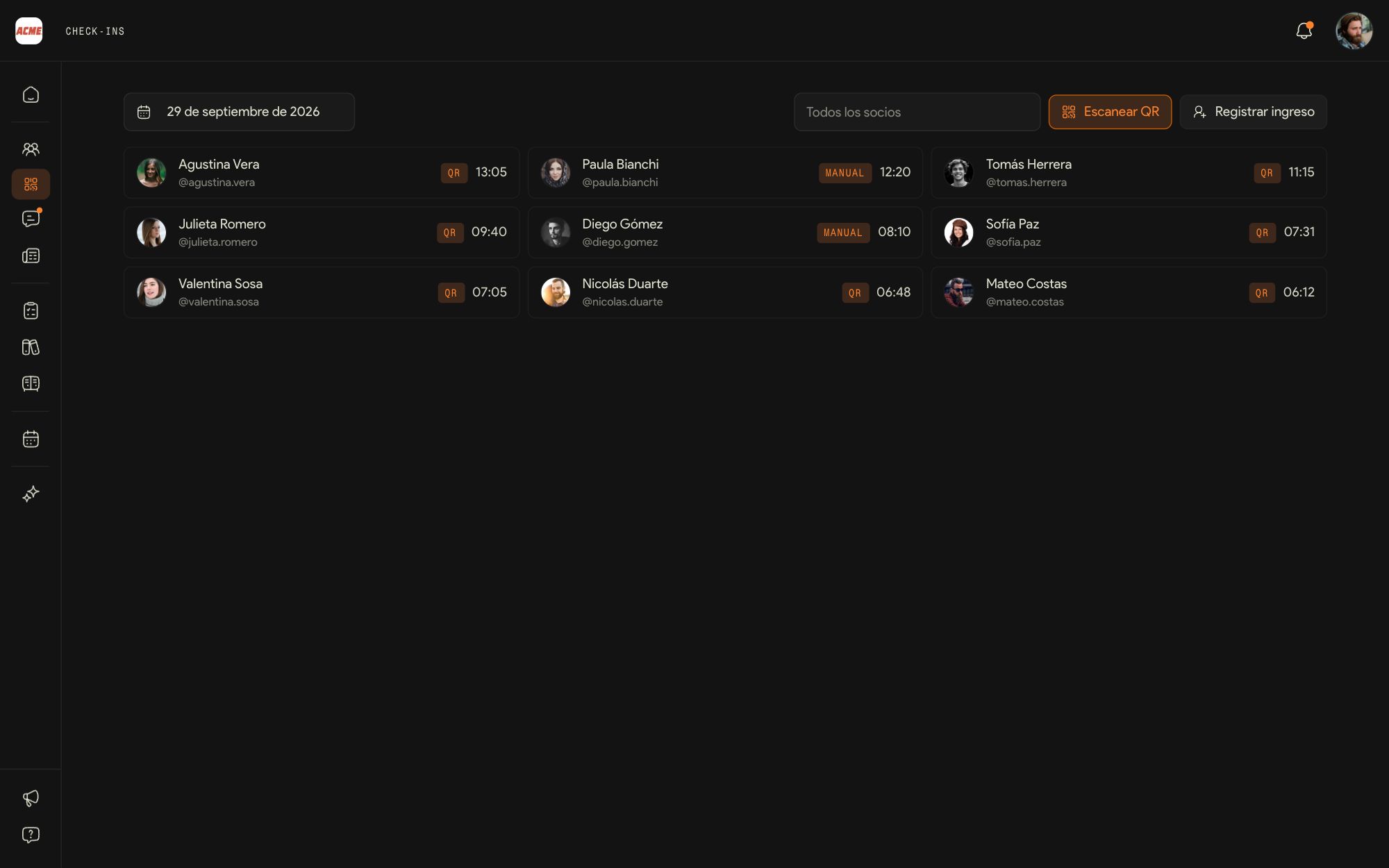
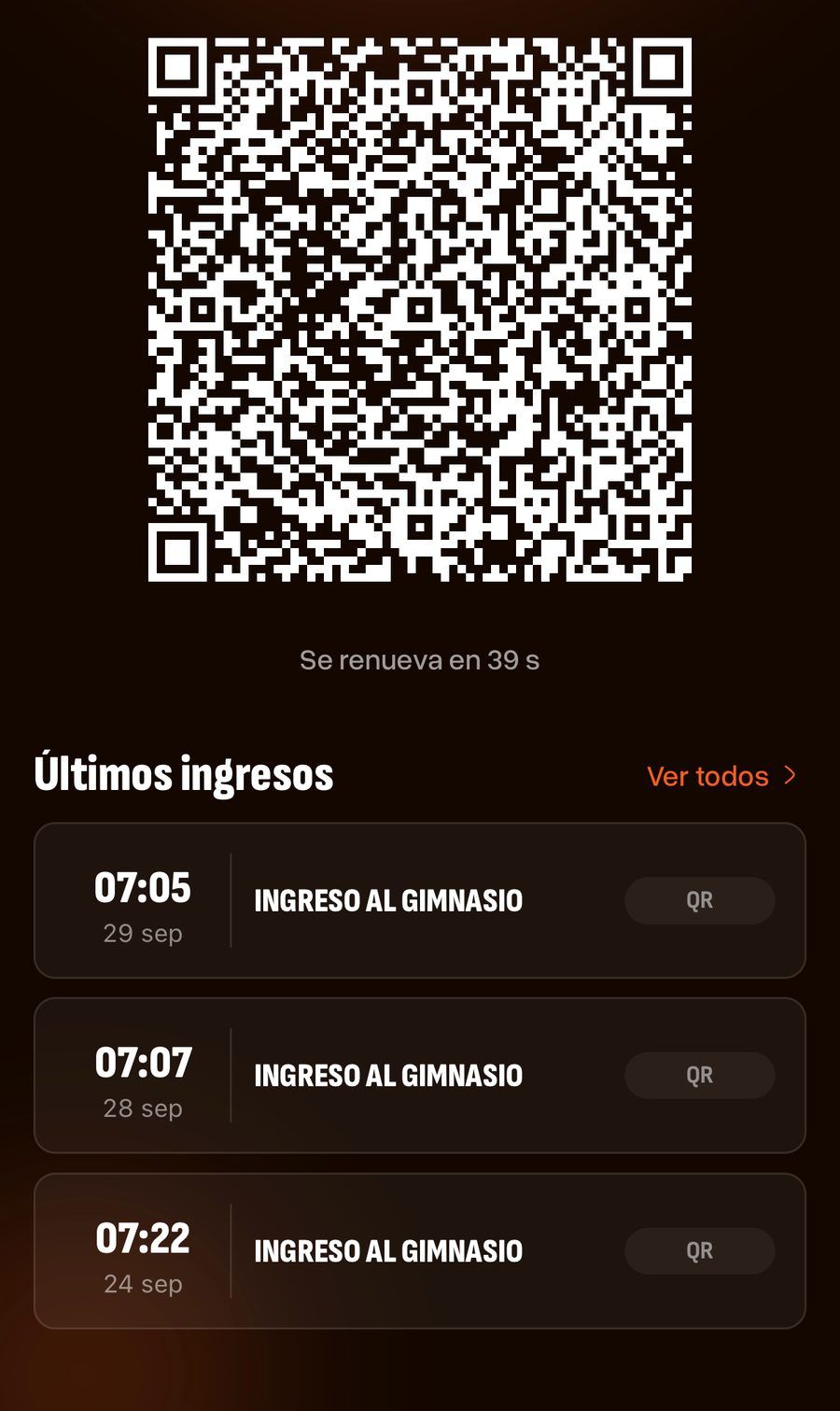
With Check-in with QR turned on, each member shows the code in their app at the front desk and their entry is recorded.
Turn it on
In Settings, Gym, App features, turn on Check-in with QR. From then on Check-ins shows up in the whole staff's menu.
Scan QR
From the front desk computer or tablet, Scan QR opens the camera to read the member's code. Once it is read, their classes for today appear so you can mark them present.
Register entry
For the member who didn't bring their phone: find them and enter them by hand.
Check-ins feed Analytics, Visits tab: how many people come and at what time.
12Payments
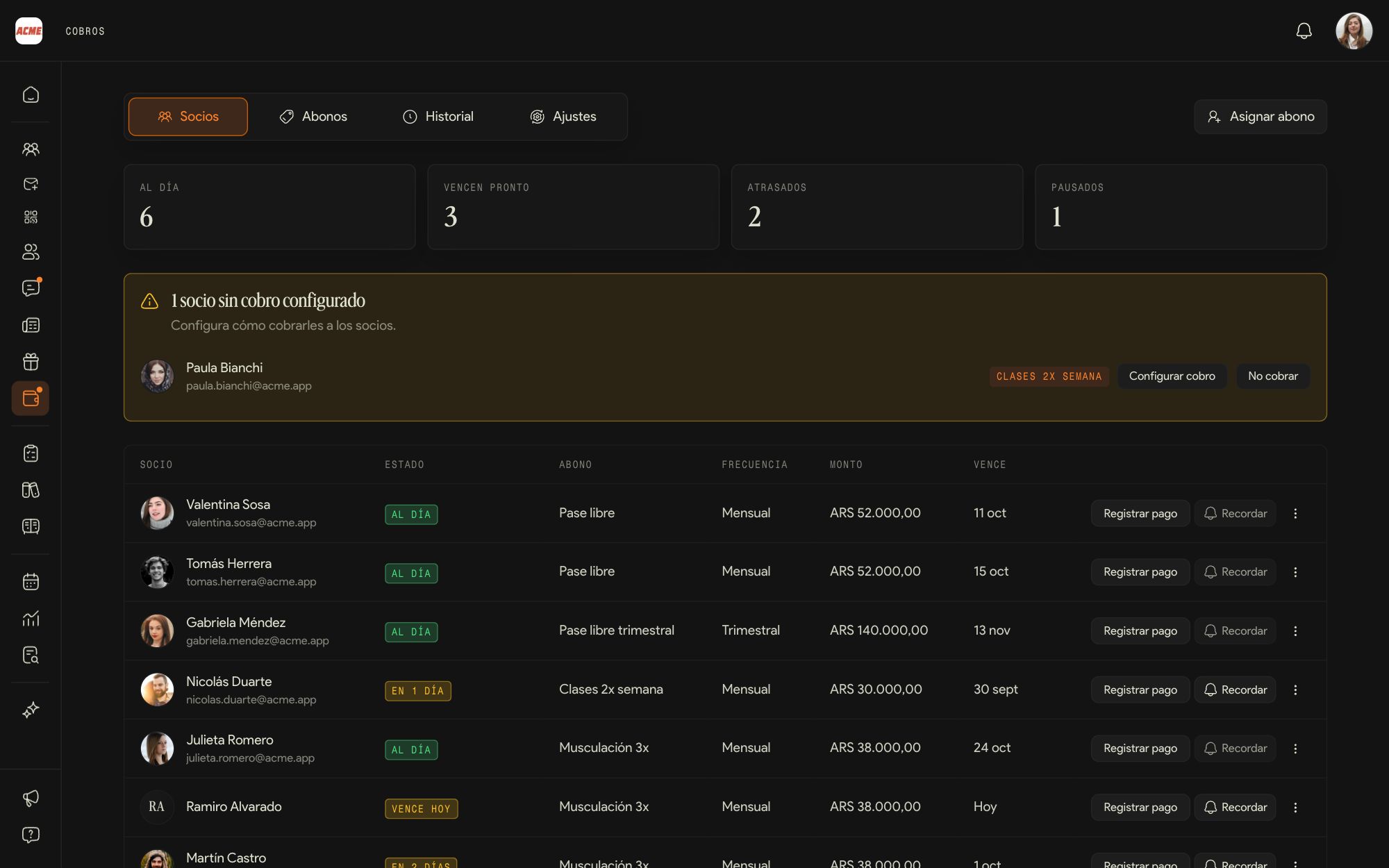
Payments keeps track of what each member pays. Kaizer doesn't move money: payment is still by bank transfer or in cash, and Kaizer records who paid and who owes, and reminds them.
Turn on payments
In the Settings tab of Payments you turn payments on and set the method, the mode and How they pay you: the text the member gets with every reminder.
Memberships
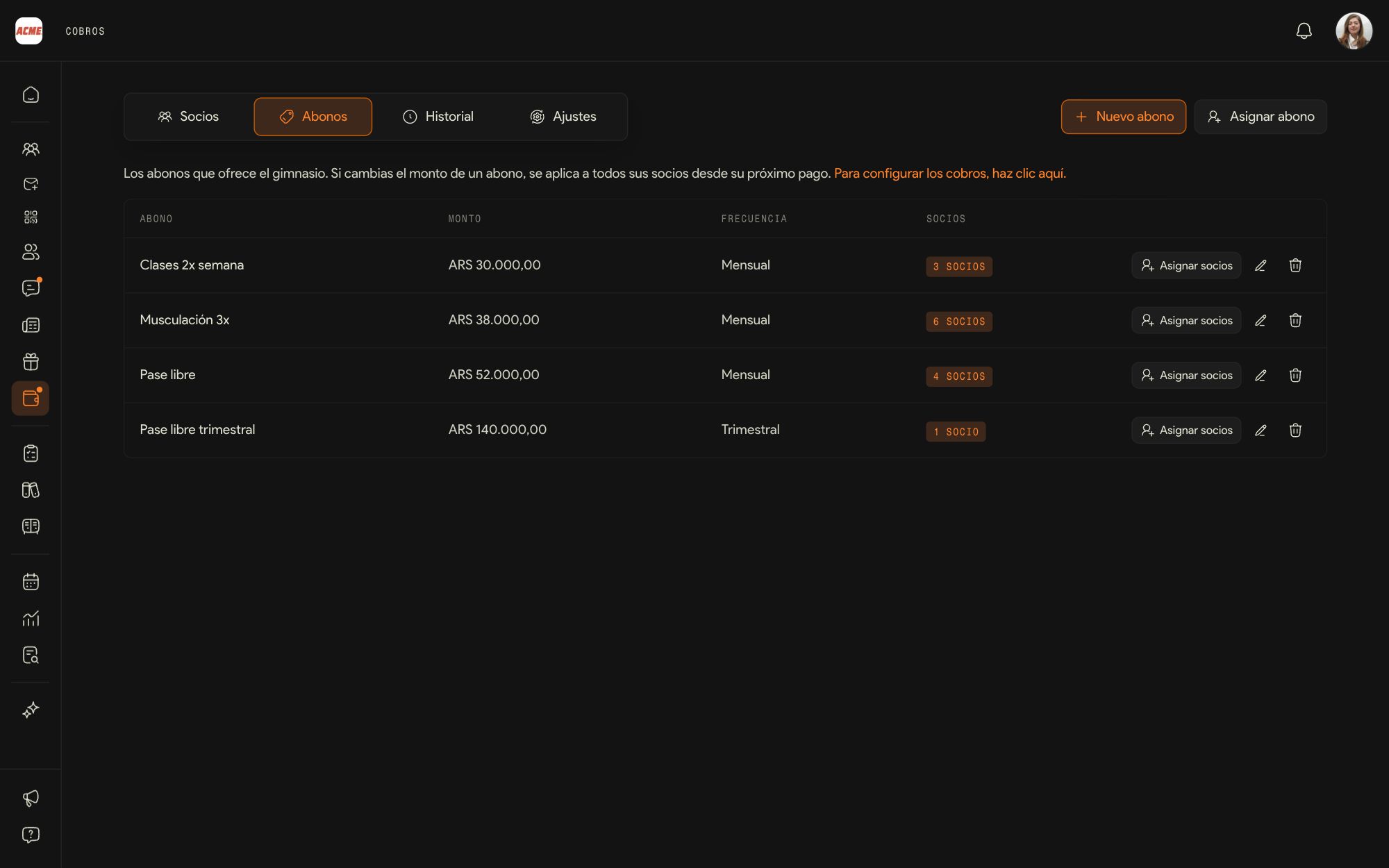
The gym's plans with their amount and frequency, such as Unlimited pass or Classes twice a week. New membership creates one and Assign members hands it out.
Members
One row per member with their status: up to date, due soon, late or paused. Record payment logs what they paid you; Remind sends them a message with what they owe and how to pay you.
No charge set up
Members without a membership show up at the top, so you can set up their charge or mark Don't charge.
A member's account
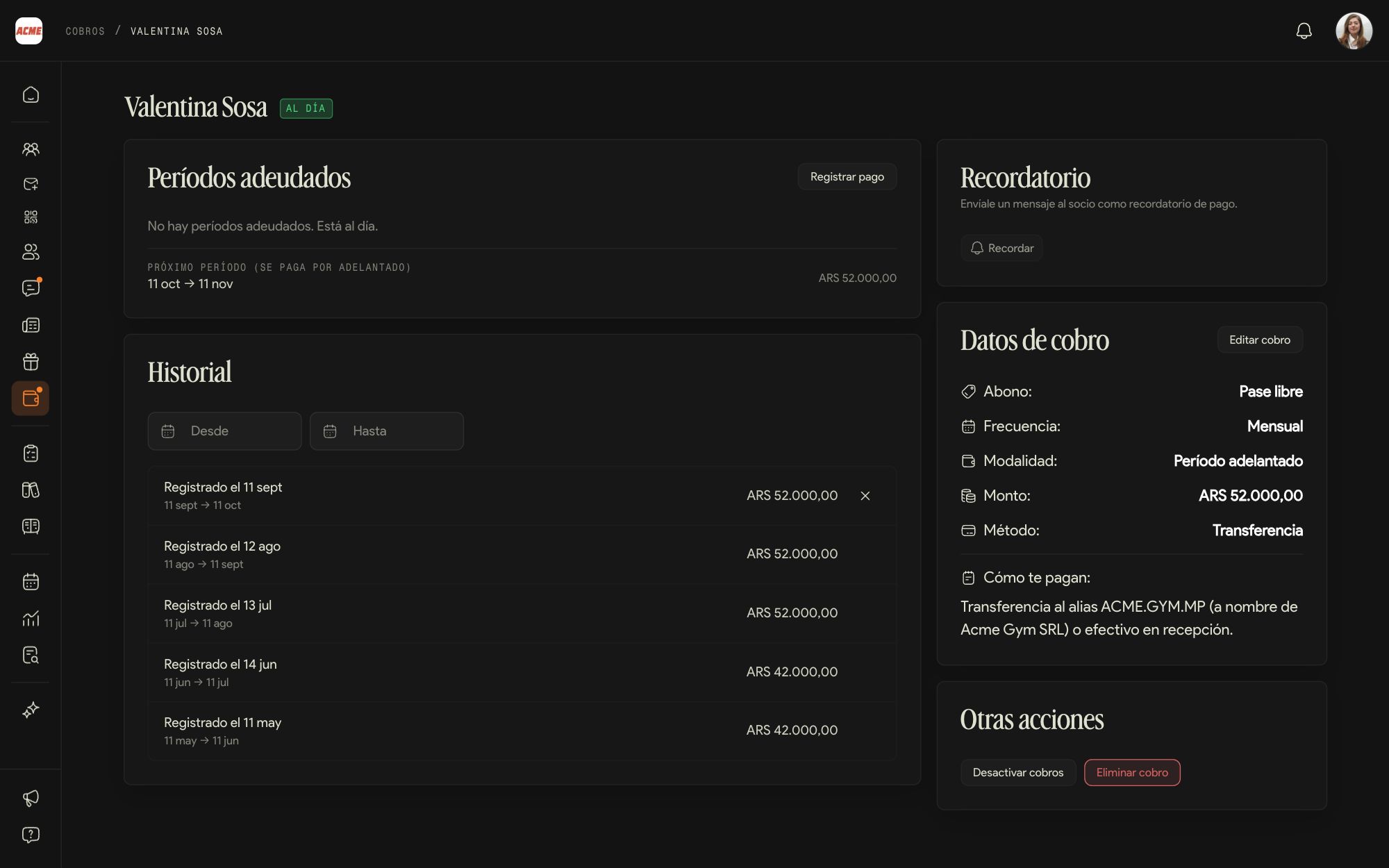
Tapping a member shows their periods owed, payment history, billing details and other actions, such as turning off their charges.
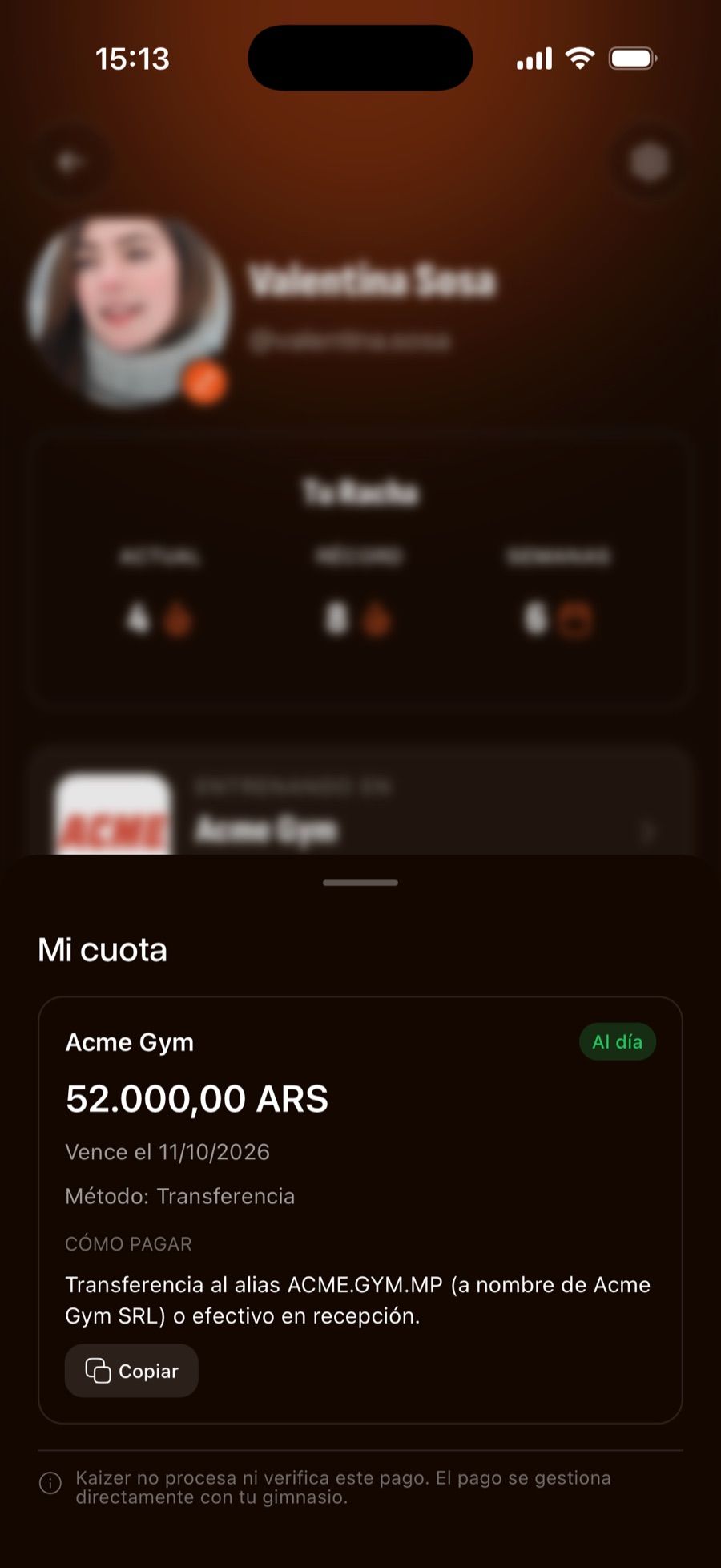
Pausing is for the member who goes on a trip: they stop accruing debt and receiving reminders. The member sees their fee in the app, under My membership fee.
13Chats and support
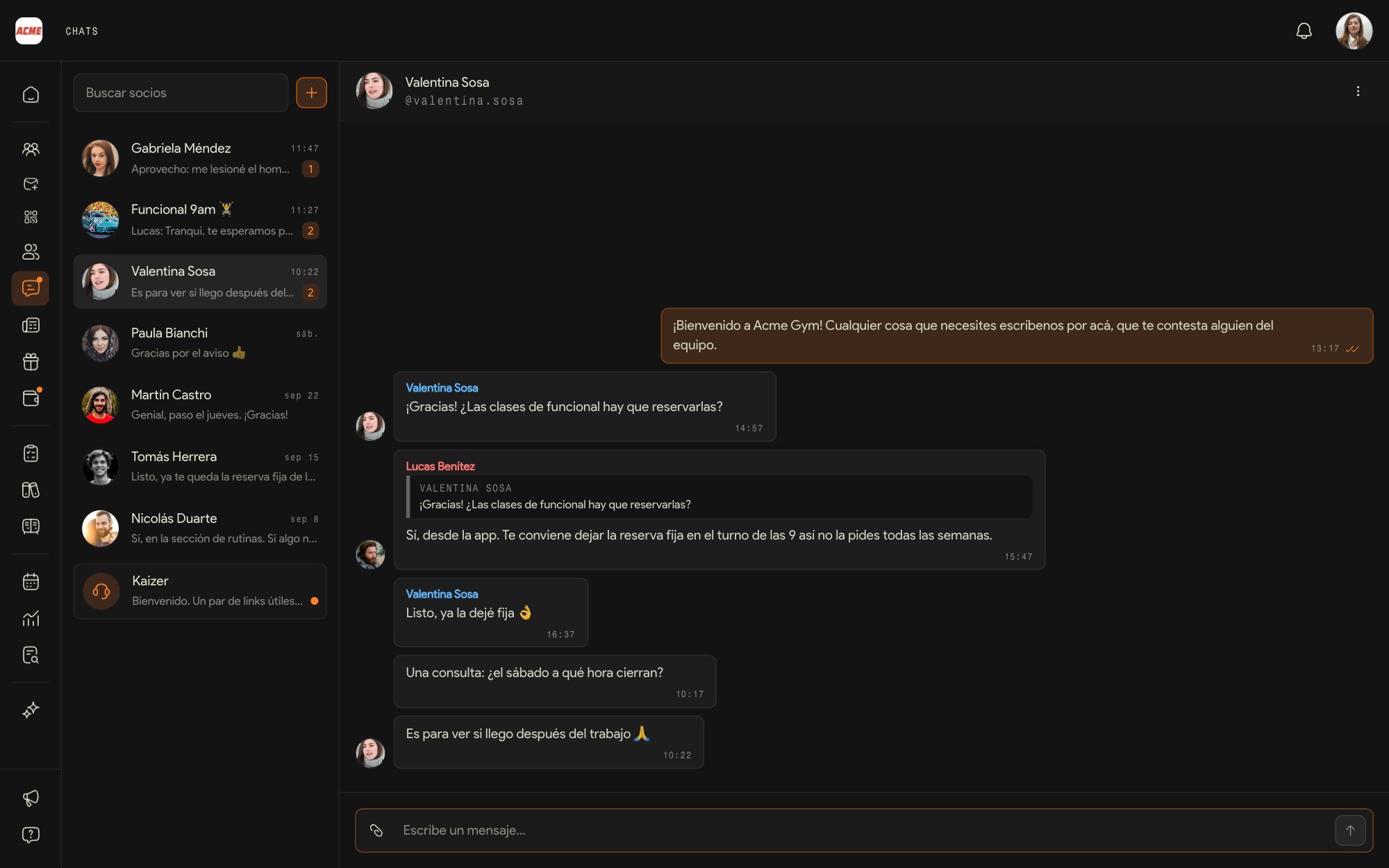
You see the same conversations as your team (one per member, shared by the whole staff), plus the support conversation with Kaizer.
Welcome message
The first thing a new member receives in the chat. You edit it in Automations, Welcome, with a preview of how the member sees it.
Kaizer support
The Kaizer conversation, at the end of the list, is the direct line to our team.
Turn off the chat
From App features. With the chat off, members can't write.
Communicating with your members
Announcements and benefits that reach them in the app.
14News
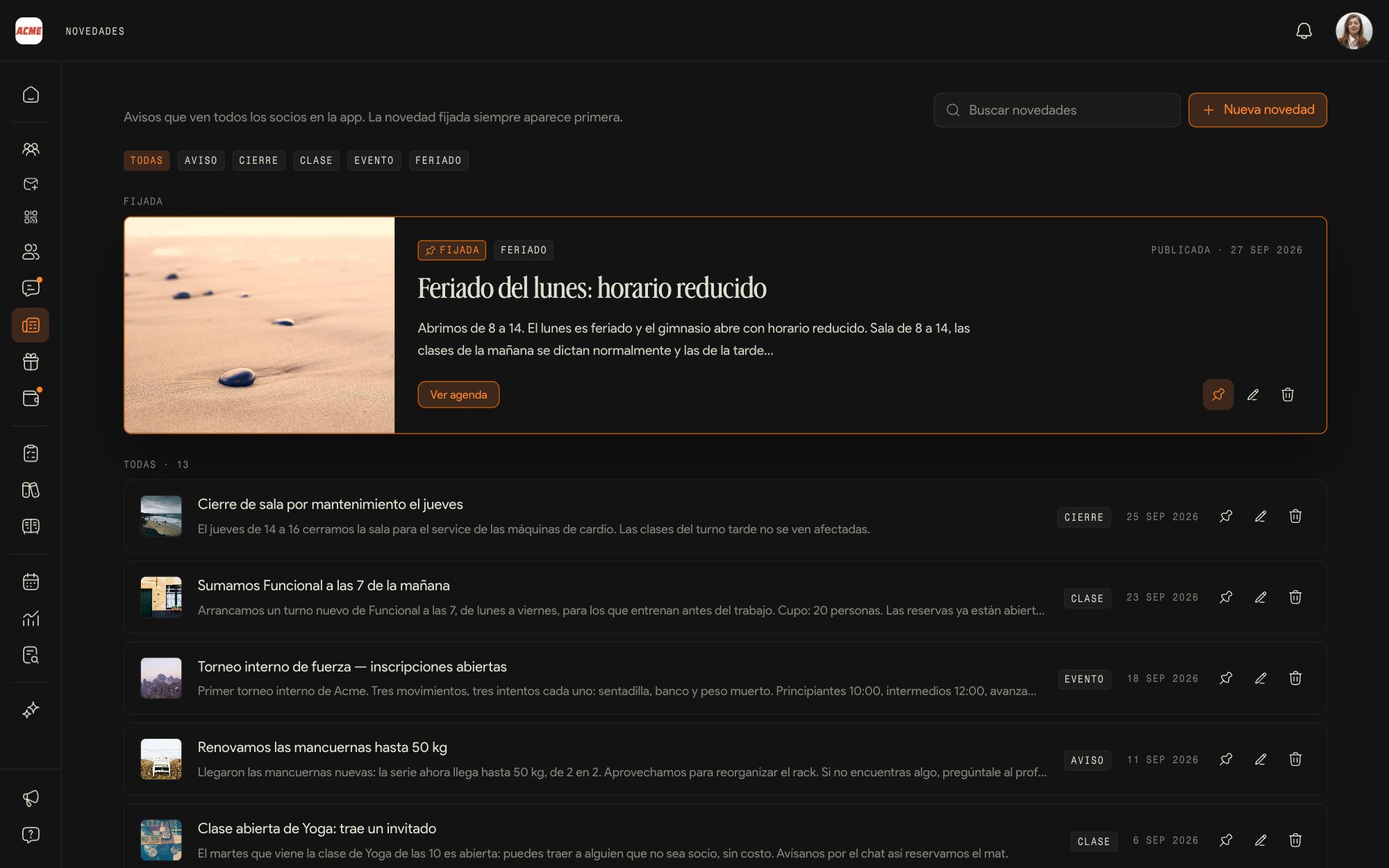
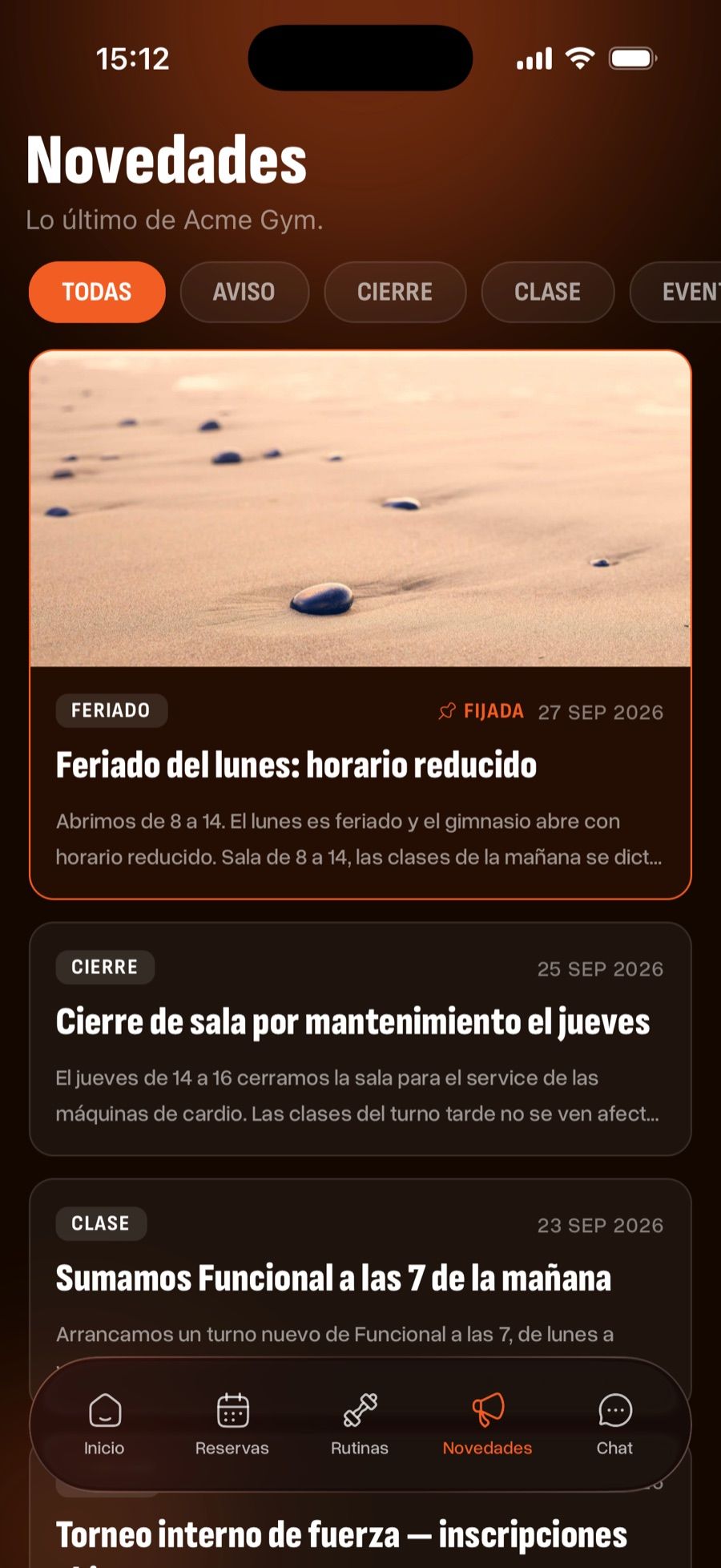
The gym's announcements for every member: schedule changes, new classes, events. They reach them in the app.
New post
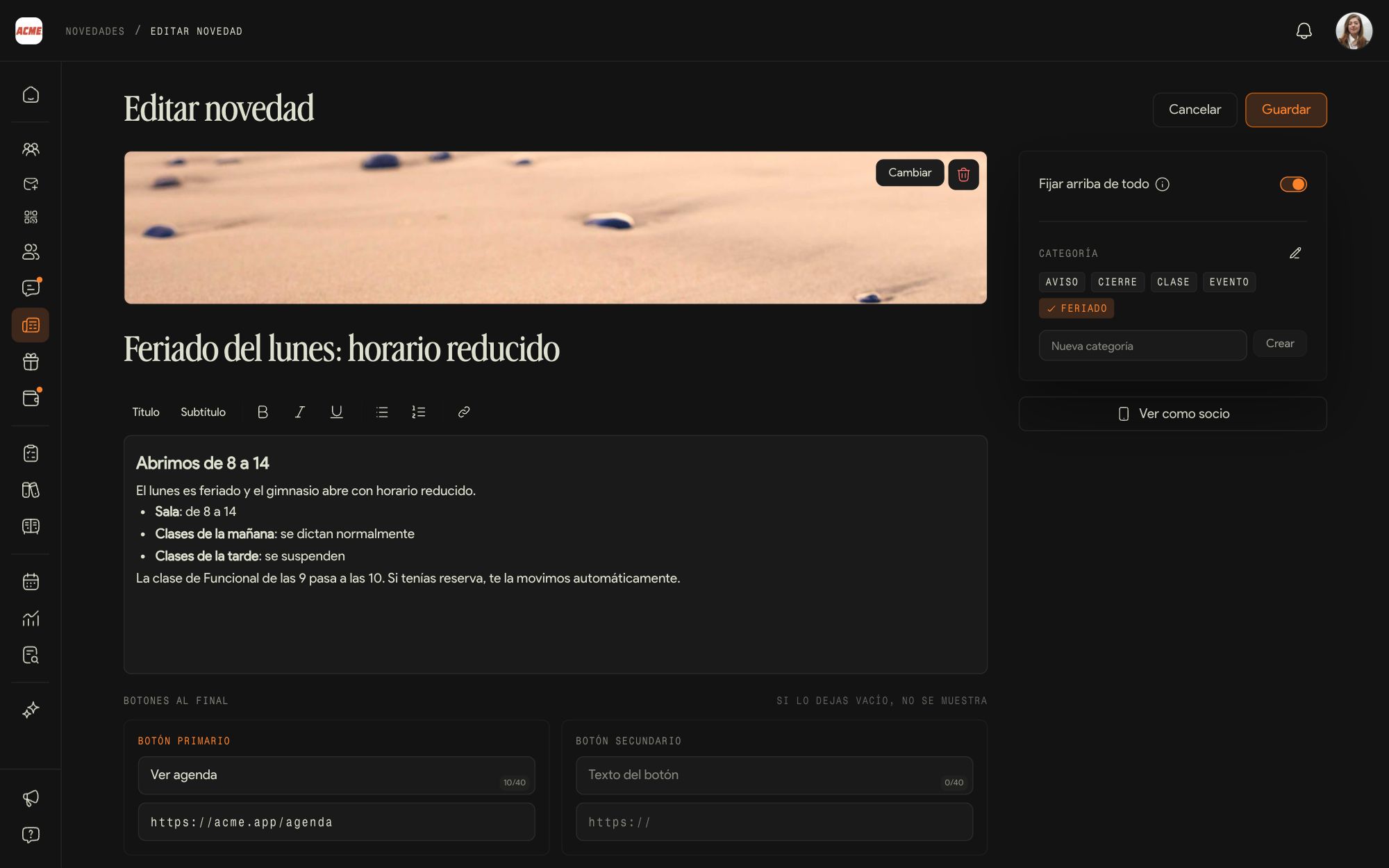
A cover, the title, formatted text (headings, bold, lists, links), a category and up to two buttons at the end, for example See agenda.
Pin to the top
The pinned post shows first in the dashboard and in the app.
Categories
You create and edit the categories (for example Notice, Class or Event) from the editor, and members use them to filter.
View as member
Before publishing, check how it looks in the app.
15Exclusive benefits
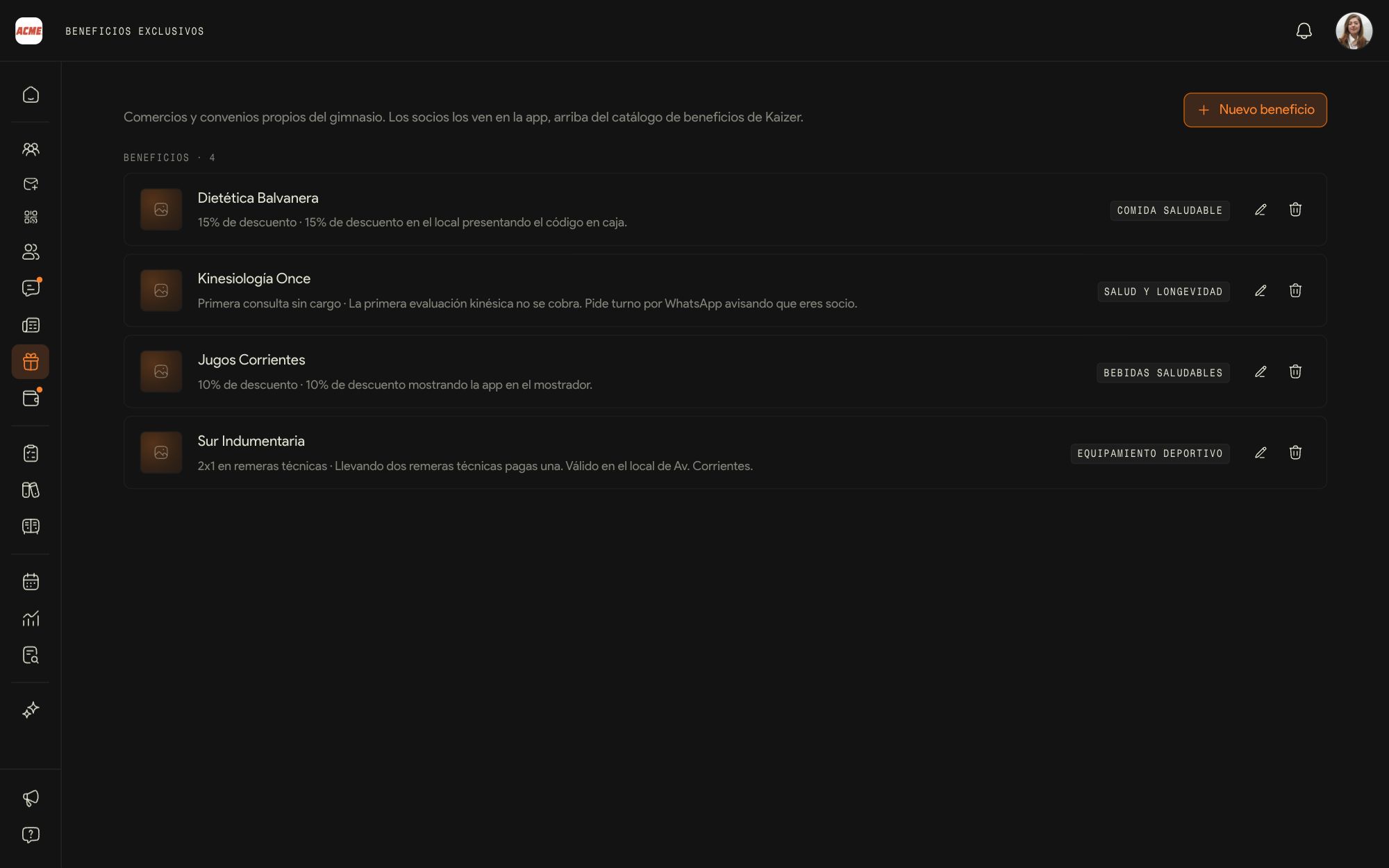
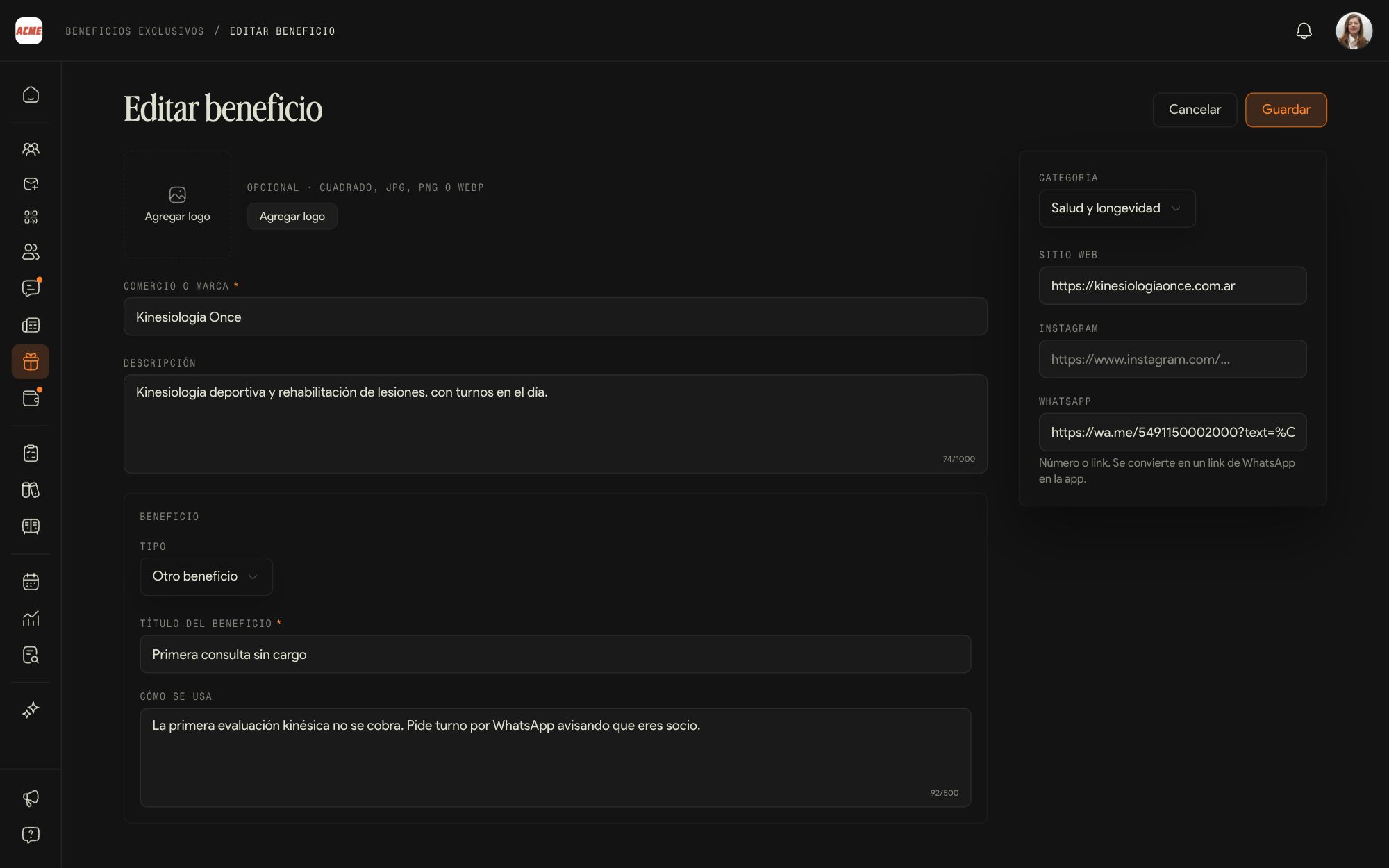
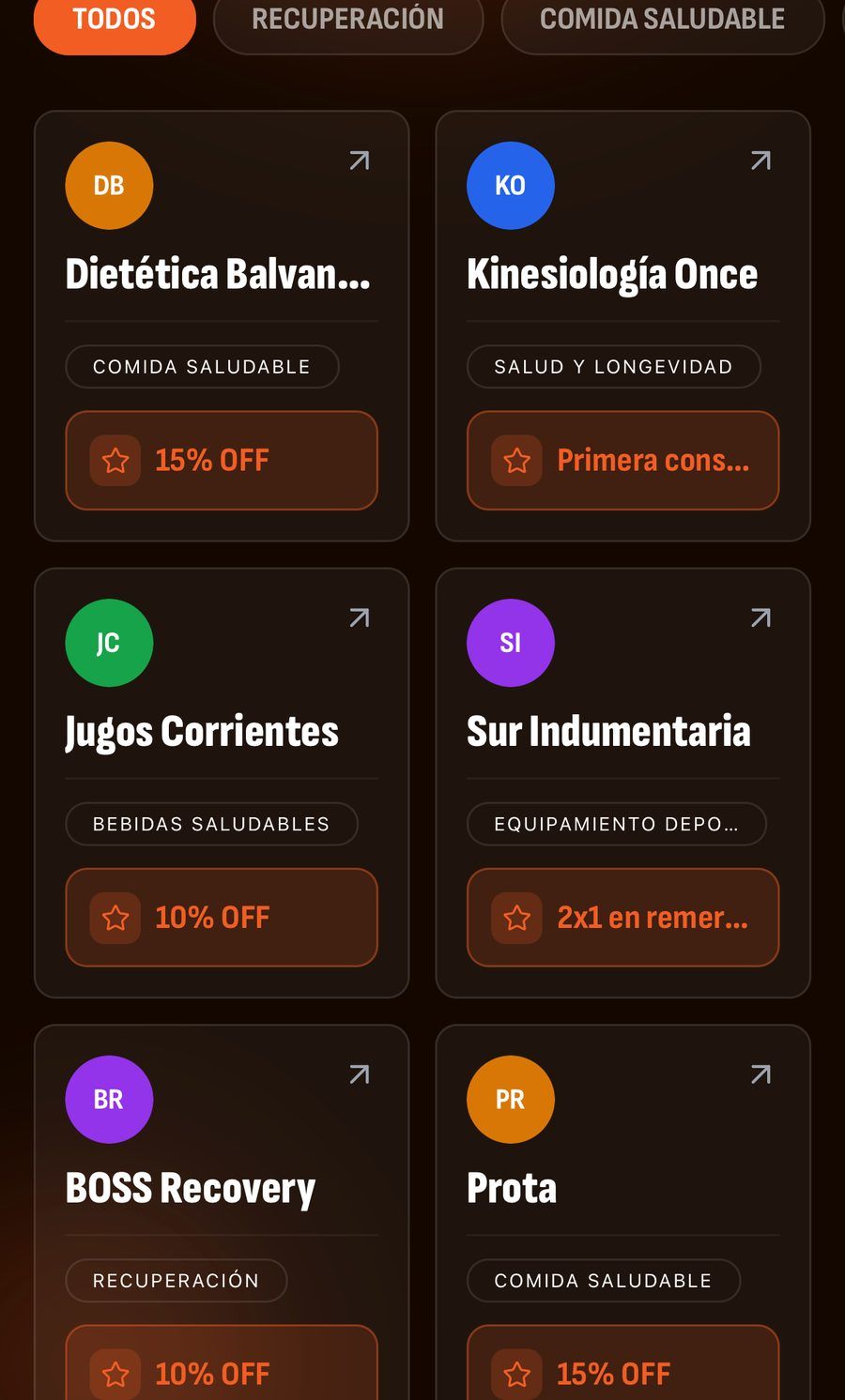
The gym's own businesses and deals: the health food store around the corner, the physiotherapist, the clothing shop. Your members see them in the app, above Kaizer's benefits catalog.
New benefit
Business or brand, logo, description, the type of benefit (a percentage, a code or something else), the title, how to redeem it, the category and the website, Instagram or WhatsApp.
Edit and delete
With the pencil and the trash can on each benefit in the list.
The more concrete the How to redeem (show the app at the register, say a code), the more members use it.
Measure and decide
The gym's numbers, the reports and the rules Kaizer works by.
16Analytics
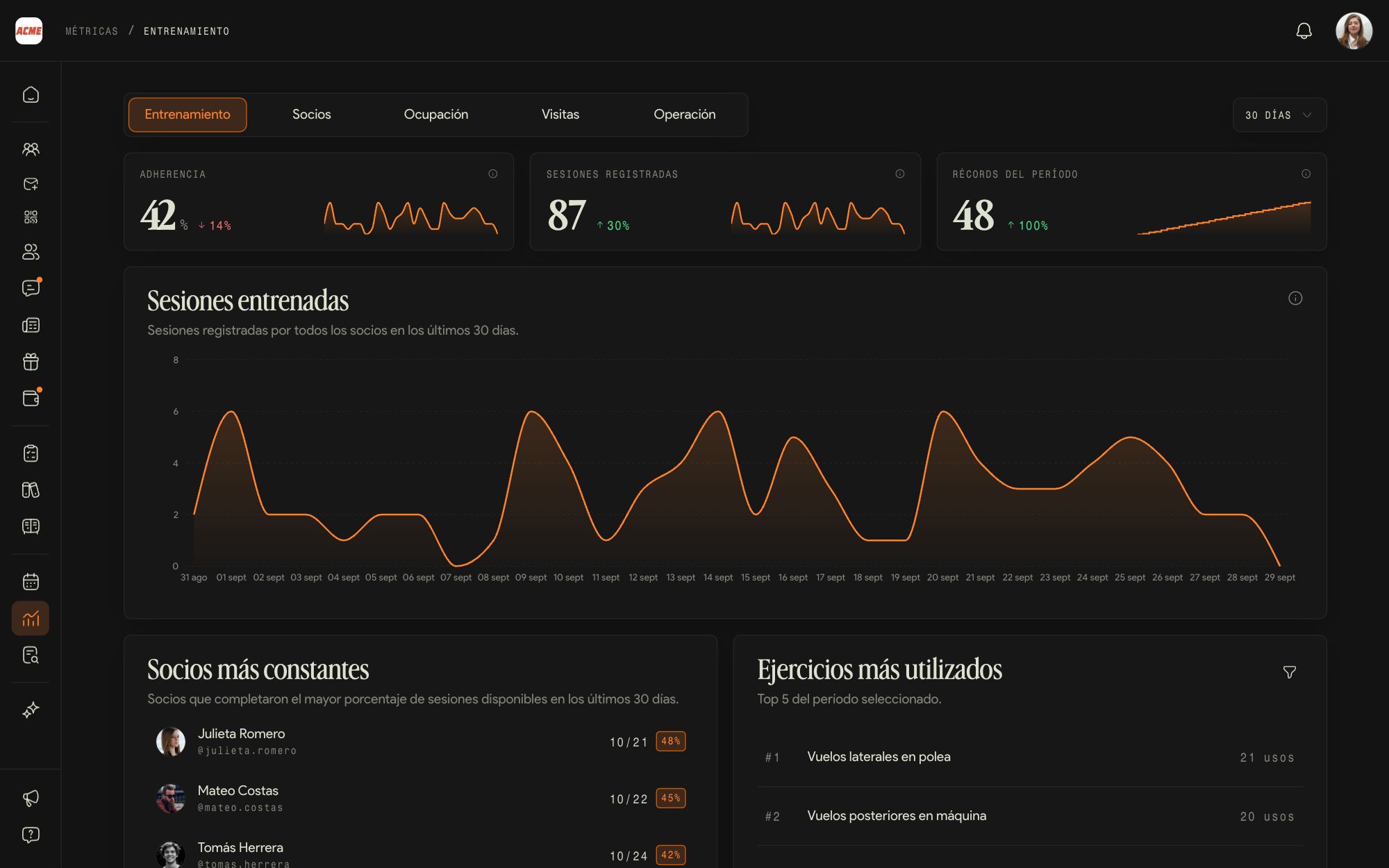
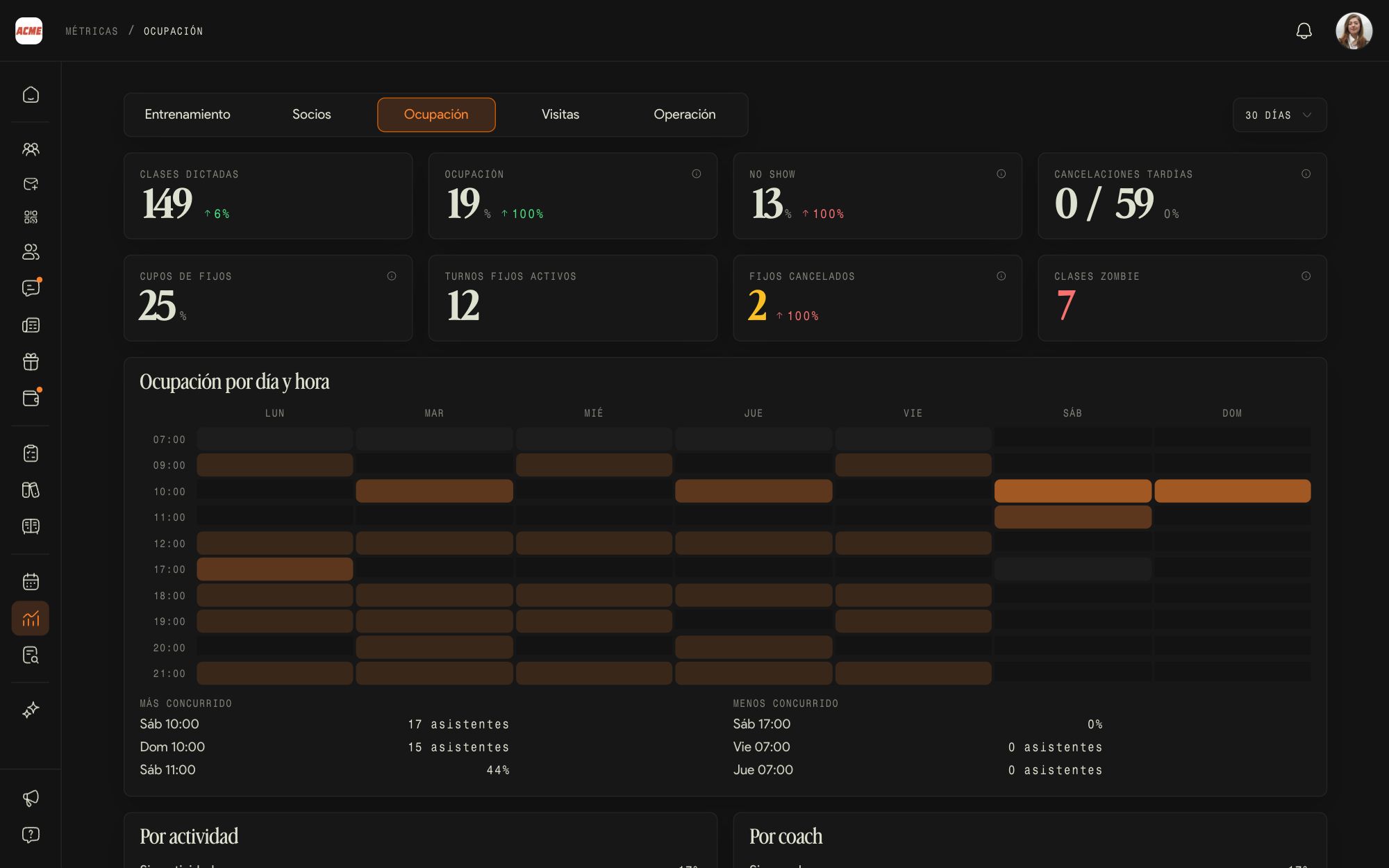
Analytics shows how the whole gym is doing over the period you choose, in five tabs.
Training
Adherence, logged sessions and records, sessions per day, the most consistent members and the most used exercises.
Members
Active members, sign-ups, drop-offs, reactivations, tenure and open invitations.
Occupancy
Classes held, occupancy, no-shows and late cancellations, with the occupancy map by day and hour and the busiest and quietest time slots.
Visits
Visits, unique members, average frequency and the check-in map by day and hour.
Operations
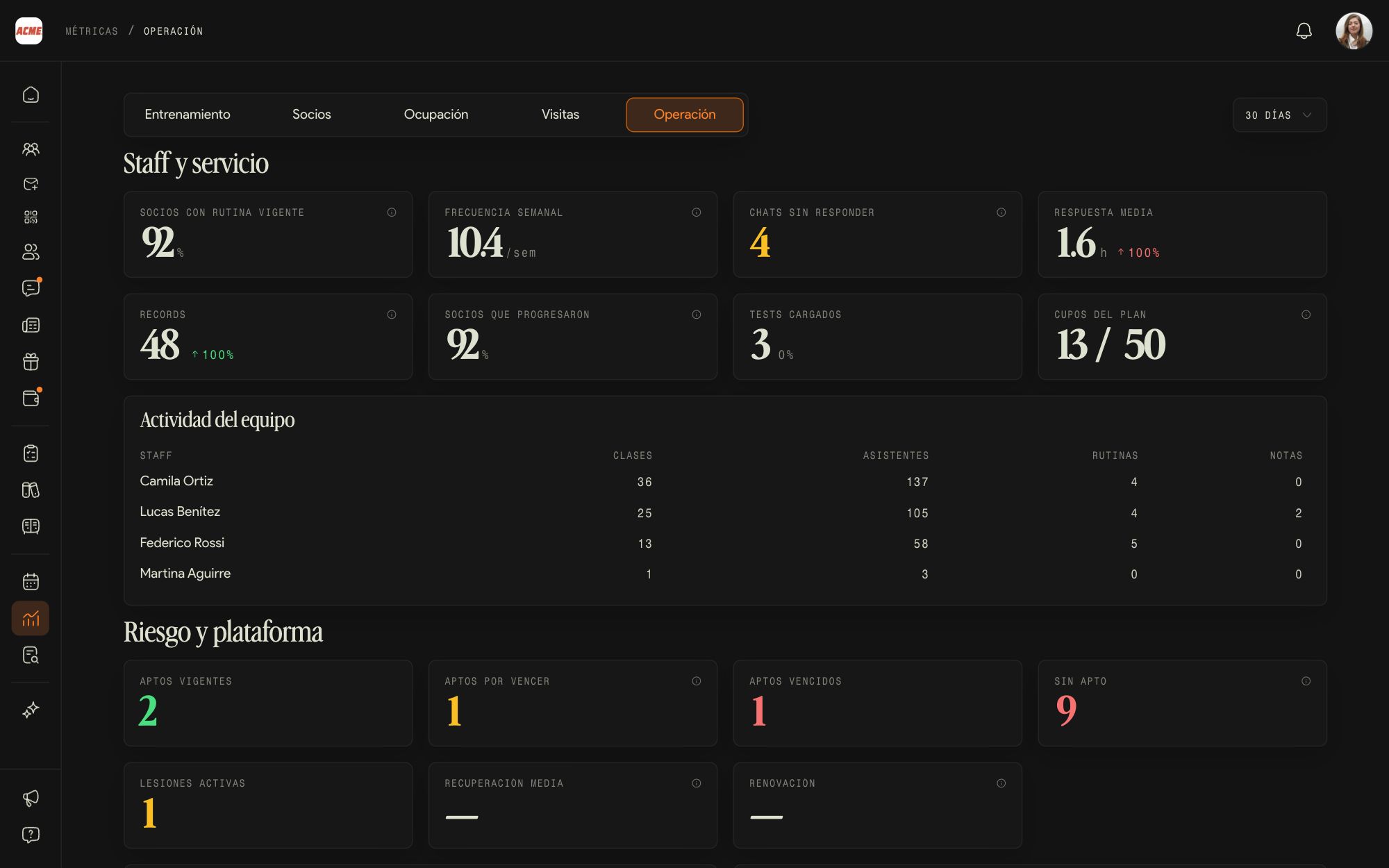
The team's work (classes, attendees, routines and notes per coach), unanswered chats and response time, and the status of medical clearances and injuries.
The period is chosen at the top right and applies to all five tabs.
17Reports
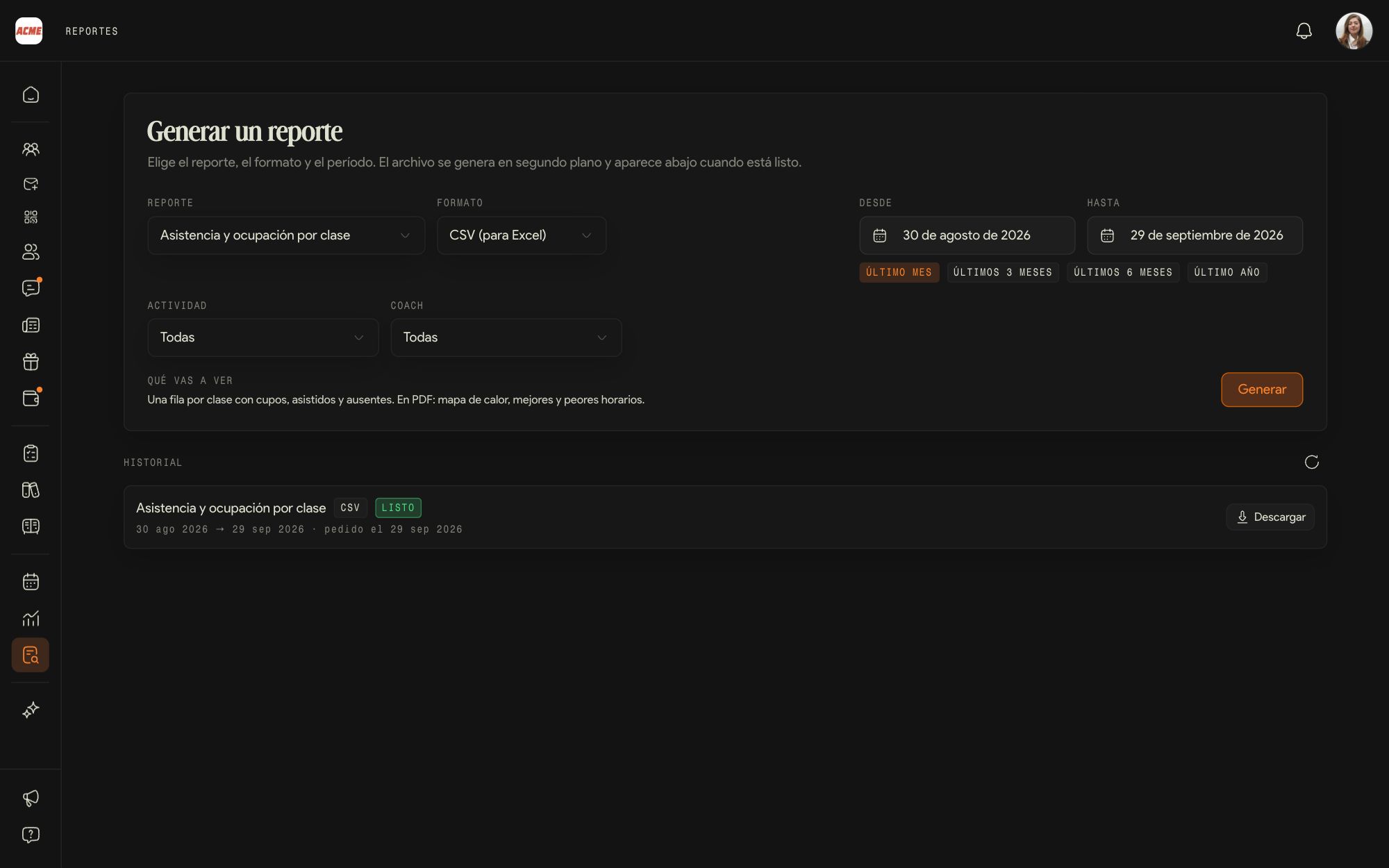
Reports builds files to download: for the team meeting, for the accountant or to go over calmly.
Choose the report
Attendance and occupancy by class, Sign-ups and drop-offs, Staff performance, Medical clearances expiring, Members at risk, Workout detail or Executive summary. Below it, What you'll get tells you what each one includes.
Format and period
CSV for Excel or PDF, the date range (last month, three or six months, last year or custom) and the filters, such as activity or coach.
History
The file is generated in the background and shows up in History, ready to Download.
18Alerts and automations
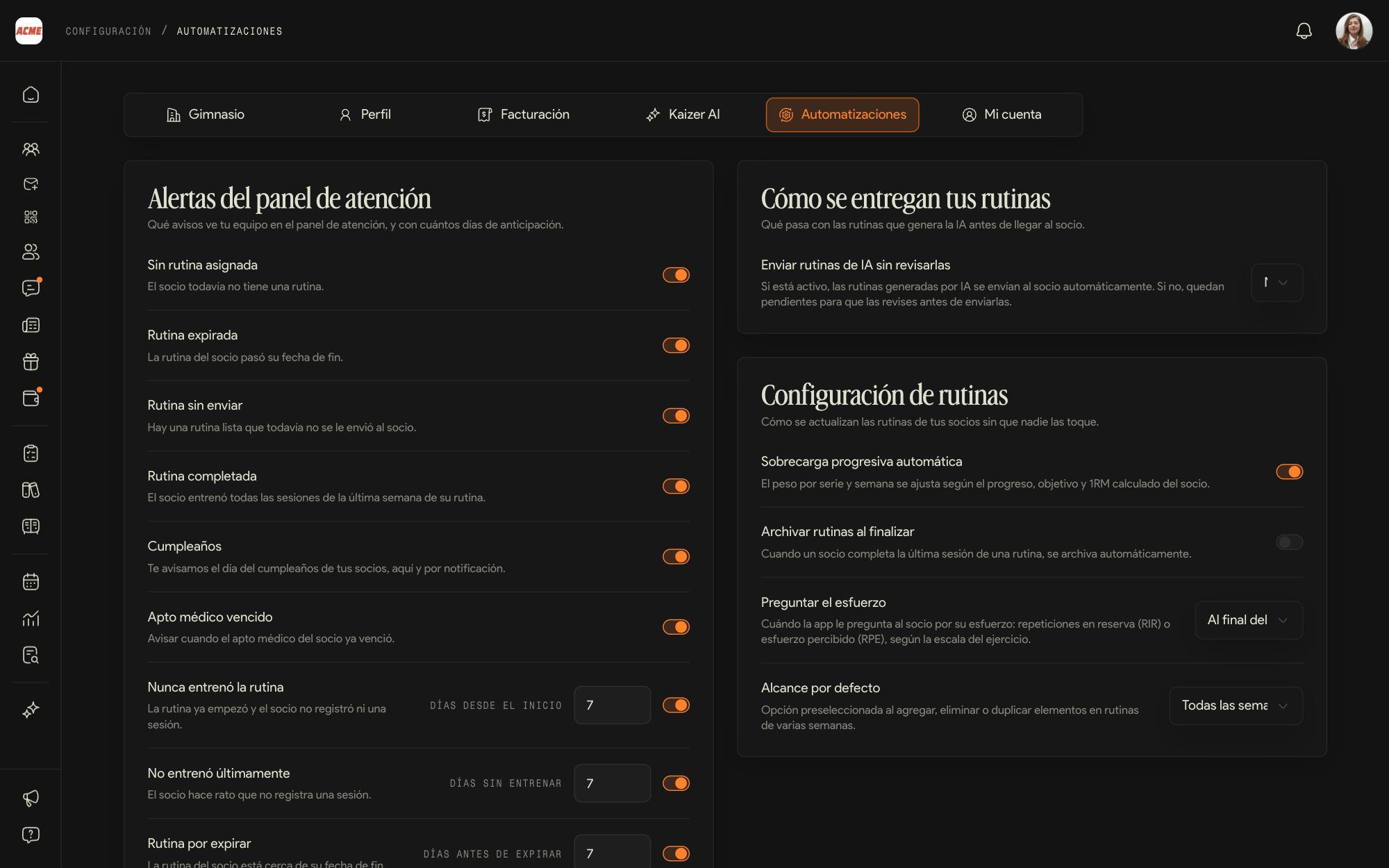
In Settings, Automations, you define how Kaizer works for the gym. What you choose applies to the whole team, who see it with the Your gym sets this notice.
Attention panel alerts
Which alerts the team sees (no routine, routine expired or about to expire, birthdays, medical clearance expired or expiring, hasn't trained lately) and how many days in advance.
How your routines get delivered
Whether routines generated with AI go straight to the member or wait for someone to review them.
Routine settings
Automatic progressive overload, archiving routines when they end, when the member is asked about effort (RIR or RPE) and the default scope of changes in multi-week routines.
Welcome
The message every new member receives in the chat and the welcome training plan they start with.
Each member can have their own settings, in the Settings tab of their profile.
19The Assistant
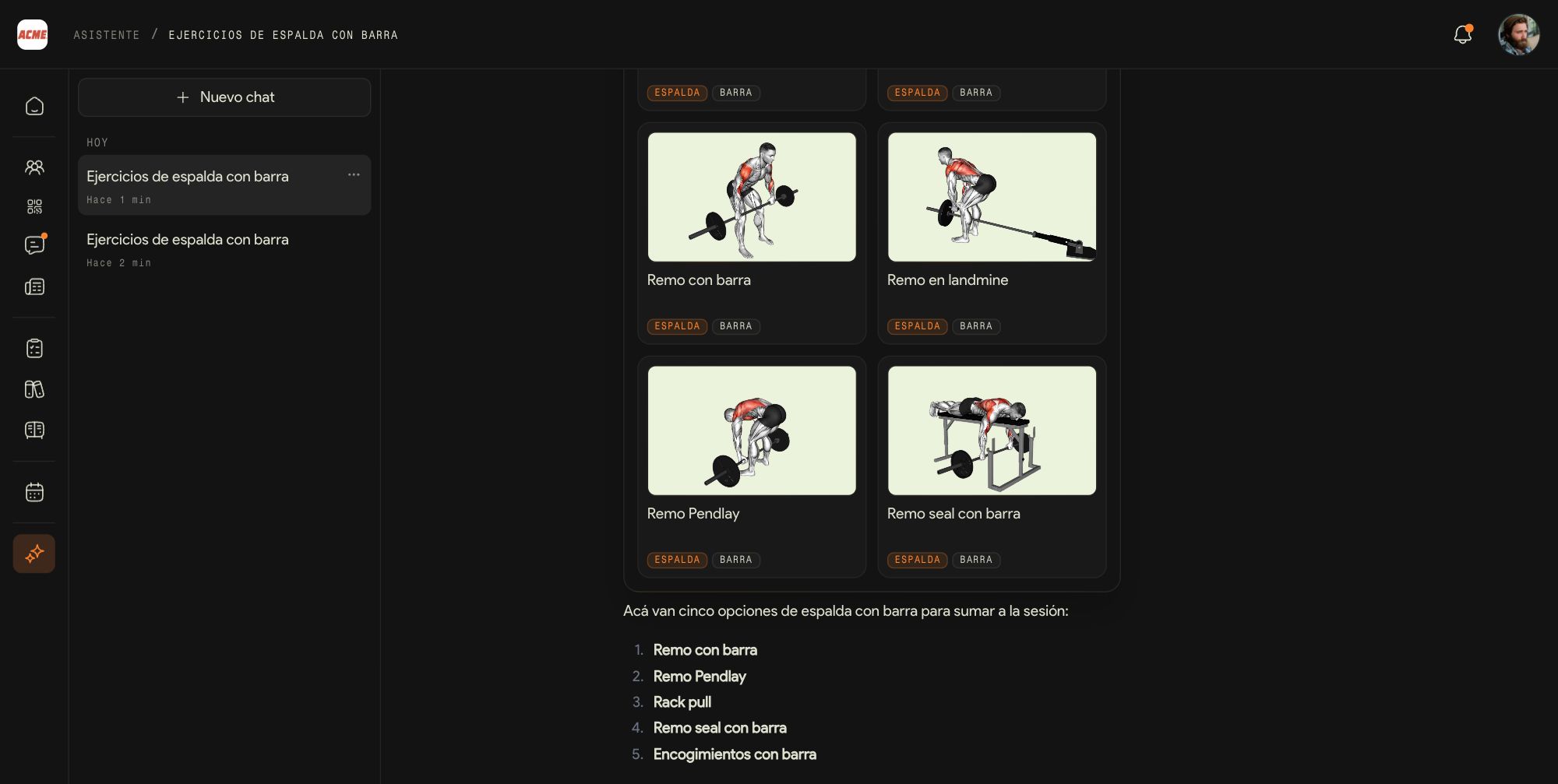
The Assistant is Kaizer's artificial intelligence inside the dashboard. You ask for something in plain language and it handles it with the gym's data: it builds sessions, finds exercises, tells you about a member or about how the gym is doing.
For the whole team
You and your coaches use it. If you turn off AI routines in App features, the team stops generating routines with AI.
Kaizer AI
In Settings, Kaizer AI, you define how it generates routines for the gym.
Your account and your plan
20Billing and plan
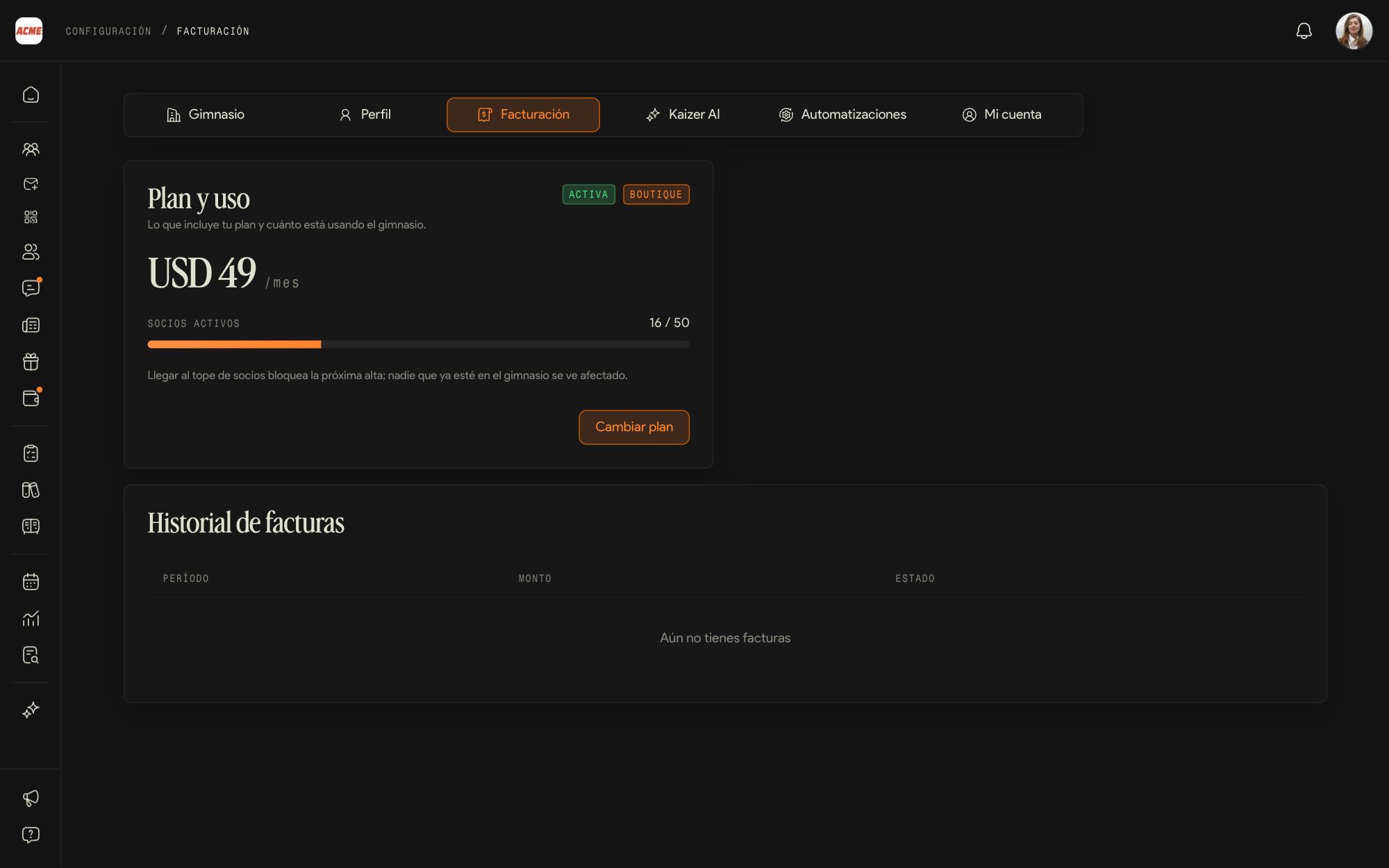
In Settings, Billing, you see your plan, how many active members you are using and your invoices.
Plan and usage
The plan, its price and the bar of active members against the limit. Active members count: not the ones removed or the invited ones who haven't signed in yet.
The plans
Boutique, up to 50 members: USD 49 a month, or USD 39 a month paying yearly. Club, 51 to 250 members: USD 129 a month, or USD 100 a month paying yearly. Gold, 251 to 1,000 members: USD 199 a month, or USD 159 a month paying yearly. For more than 1,000 members, the plan is put together with our team.
Change plan
From the same screen. Moving up a plan gives you room right away. Reaching the limit blocks the next sign-up, but nobody already in the gym is affected.
Invoices and payment method
The invoice history and the payment method, on the same screen.
21Your account
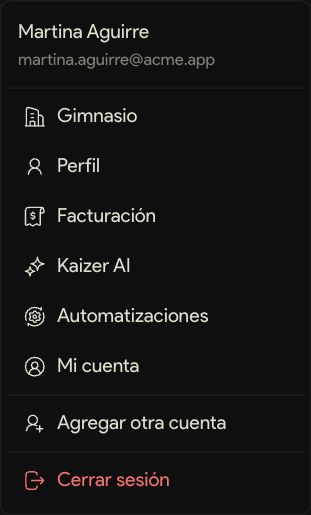
The menu under your photo, top right, takes you to the gym's settings and to yours.
Gym, Billing and the rest
Gym and Billing are for the admin only. Profile, Kaizer AI, Automations and My account are visible to the whole team.
Add another account
If you run more than one gym, or also train clients on your own, you add the other account and switch between them without signing out.
22Help and support
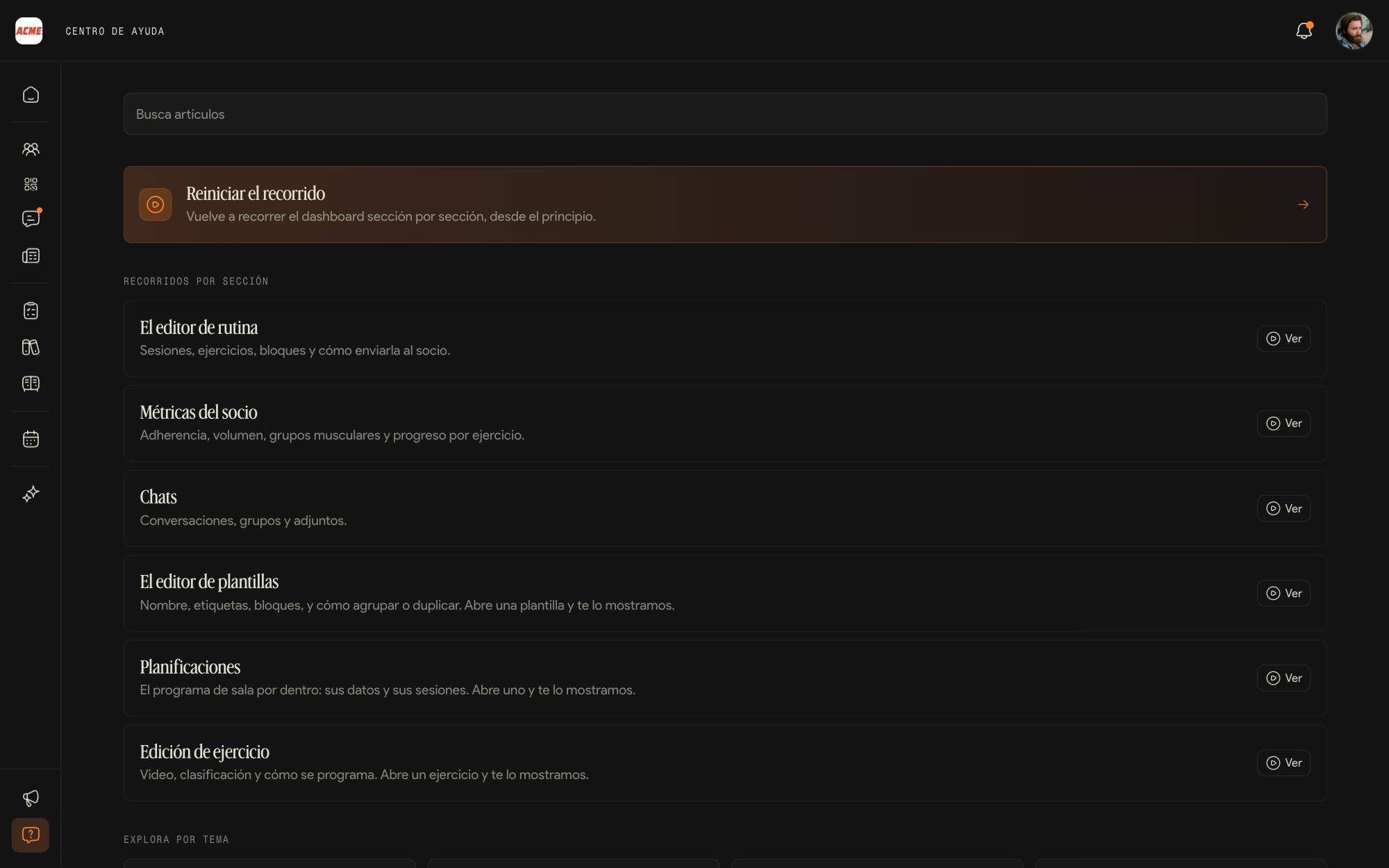
The Help Center, under the question mark icon at the bottom left, has articles by topic and guided tours of every screen. As an admin you also see the ones for Staff, Payments and Billing.
Articles and tours
Search with the word you would use to describe it: member, payment, gym program, coach. The tours walk you through each screen step by step.
Kaizer support
The Kaizer conversation in Chats or the button at the bottom of the Help Center. Tell us what you were doing, what you expected and what happened. Response time depends on your plan.
What each role does
What a coach can do and what is left to the admin, screen by screen. Use it to decide which role to give each person.
| What | Coach | Admin |
|---|
| See members and their profiles | Yes | Yes |
|---|
| Build and edit routines | Yes | Yes |
|---|
| Assign a gym program to a member | Yes | Yes |
|---|
| Notes, injuries, files and tests | Yes | Yes |
|---|
| Add or remove members | No | Yes |
|---|
| A member's tags and settings | Sees them | Yes |
|---|
| Create, edit and publish gym programs | Sees them | Yes |
|---|
| Templates | Their own | Their own and the training plans |
|---|
| Exercise catalog | Uses it | Edits, imports and tags it |
|---|
| Bookings and attendance | Yes | Yes |
|---|
| Classes, schedules and activity types | No | Yes |
|---|
| Check-ins | Yes | Yes, and turns them on |
|---|
| Chats and groups | Yes | Yes, plus Kaizer support |
|---|
| News | Reads it | Publishes it |
|---|
| Staff, invitations, payments, benefits, analytics and reports | No | Yes |
|---|
| Gym settings and billing | No | Yes |
|---|