Getting started
Your first login and what you see as soon as you are in.
01Your first login
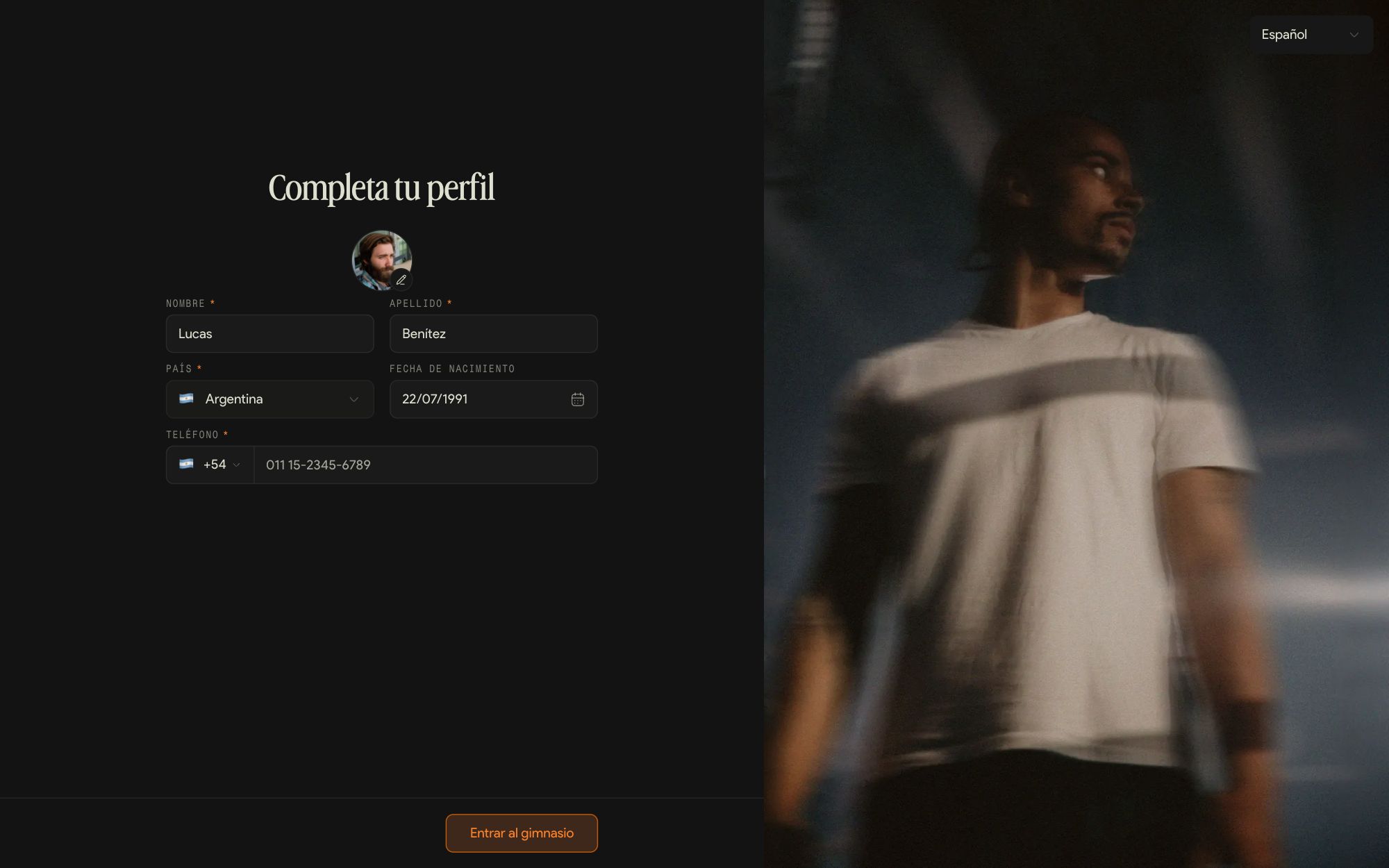
The first time you sign in, Kaizer asks you to complete your profile. It is a single step and then you are inside the gym.
Use the link in the email
The invitation includes the link to your gym. If you don't have a Kaizer account, create it with the same email you were invited with: that email is what connects you to the gym.
Confirm your email
When you create the account we send you an email to verify it. Until you open it, the dashboard stays locked. If you can't find it, check spam and promotions.
Complete your profile
First name, last name, country and phone are required; date of birth and photo are not. The phone is how the gym reaches you, and you can upload the photo later from your account.
Enter the gym
Tap Enter the gym and you see the dashboard with what your role covers. There is nothing to set up: your gym has already prepared the catalog, the programs and the agenda.
If, once inside, your account has no access to the gym dashboard, you almost always signed in with a different email. Ask your admin to check which email they invited.
02The dashboard at a glance
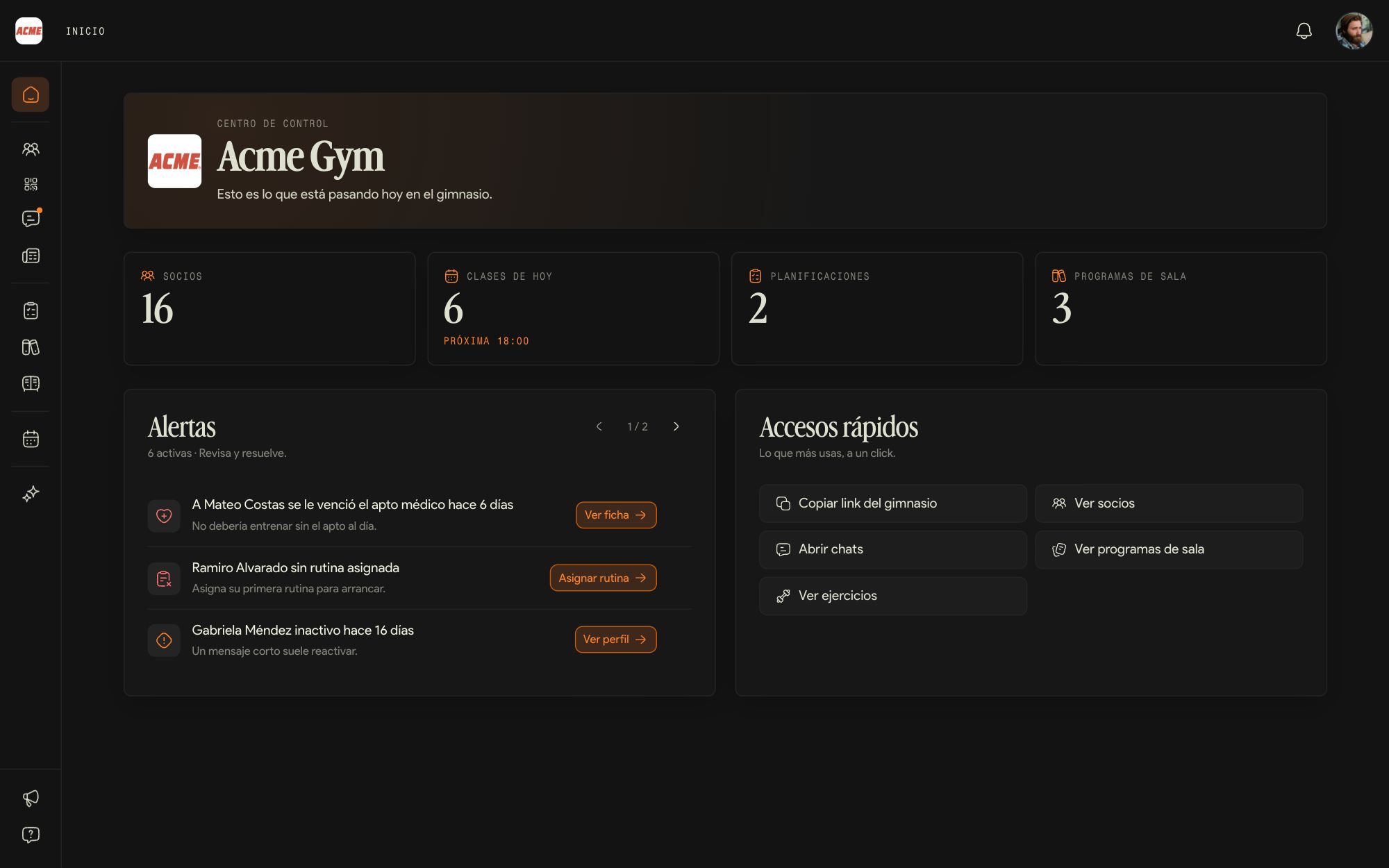
Home is the first thing you see when you sign in: how the gym is doing today and which members need something from you.
The numbers of the day
Gym members, today's classes with the next one coming up, training plans and gym programs.
Alerts
Kaizer flags the members who need an action: an expired medical clearance, someone without an assigned routine, someone who stopped training. Each alert has its own button (View profile, Assign routine) and the cross dismisses it. Use the arrows to move between pages.
Shortcuts
Copy gym link, View members, Open chats, View gym programs and Browse exercises.
The menu on the left
At the top, Members, Check-ins, Chats and News; then Gym programs, Templates and Exercise Pool; the Agenda; and the Assistant. At the bottom are Updates and the Help Center. Your photo, top right, opens your account.
Copy gym link copies the sign-in address of the dashboard: it is the one you send to another coach on the team. Adding members uses a different link, the sign-up link, which the admin manages.
Your members
The member list, each member's profile and everything the team needs to know about them.
03The member list
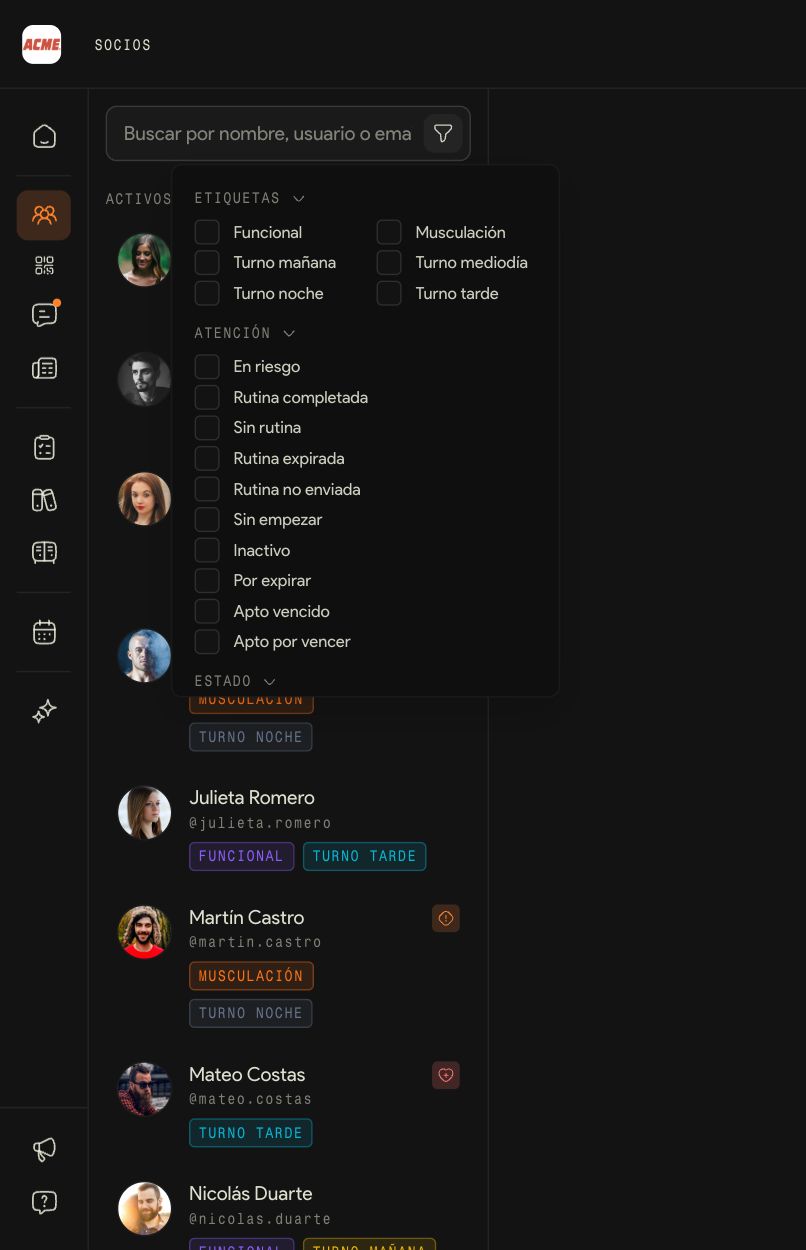
Members is the list of the whole gym, not only the people you coach: any coach can open any member's profile.
Search
The search box finds members by name, username or email. Typing part of it is enough, and you don't need to get the accents right.
Filter
The funnel filters by tag (shift, activity), by Attention (at risk, no routine, inactive, routine about to expire, medical clearance expired or expiring, among others) and by status.
Read each row
The member's photo, username and tags. The icon on the right tells you they have something pending, such as an expired medical clearance or several days without training.
Those who haven't joined yet
At the end of the list are the members who were added but haven't finished signing up in the app. They show their initials and email until they do.
The admin creates and assigns the tags. As a coach you see them and filter by them, but you can't change them.
04The member profile
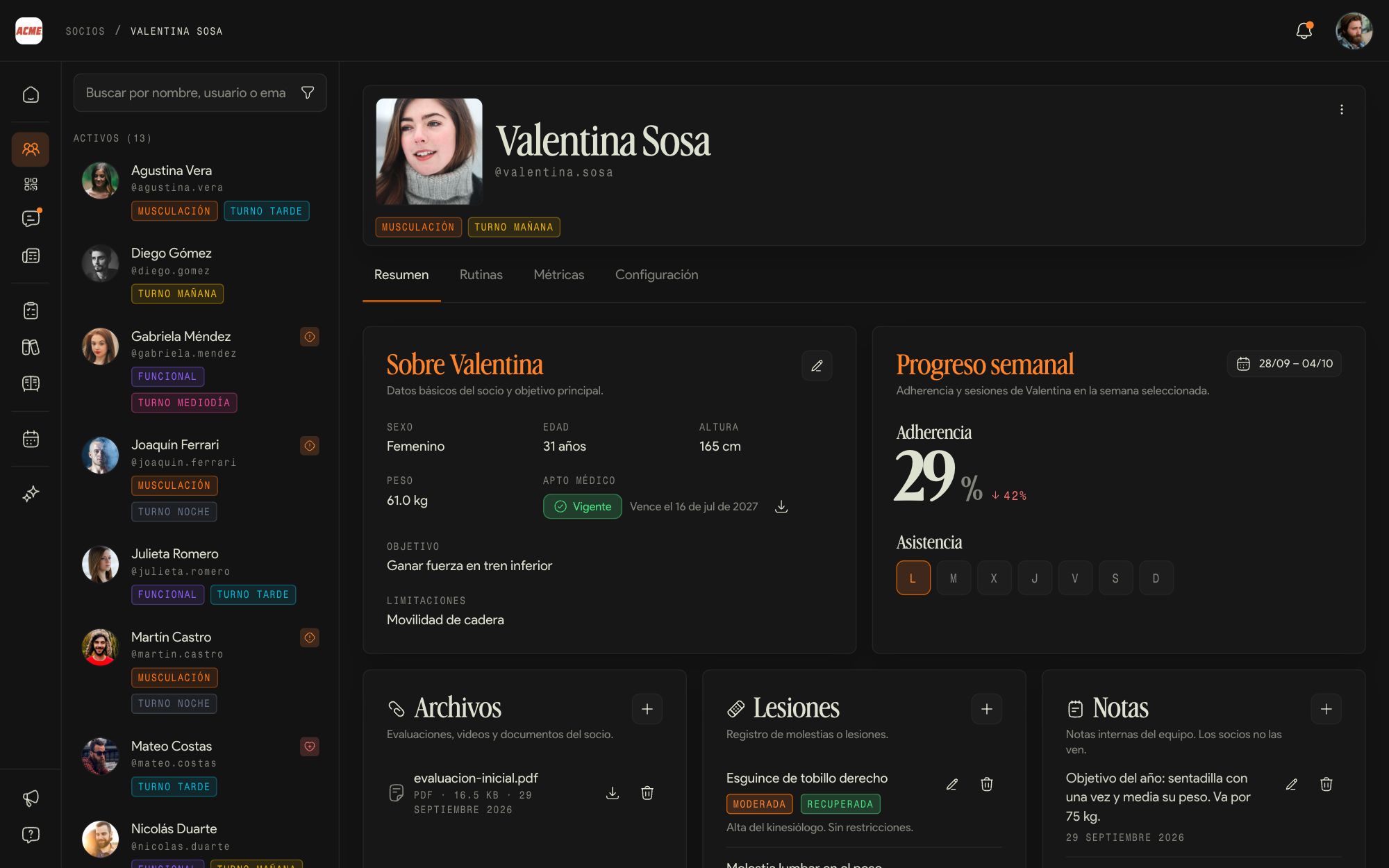
Tapping a member opens their profile, with four tabs: Overview, Routines, Metrics and Settings.
About the member
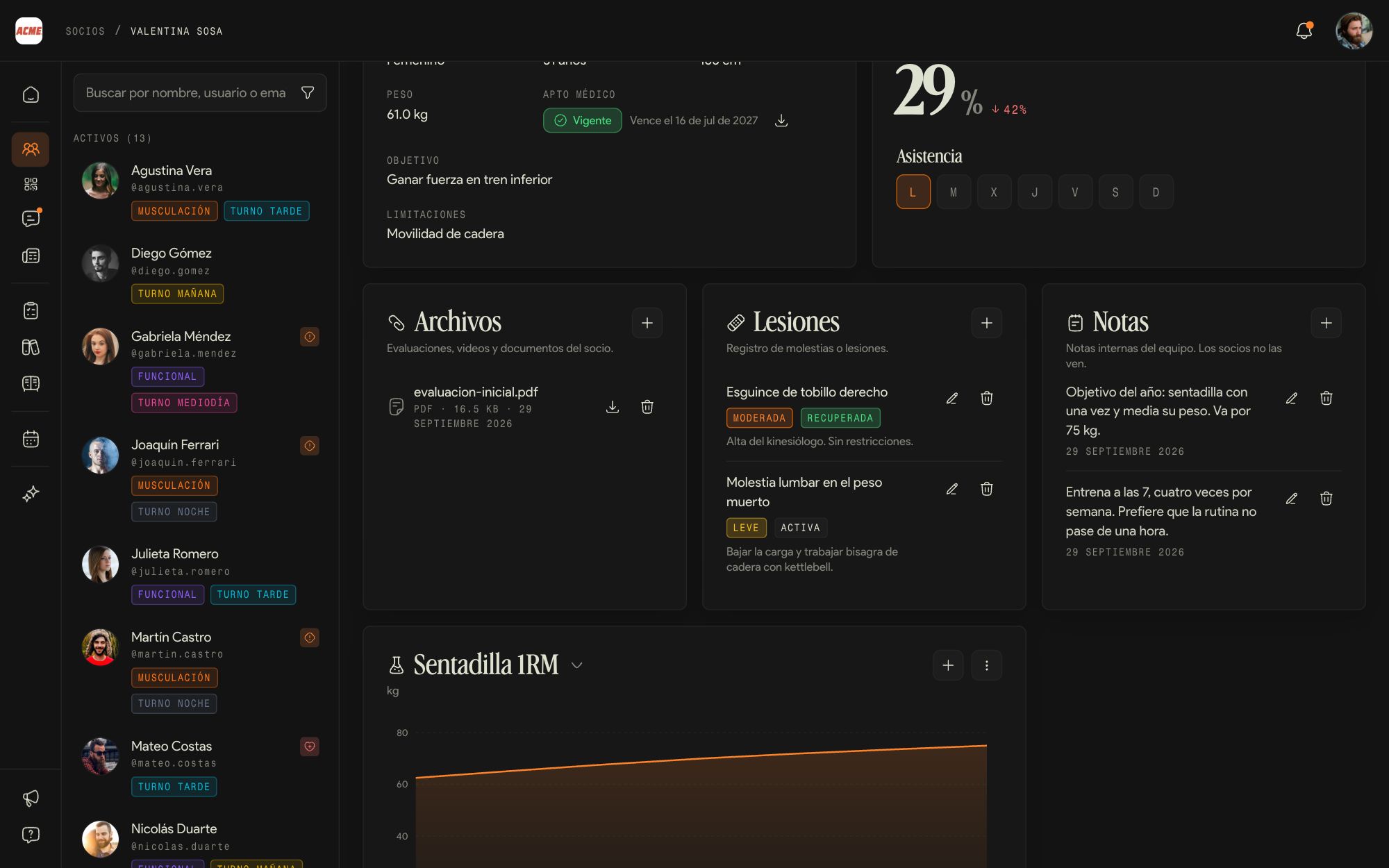
Sex, age, height, weight, goal and limitations, plus the status of their medical clearance with its expiry date. The pencil edits these details.
Weekly progress
The week's adherence, compared with the previous one, and the days they trained. Use the date picker to look at other weeks.
Settings
How routines are delivered and updated for that member and which automations run for them. You can look at it; changing it is up to the admin.
The three-dot menu
Top right of the profile: from there you message them with Send message without leaving the screen.
If the member was added but hasn't signed up yet, the profile says so at the top. Whatever you add is saved and they see it when they open the app.
05Files, injuries, notes and tests
Below the overview is the member's history: what any coach needs to know before building or correcting anything for them.
Files
Assessments, medical tests, videos or photos. Upload them with the + and they stay at hand for the whole staff.
Injuries
Each one with its severity (Mild, Moderate or Severe), its status (Active or Recovered), a note and the date. That way any coach knows what to be careful with.
Notes
Internal team notes, with a date. Members don't see them.
Tests
Repeated measurements, such as a jump, a plank or a 1RM, with a chart of how they evolve. Tests belong to the gym: they are defined once and recorded for each member.
The medical clearance shows up in three places: on the profile, in the Attention filter of the member list and, once it expires, as an alert on Home.
Routines
The editor, the sets table and how to tell whether the member is keeping up.
06Building a member's routine
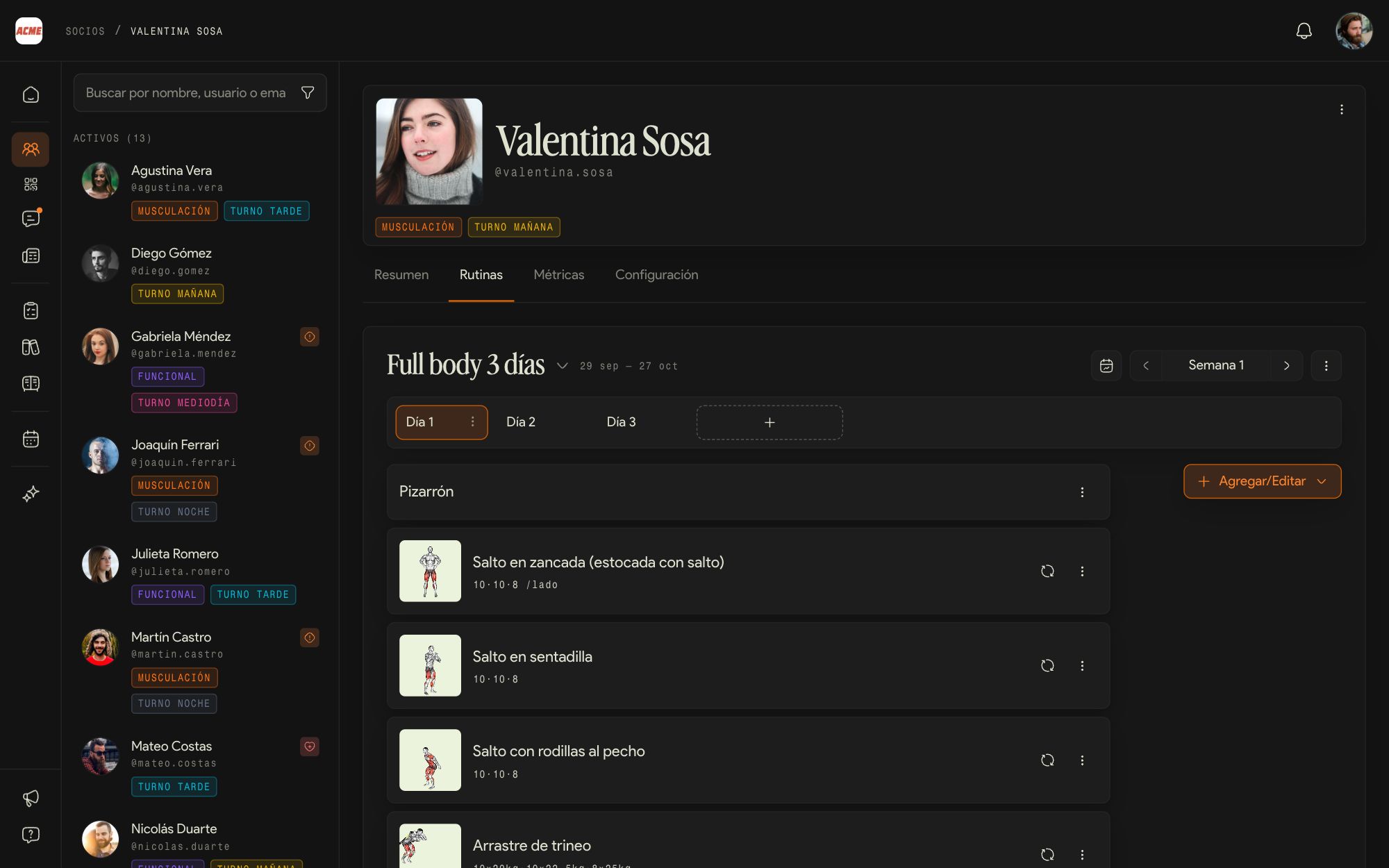
The editor lives in the Routines tab: the routine assigned to the member, week by week and day by day.
The routine and the week
At the top you see the name and the dates. The arrow next to the title switches between the member's routines, and the picker on the right changes the week.
The days
Each day is a session. The + adds another one, and each day's menu has its own actions.
Add/Edit
Add an exercise, a whiteboard (free text, such as the warm-up), a block, a circuit or a superset, or bring in something saved with From template.
Swap an exercise
The three dots on each exercise hold its actions, such as Replace exercise, which swaps it for another without rebuilding the day.
A new routine
From Routine actions (the three dots at the top) you create a new routine, assign it a training plan, extend it or export it as a PDF.
Your gym decides when the member sees the changes: as soon as you save, or only when the next week starts so their training doesn't change mid-week.
07Sets, reps and rest
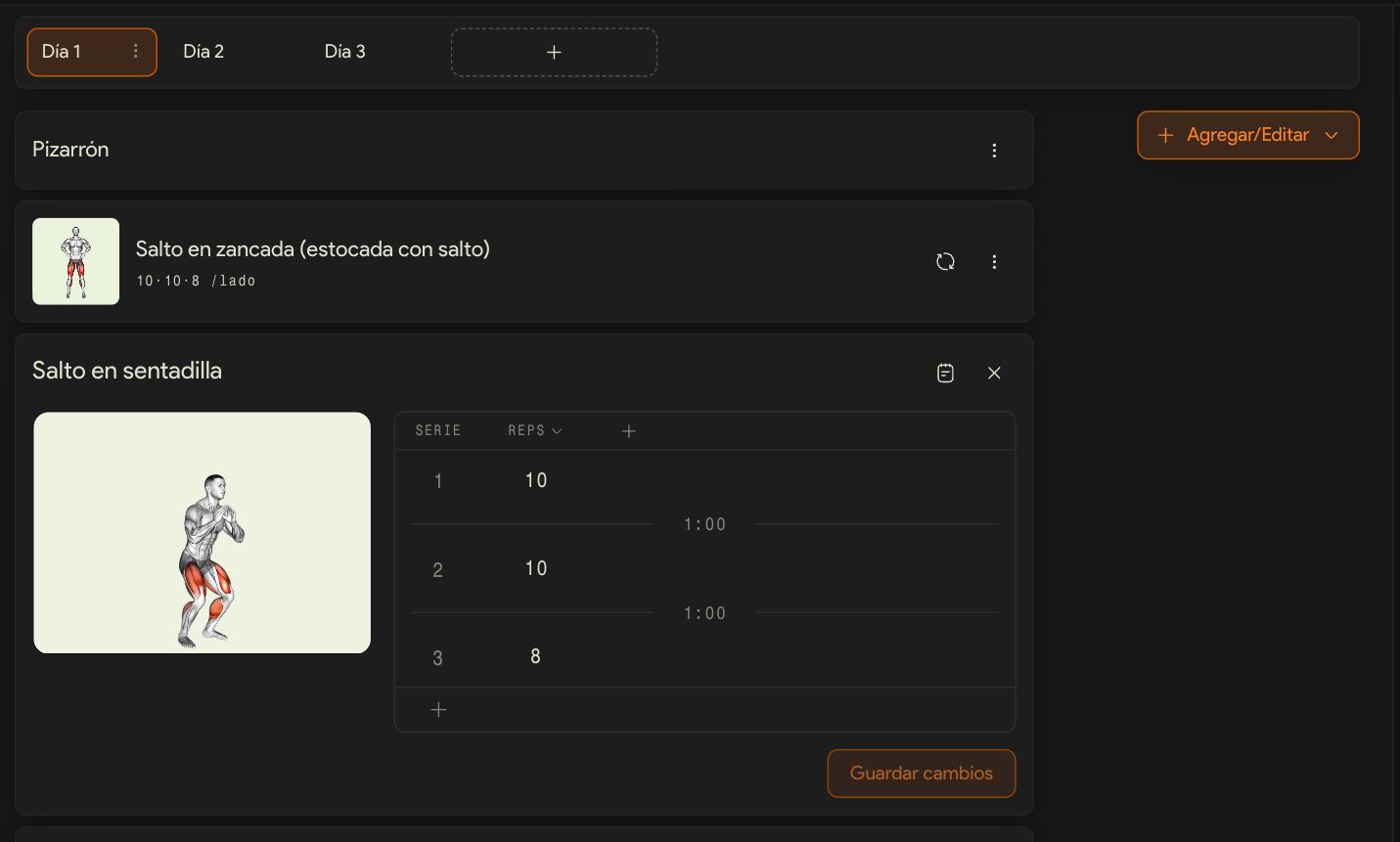
Opening an exercise shows its sets table: what the member has to do in each set and how long they rest between sets.
Set by set
Each row is a set. The + at the bottom adds another one.
What is measured
The column header changes the measure, and the + next to it adds another column, such as weight or effort.
Rest
The rest goes between one set and the next. It is the timer that runs for the member in the app when they finish a set.
Save
Changes to the exercise are applied with Save changes.
If your gym has progressive overload turned on, Kaizer adjusts the weight of each set week by week based on what the member logs.
08Member metrics
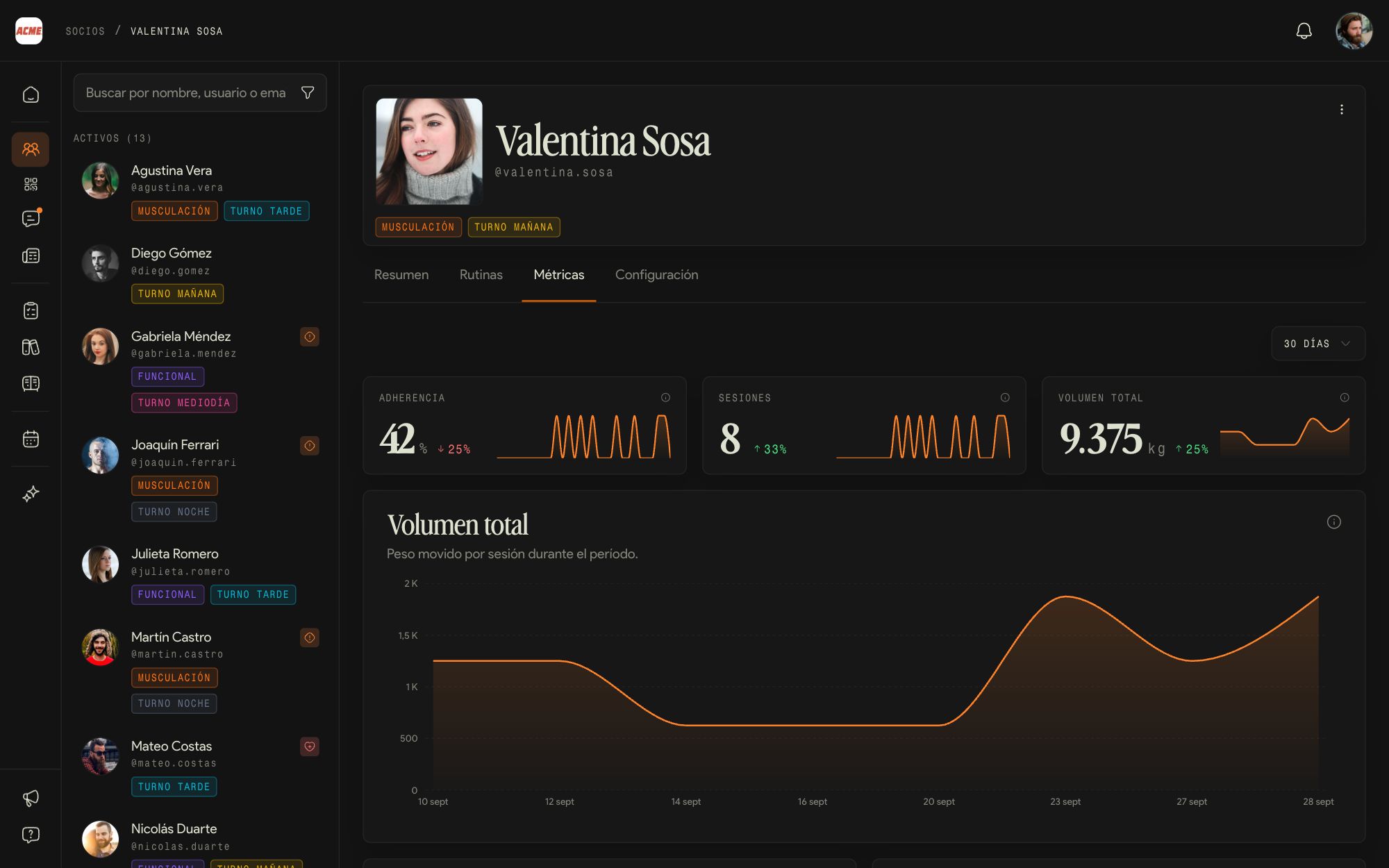
The Metrics tab shows how the member has been training over the period you choose.
The period
Pick the range at the top right, for example the last 30 days.
The three numbers
Adherence, sessions and total volume, with the arrow that compares them against the previous period.
The charts
Volume per session, muscle groups and progress per exercise: what you need to see whether the load is going up or has stalled.
Adherence that drops two weeks in a row is the signal to message them before they stop coming.
Programs, templates and exercises
What the gym prepares for everyone and what you save to reuse.
09Gym programs
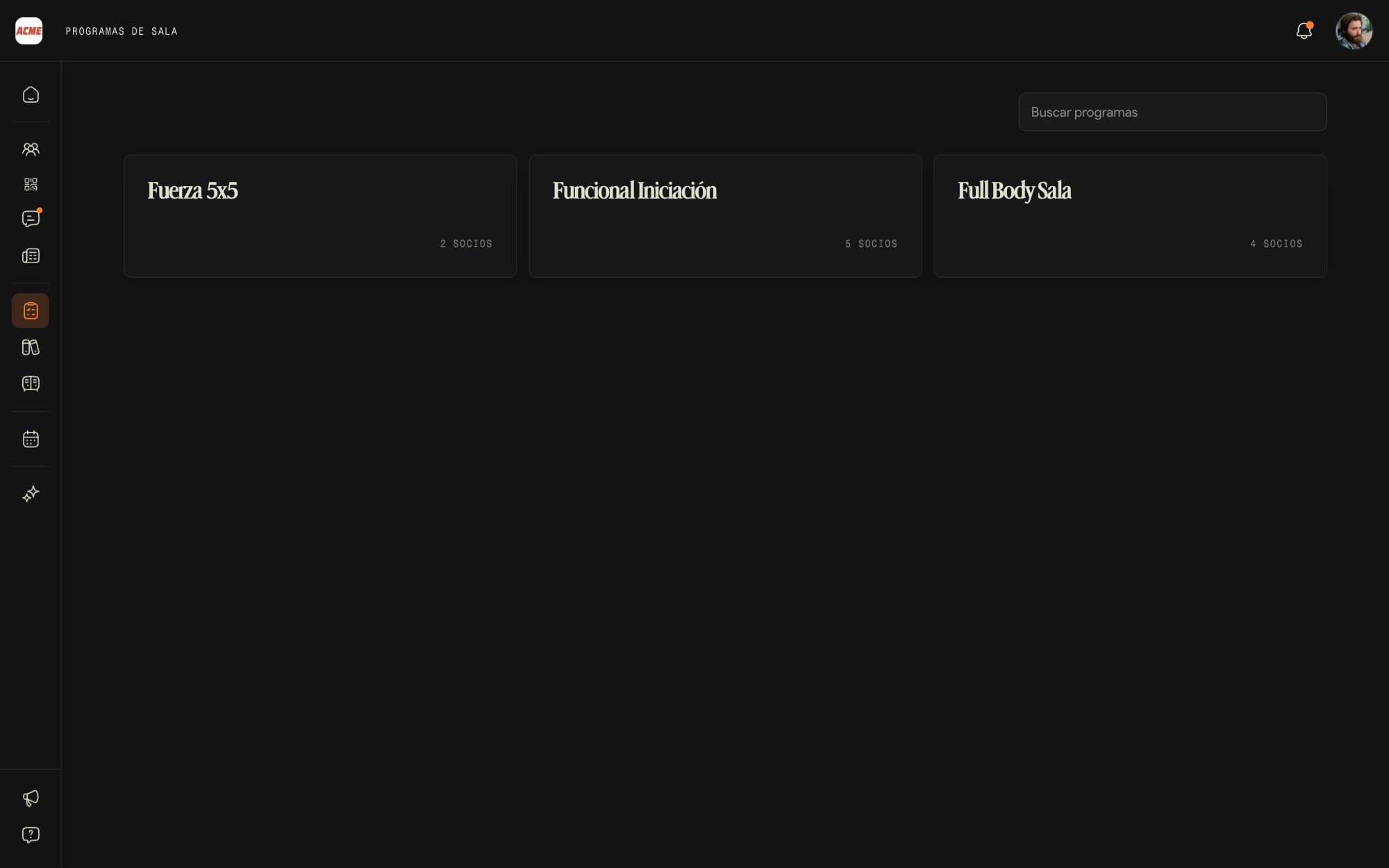
A gym program is a training plan the gym has published: your members see it in the app and can start it on their own.
Training plan or gym program
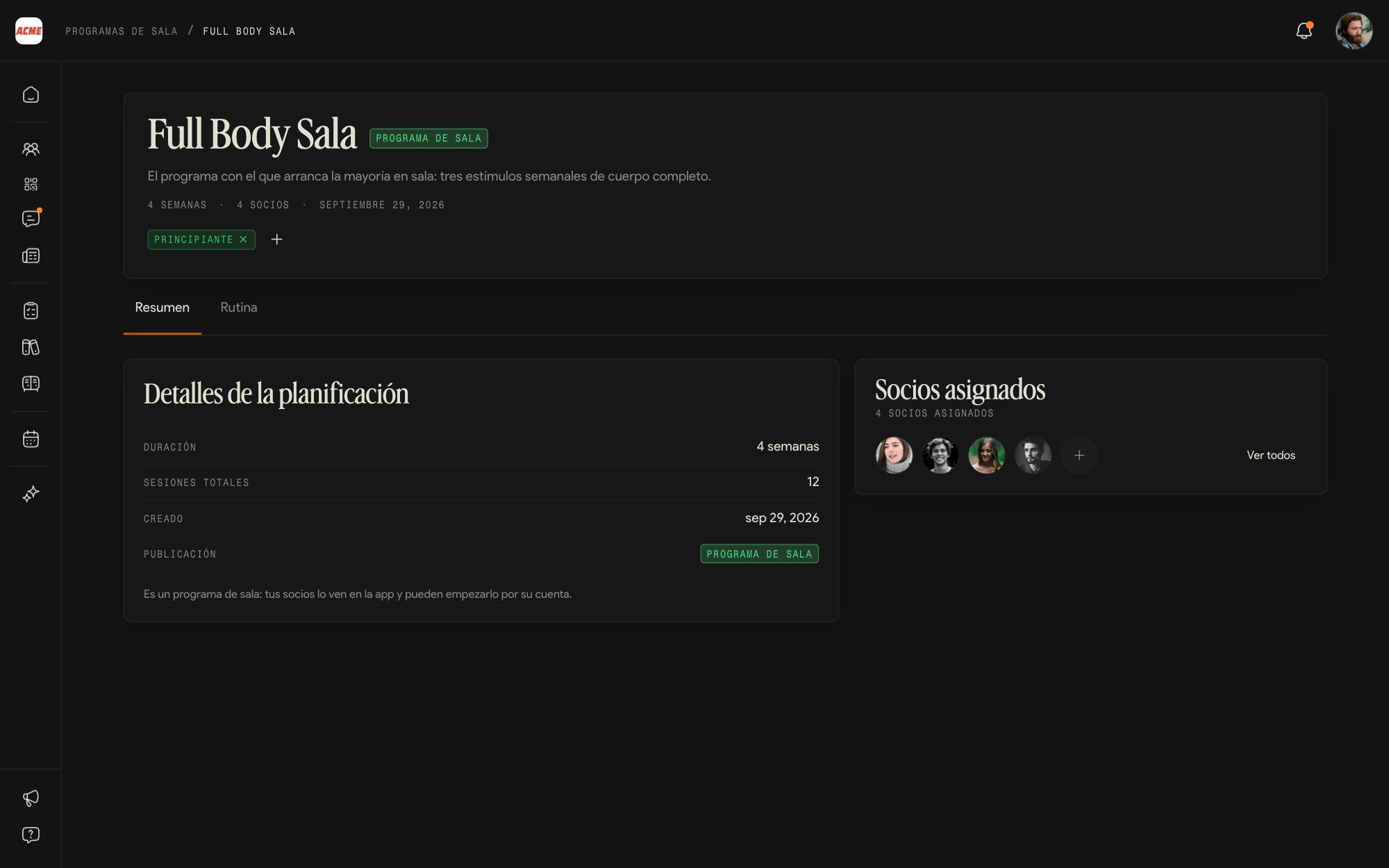
A training plan is visible only to the staff. When the admin publishes it, it becomes a gym program and shows up in every member's app.
View a program
Each card says how many members have it. Inside you see the length, the sessions, the tags and, on the Routine tab, the whole training.
Assign a member
In Assigned members, the + adds a member to the program and the routine shows up on their profile. View all lists everyone who already has it.
Creating, editing, publishing or unpublishing programs is up to the admin. For you a program's routine is read-only; what you can edit is the copy on each member's profile.
10Templates
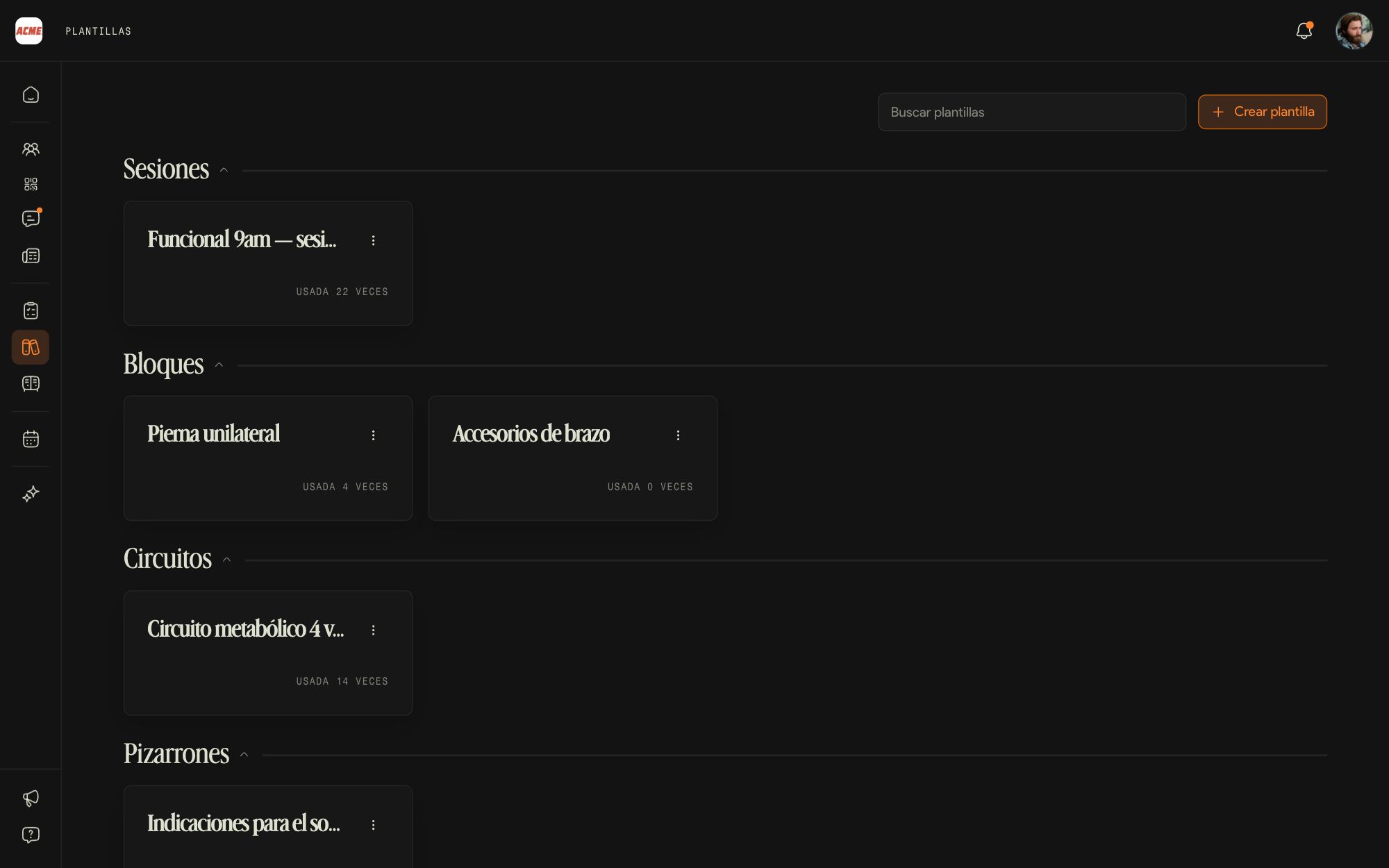
Templates is your personal library: what you repeat, saved for reuse. What you save is yours and doesn't get mixed with your teammates' templates.
Four types
Full sessions, blocks (a group of exercises), circuits and whiteboards.
Create one
Create template opens the New template steps: you pick the type and build it as you would in the routine editor.
Use it
In a member's routine, Add/Edit and then From template. Each card shows how many times you used it.
11Exercises
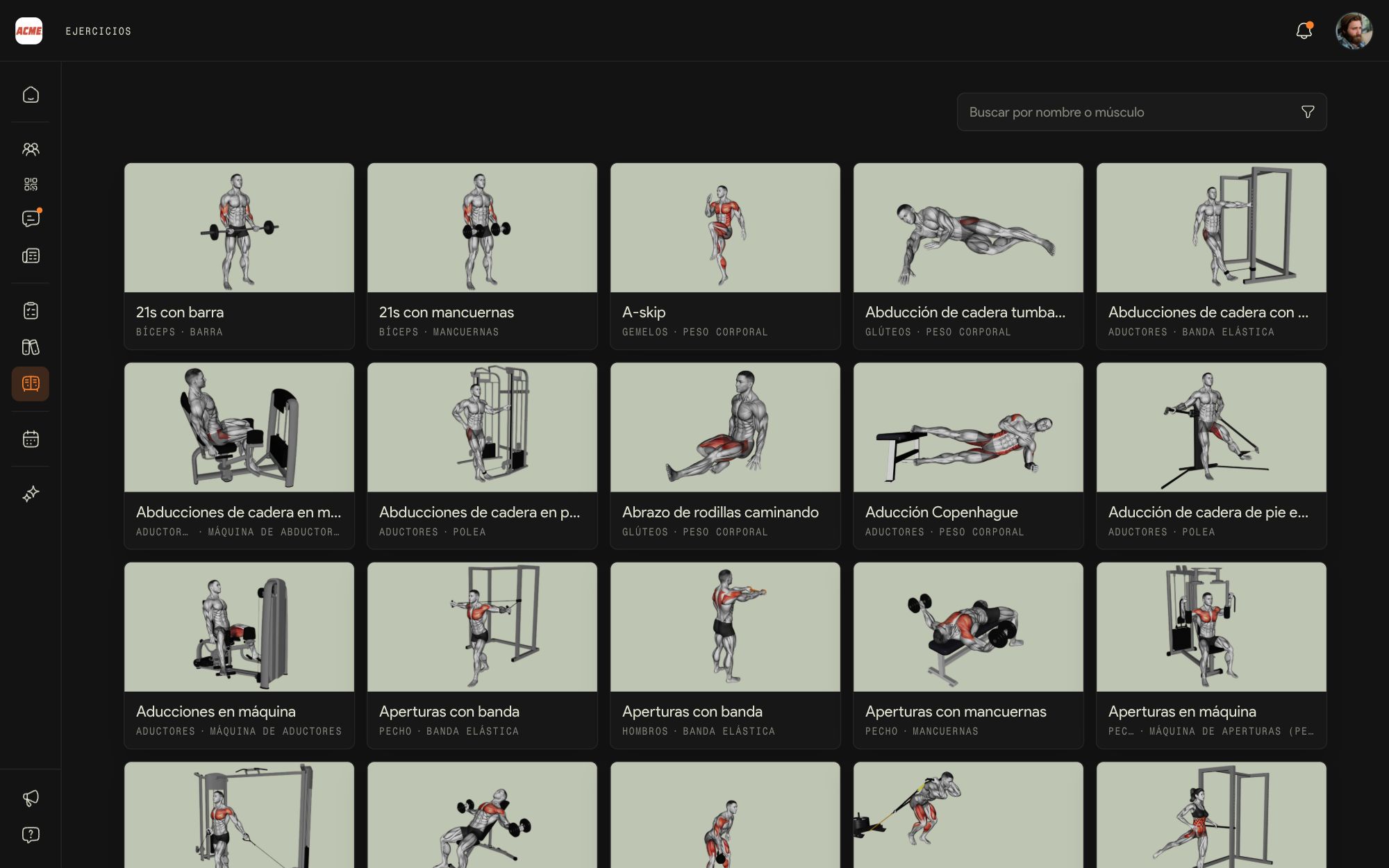
The catalog belongs to the gym: the whole staff builds routines with the same exercises, so members see every movement explained the same way, no matter who built their routine.
Search and filter
By name or muscle, and with the funnel by muscle group, equipment and tags.
The exercise page
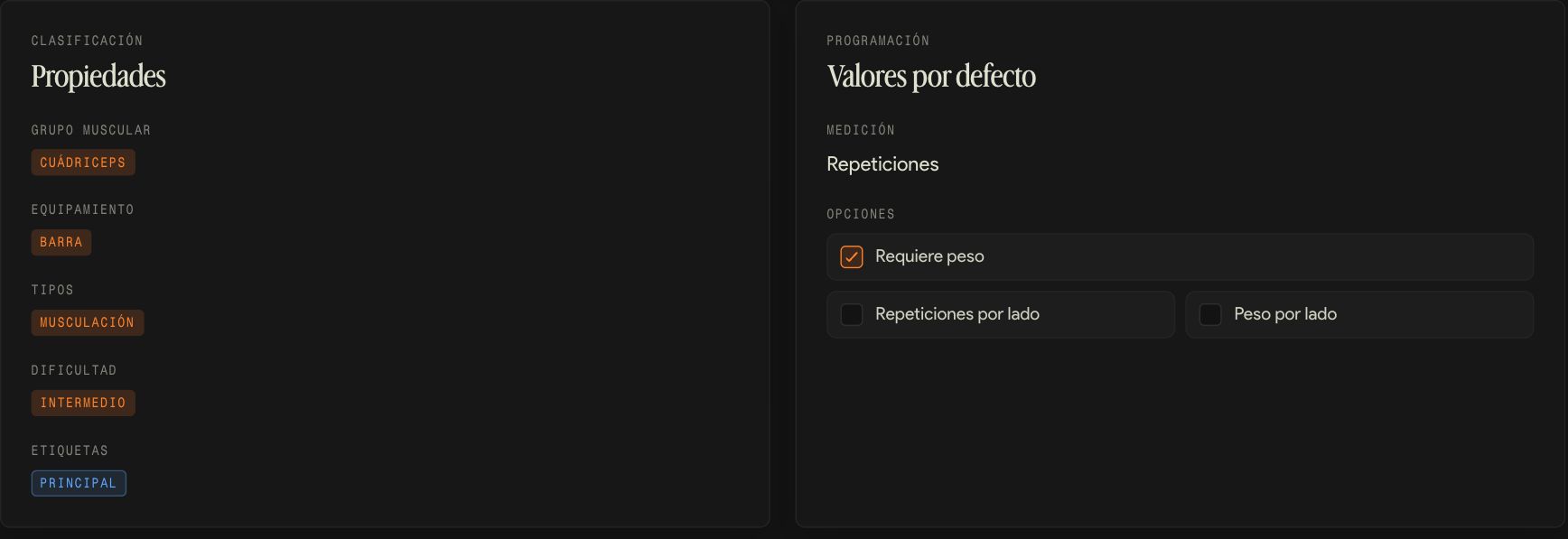
Video, muscle group, equipment, type, difficulty and tags, and how it is measured by default: reps, whether it needs weight and whether it is done per side.
Adding the gym's own exercises, editing them or removing one from the catalog is up to the admin. If an exercise is missing, ask for it: it becomes available to the whole team.
12The Assistant
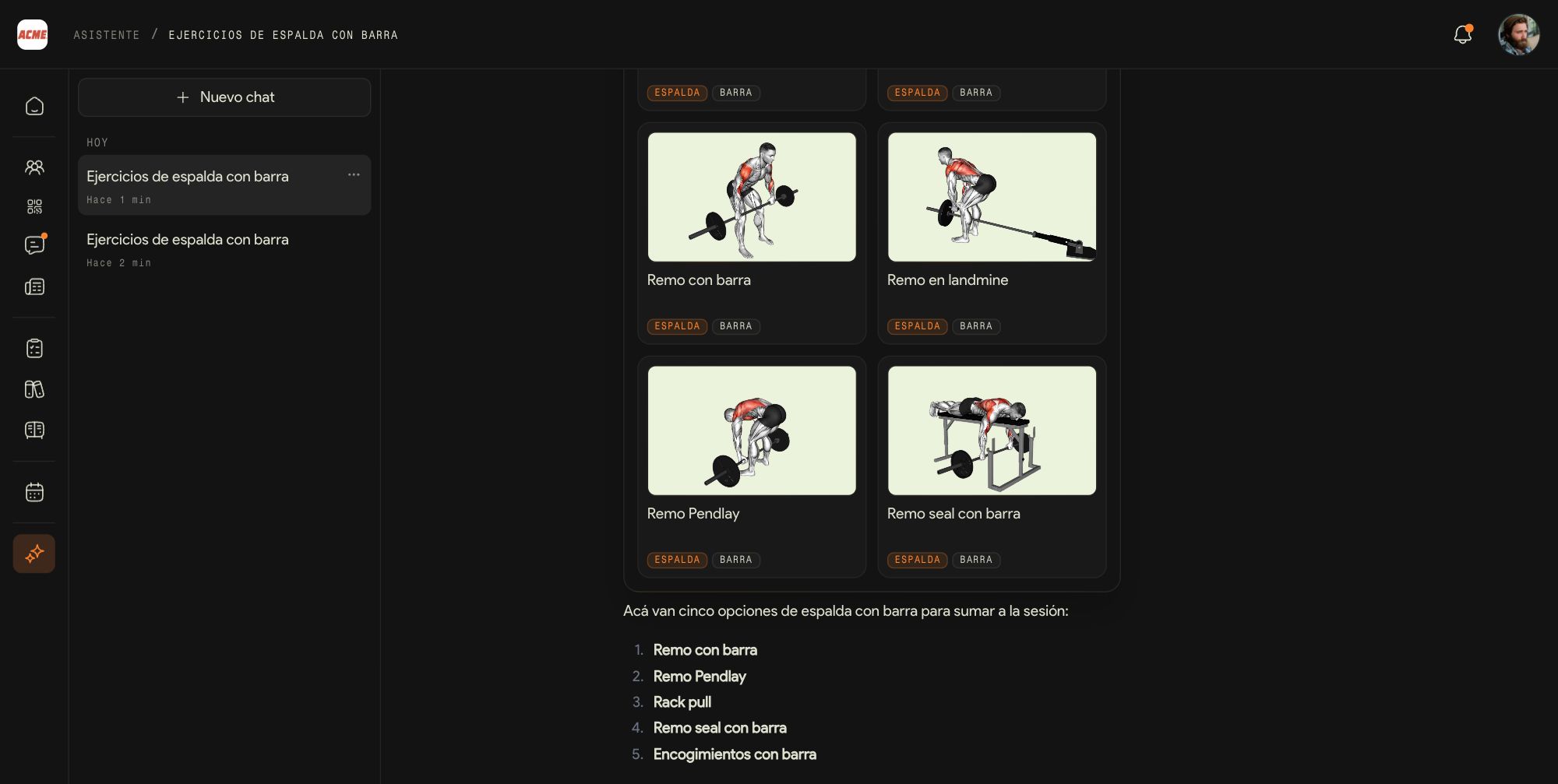
The Assistant is Kaizer's artificial intelligence inside the dashboard: you ask for something in plain language and it handles it with the gym's data.
Ask it something
Write the way you would talk to a teammate: find exercises, build or adjust a session, or ask about a member or a training plan. The buttons below the box give you ideas to start.
Conversations
They are saved on the left with a title, so you can pick them up whenever you want. New chat starts another one.
Voice and files
You can dictate with the microphone or attach a file.
Check what it suggests before you pass it on to a member: the AI drafts, you decide.
Day to day at the gym
Classes, check-ins, chat and announcements.
13Agenda and bookings
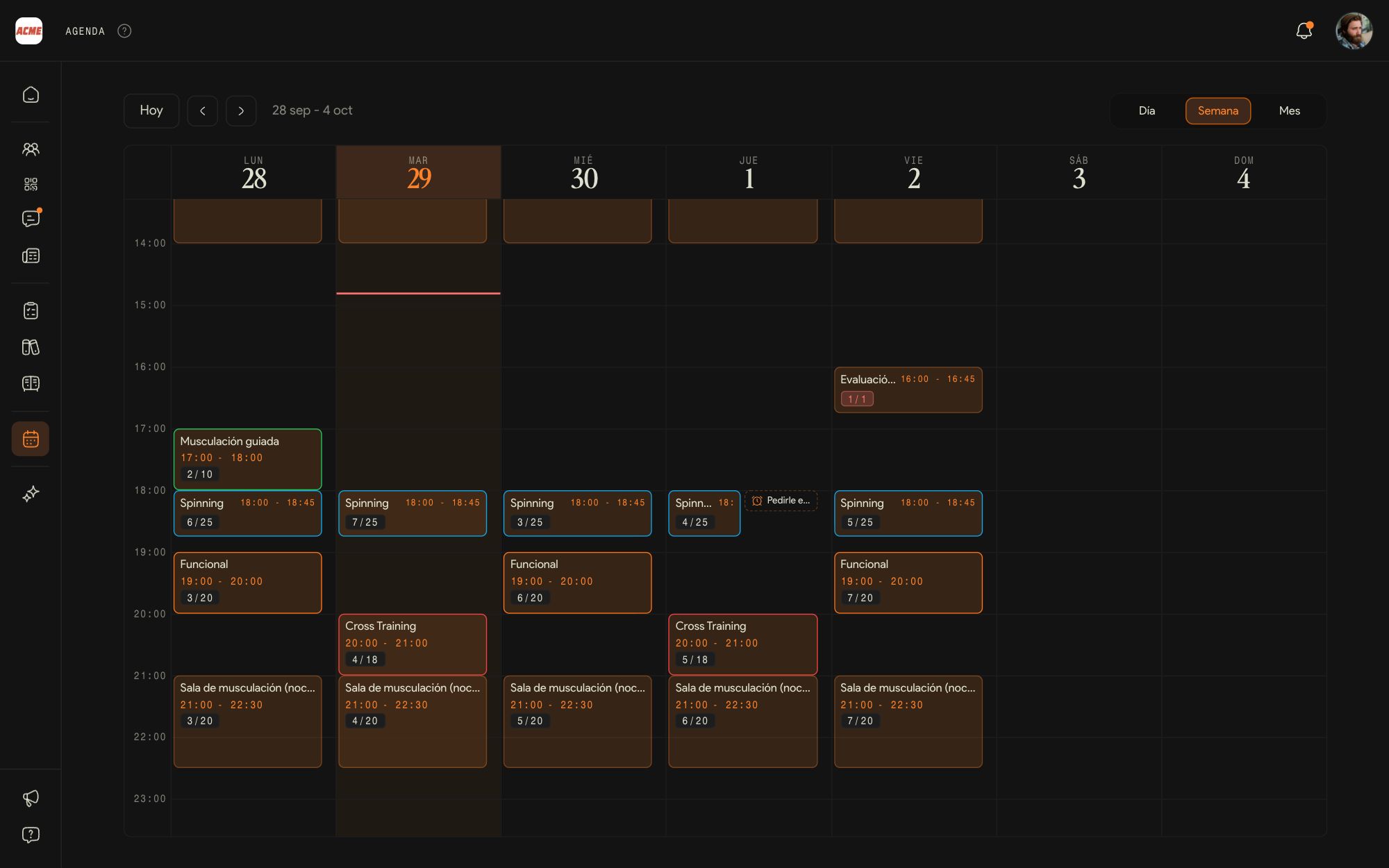
The Agenda shows the gym's classes and floor slots with their bookings, in day, week or month view.
Read the calendar
Each session shows the time and the booked spots over capacity, for example 6/20. When it fills up it turns red; if it has no capacity limit it says Open. Today takes you back to the current day.
Open a class
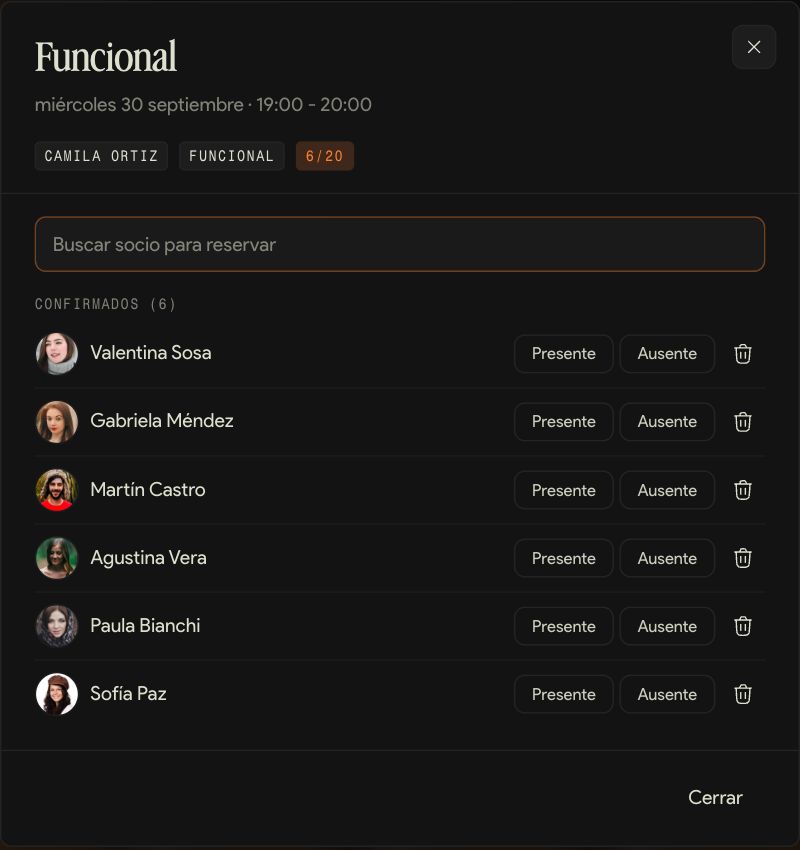
Tapping it shows the coach, the activity and the spots. Bookings has the list of members signed up.
Book someone
The session's search box books a member from the dashboard, even if the class doesn't take bookings through the app. Capacity is still respected.
Take attendance
On each confirmed member you mark Attended or No show, or cancel the booking. If you make a mistake, Back to confirmed undoes it.
Reminders
Tapping an empty slot in the calendar creates a reminder: a personal note with a date and time, which can repeat. It shows up as a thin line and neither members nor the rest of the staff see it.
Creating classes, schedules and activity types, and moving or editing sessions, is up to the admin. Members with a fixed spot are already booked into every class automatically.
14Check-ins
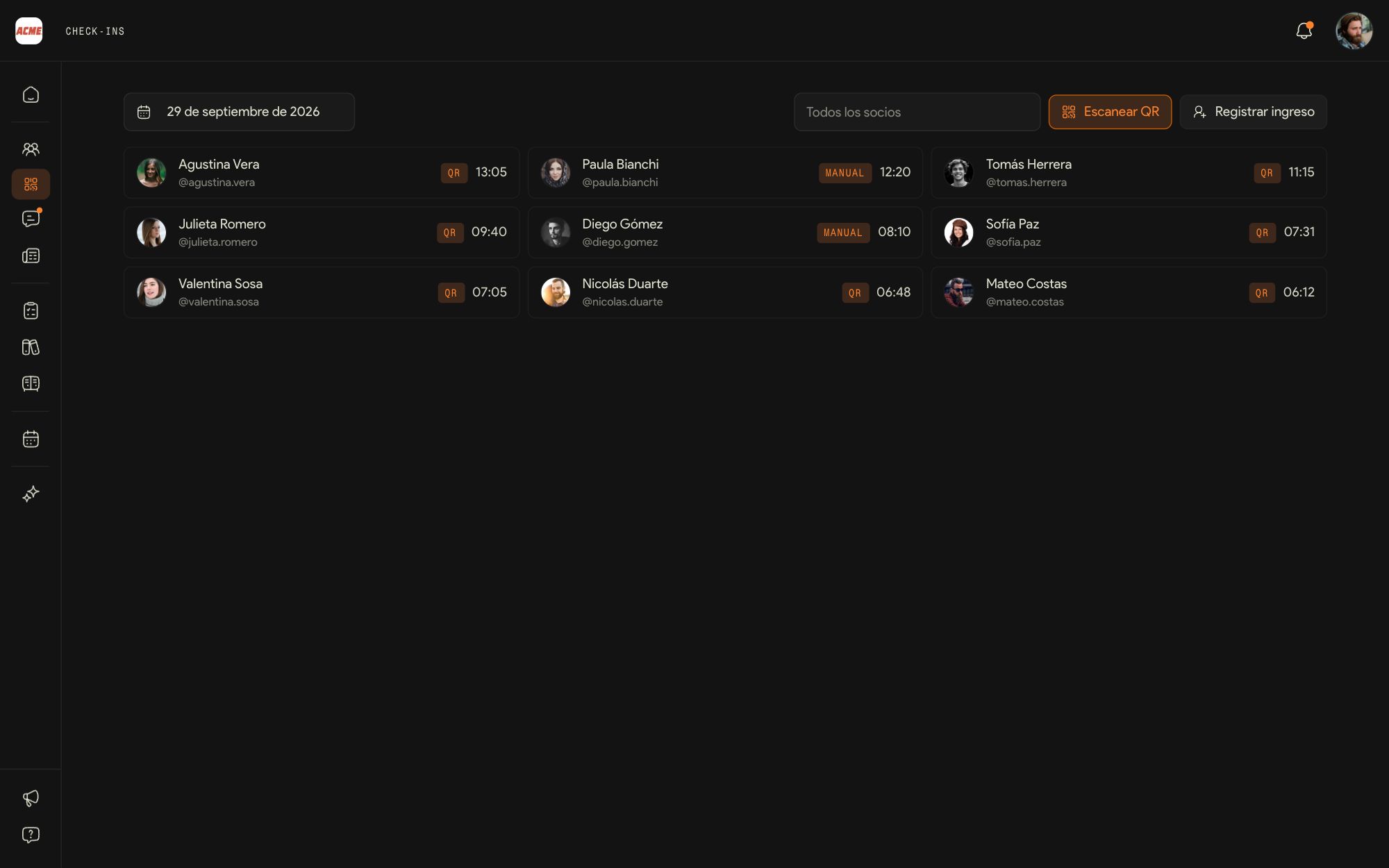
If your gym uses QR check-in, Check-ins is the record of who came in today, at what time and how.
The day
By default you see today. Use the date at the top to look at another day, and the search box to narrow it down to one member.
Scan QR
Opens the camera full screen to read the code the member shows in their app. Once it is read, their classes for today appear and you mark them present right there.
Register entry
For the member who didn't bring their phone: find them and enter them by hand. It is marked as Manual.
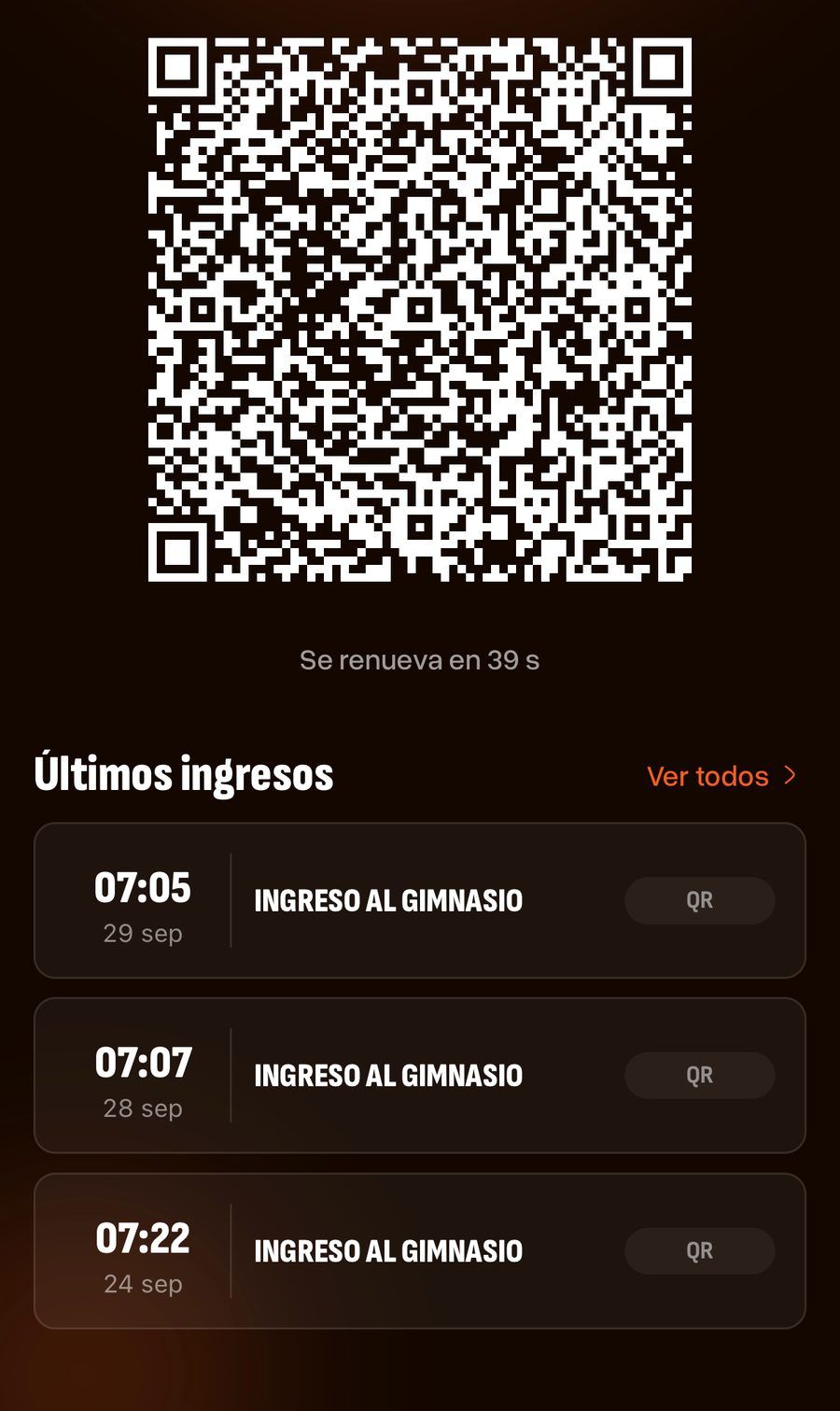
The member's QR code renews every minute, so an old screenshot won't get anyone in. If Check-ins doesn't appear in your menu, your gym hasn't turned it on.
15Chats
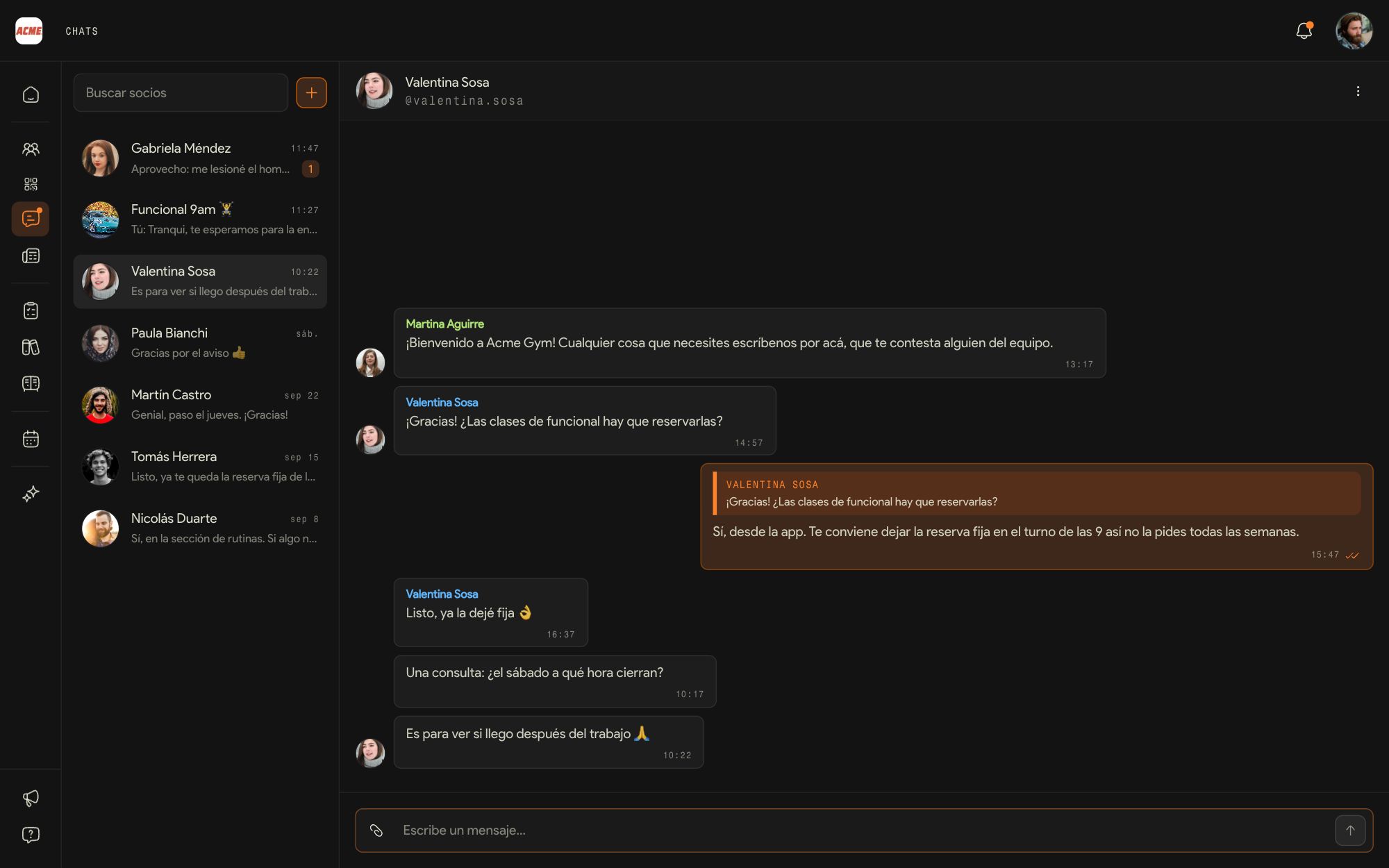
Chats brings together the conversations with members. Each member has a single conversation with the gym, shared by the whole staff, so any coach can reply.
Who wrote it
Above each staff message is the name of whoever sent it. Yours go on the right, in orange.
On the member's side
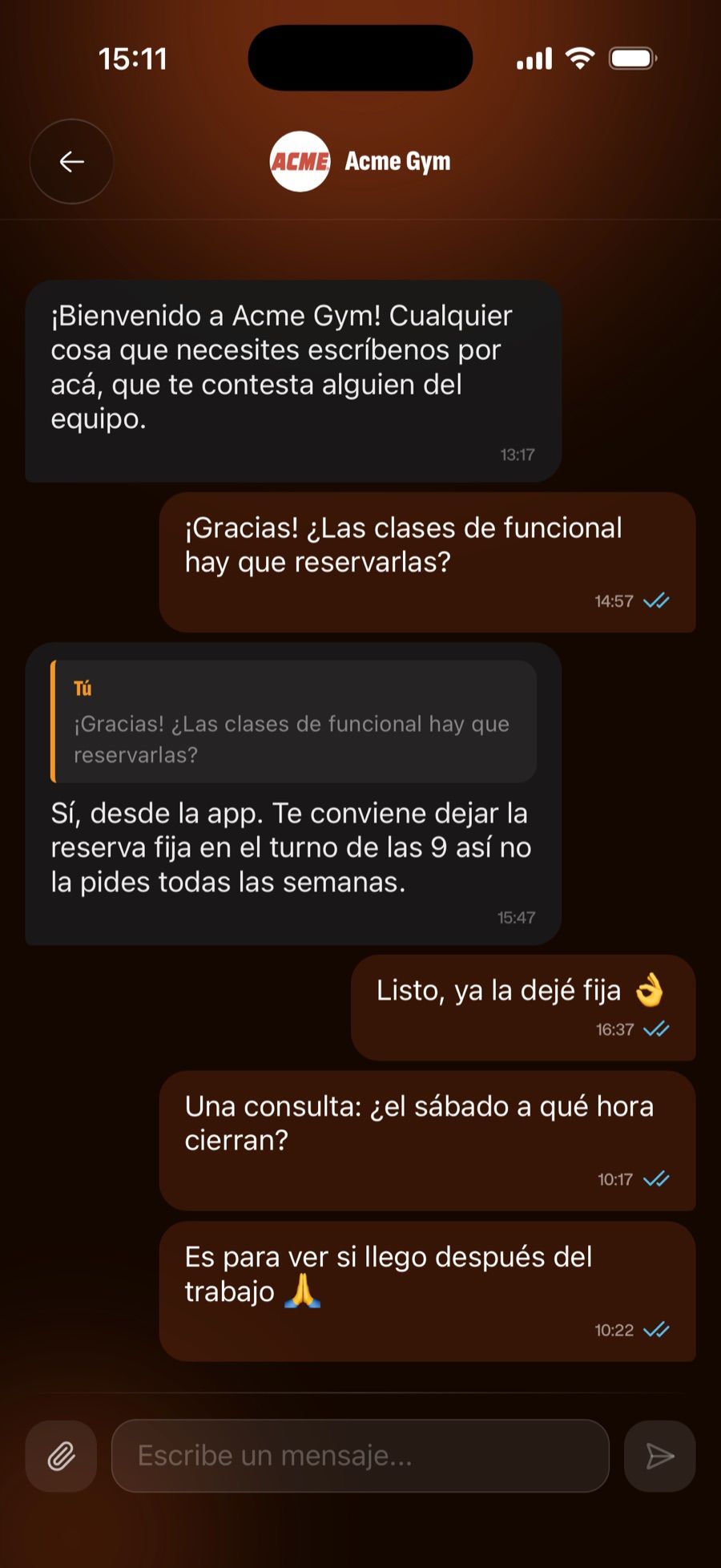
The member sees a single conversation, with the gym's name and logo, not one per coach.
Reply and attach
You can quote a message in your reply, and the paperclip attaches photos, videos or PDFs.
Groups
The + creates a new conversation or a group, for example with the members of a class, for announcements meant for several people.
If your gym turned off the chat, the screen says so and messages can't be sent.
16News and notifications
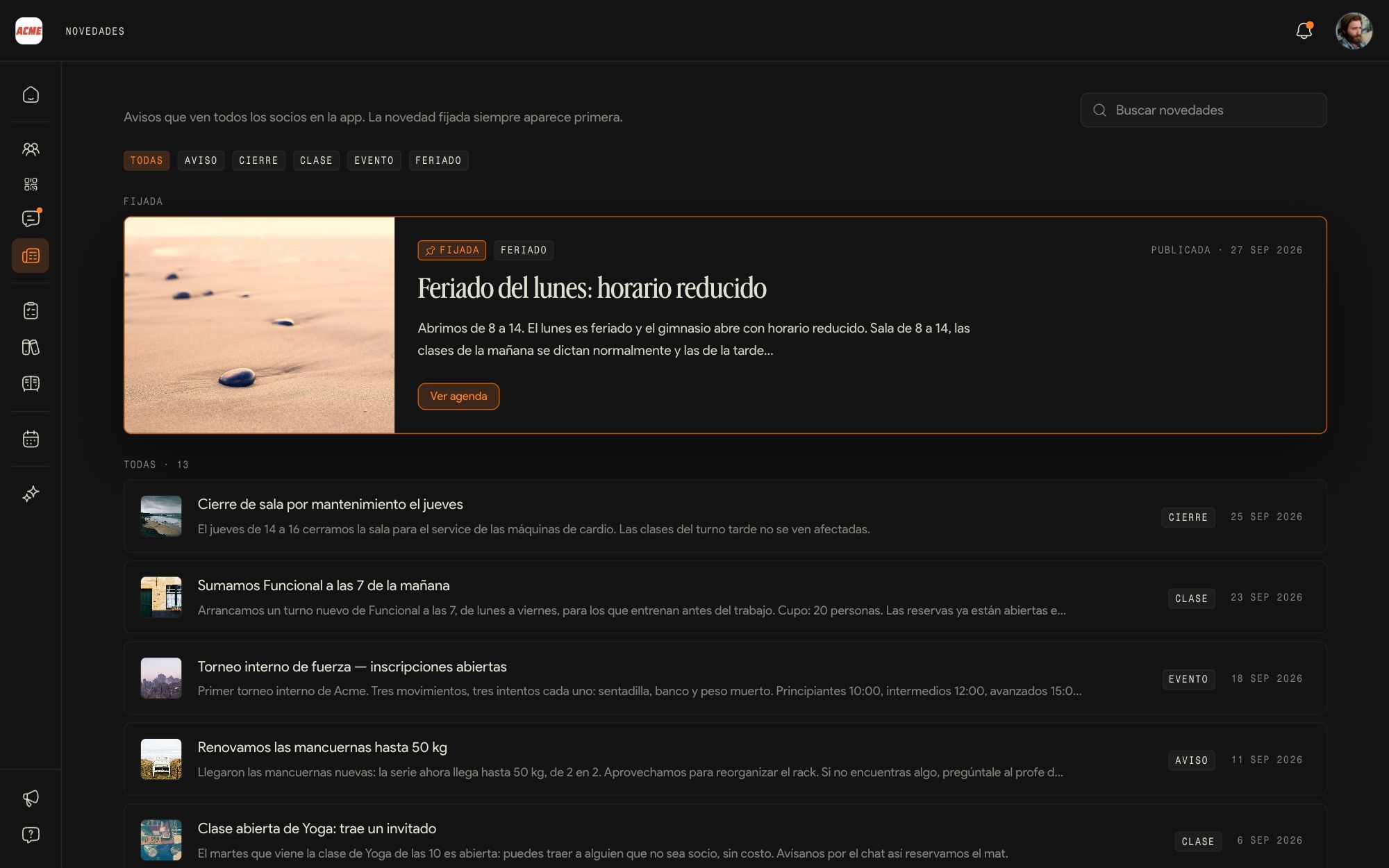
News is the announcements the gym publishes for members: schedule changes, new classes, events. You read them to stay on top of the same things they see.
The pinned post and the rest
The pinned post always comes first. Below are all the others, with category filters and a search box.
The bell
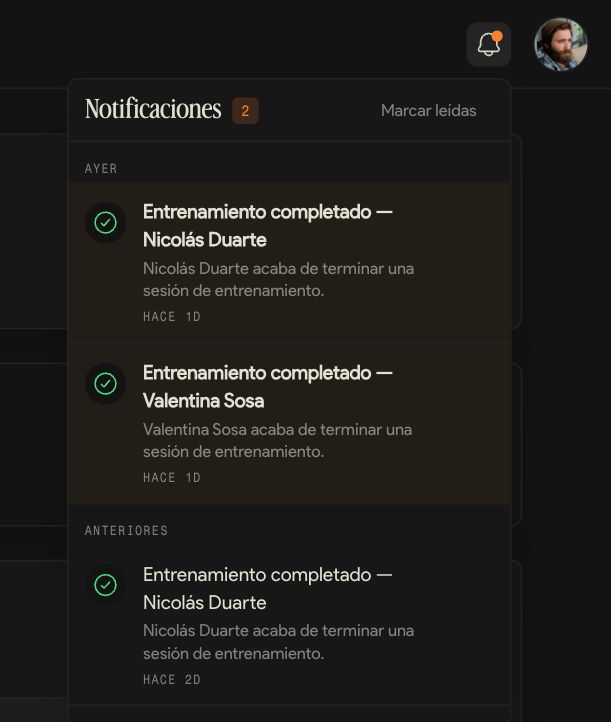
Top right, it tells you when one of your members finishes a workout. Mark read clears them.
Updates
The megaphone, bottom left, tells you what is new in Kaizer.
Publishing, editing and pinning news is up to the admin.
What your member sees
The Kaizer app from the inside, so you know what reaches them of what you build.
17The member app
Your members train with the Kaizer app. Everything you save in the dashboard reaches them there.
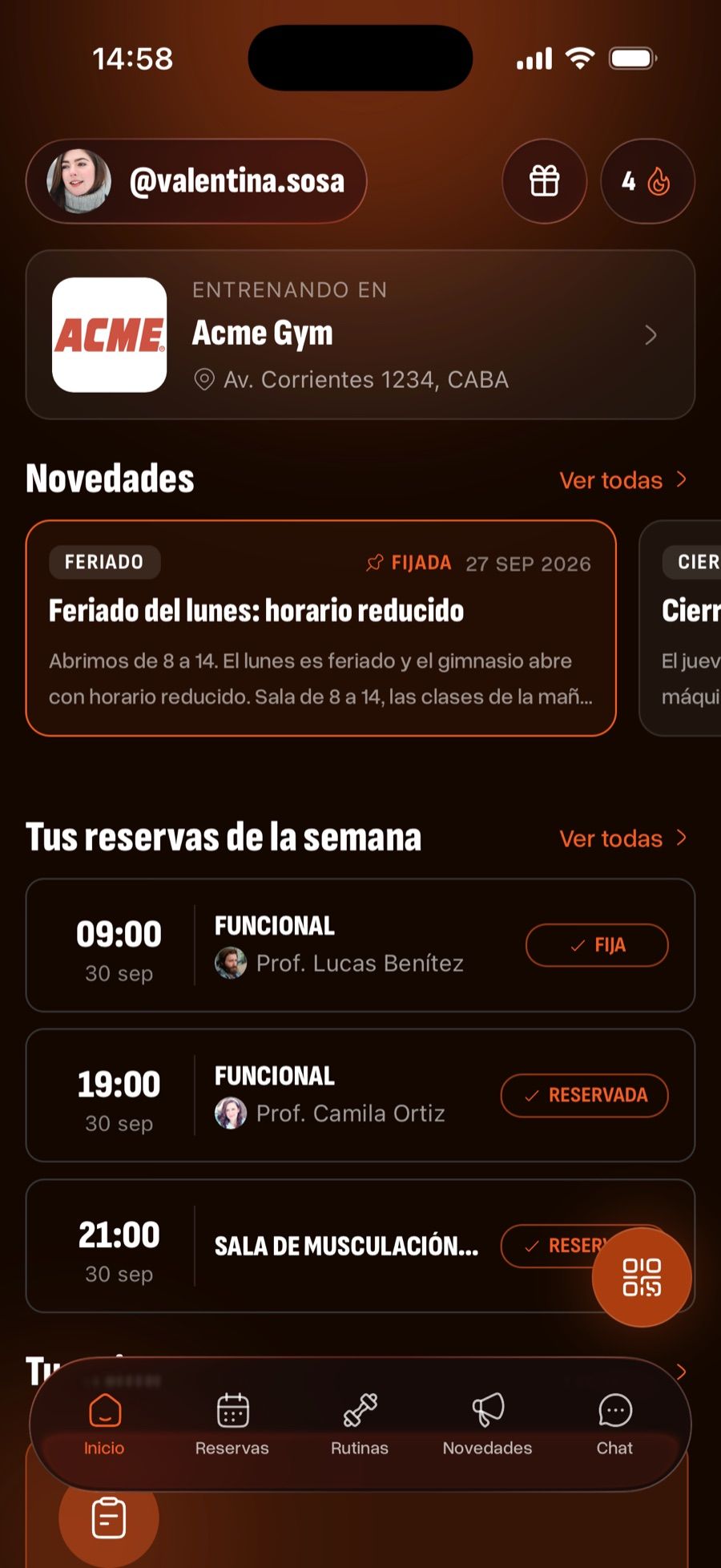
Home
Their gym, the news, their bookings for the week and their routine, with their streak of training days.
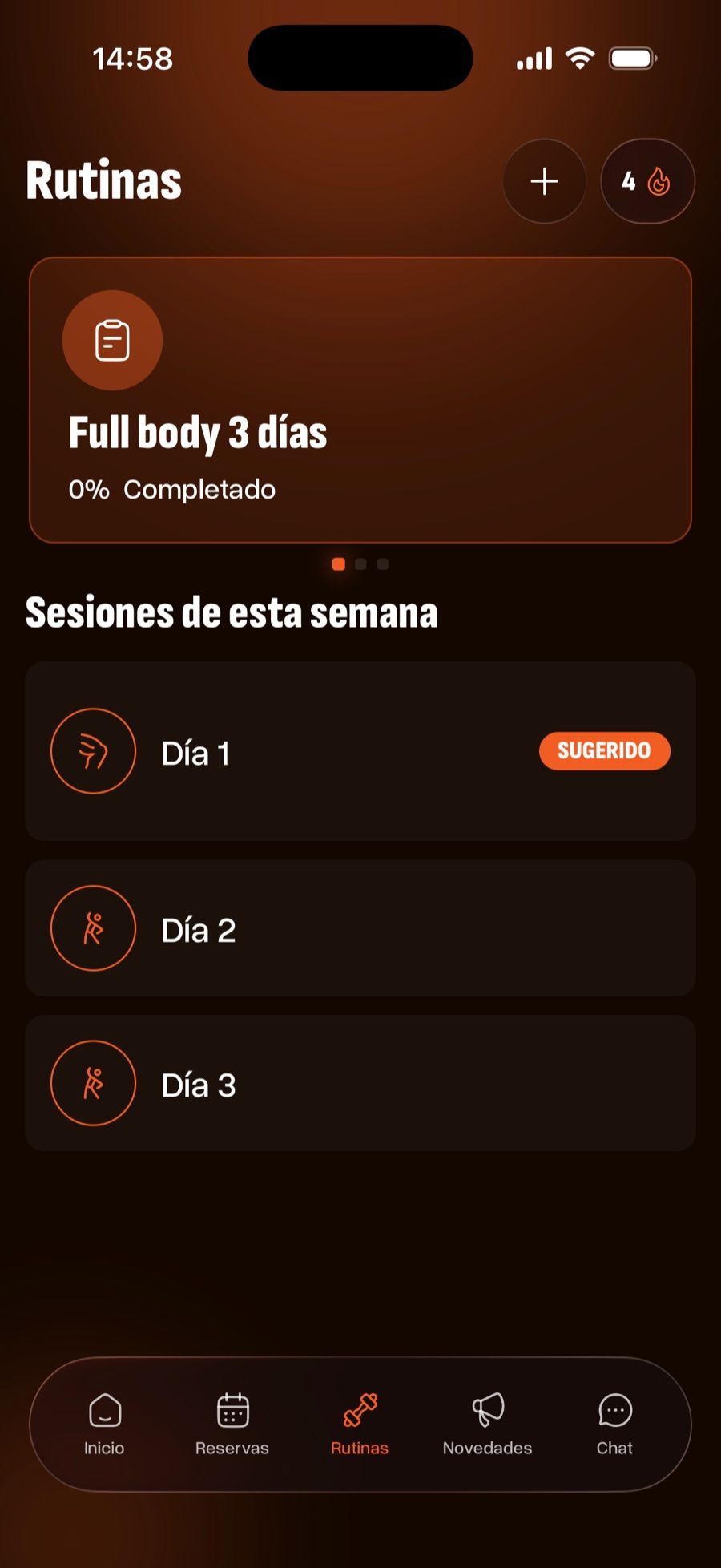
Routines
The current routine with its progress and the week's sessions. The one marked Suggested is the one they are due for.
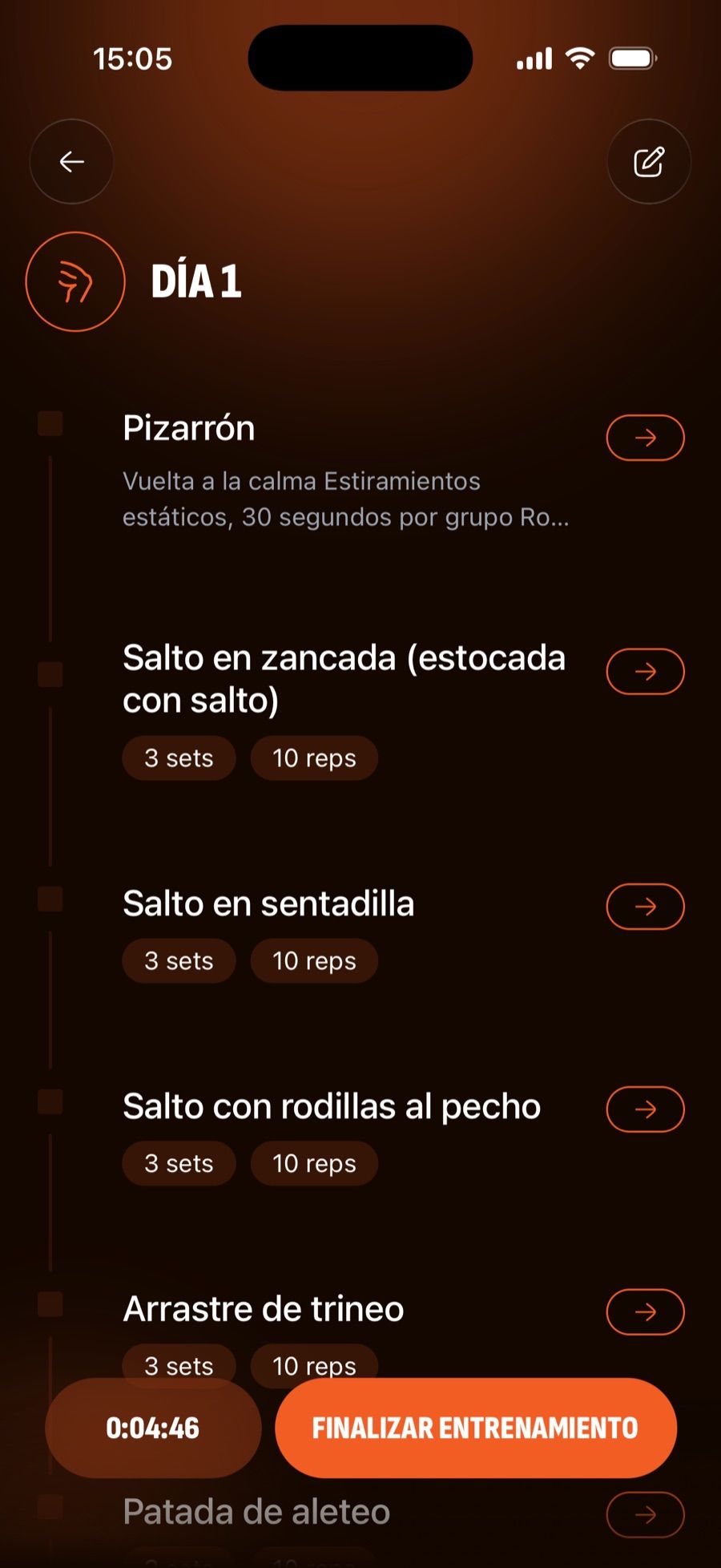
Train
They open the day, tap Start workout and log their sets with the rest timer. When they are done they tap Finish workout, and you get the notification.
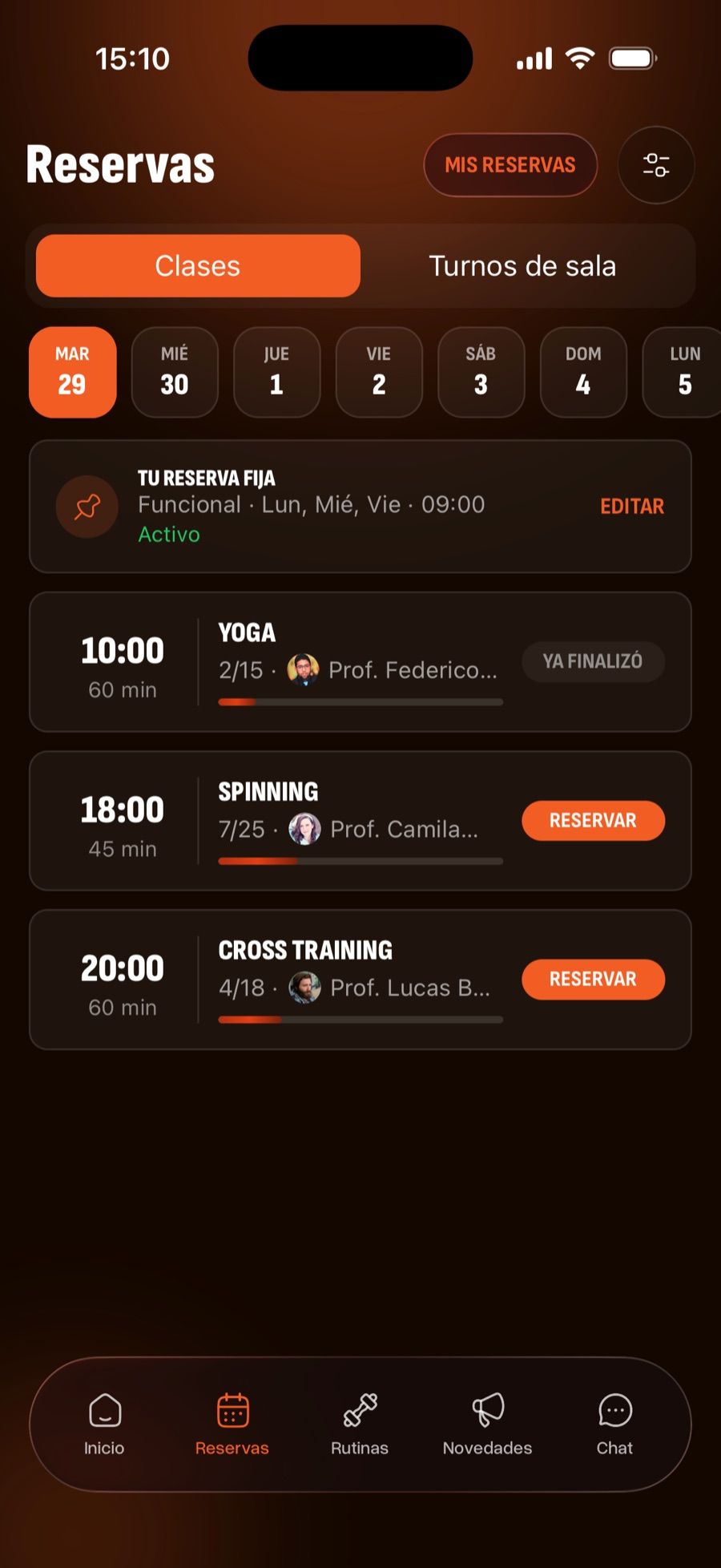
Bookings
Each day's classes with their spots and the Book button, plus their fixed booking if they have one. They can also cancel.
QR and chat
The QR button is their pass into the gym, and in Chat they talk to the team.
If a member can't see their routine, check that they signed up with the same email they were added with: the link to the gym is made by email.
Your account and help
18Your profile and settings
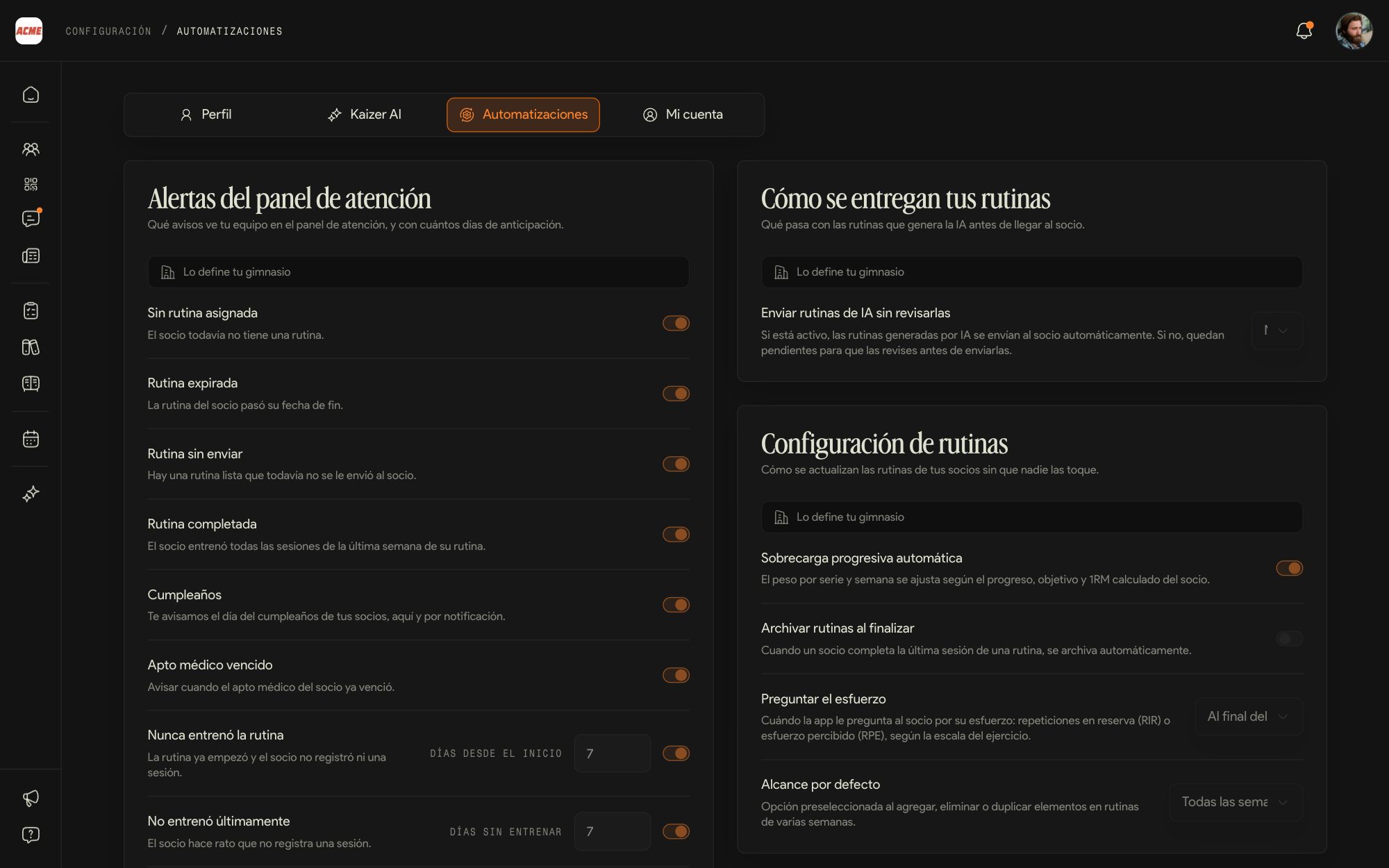
Tapping your photo, top right, takes you to your account, organized in four tabs: Profile, Kaizer AI, Automations and My account.
Profile
Your name, your photo, your KaizerTag and your phone. Edit changes them.
Kaizer AI and Automations
They show how the gym works: which alerts fire, how routines are delivered and updated and how the AI generates them. You see them with the Your gym sets this notice: the admin changes them.
Several accounts
The same menu under your photo lets you add another account and switch between them without signing out.
19If you get stuck
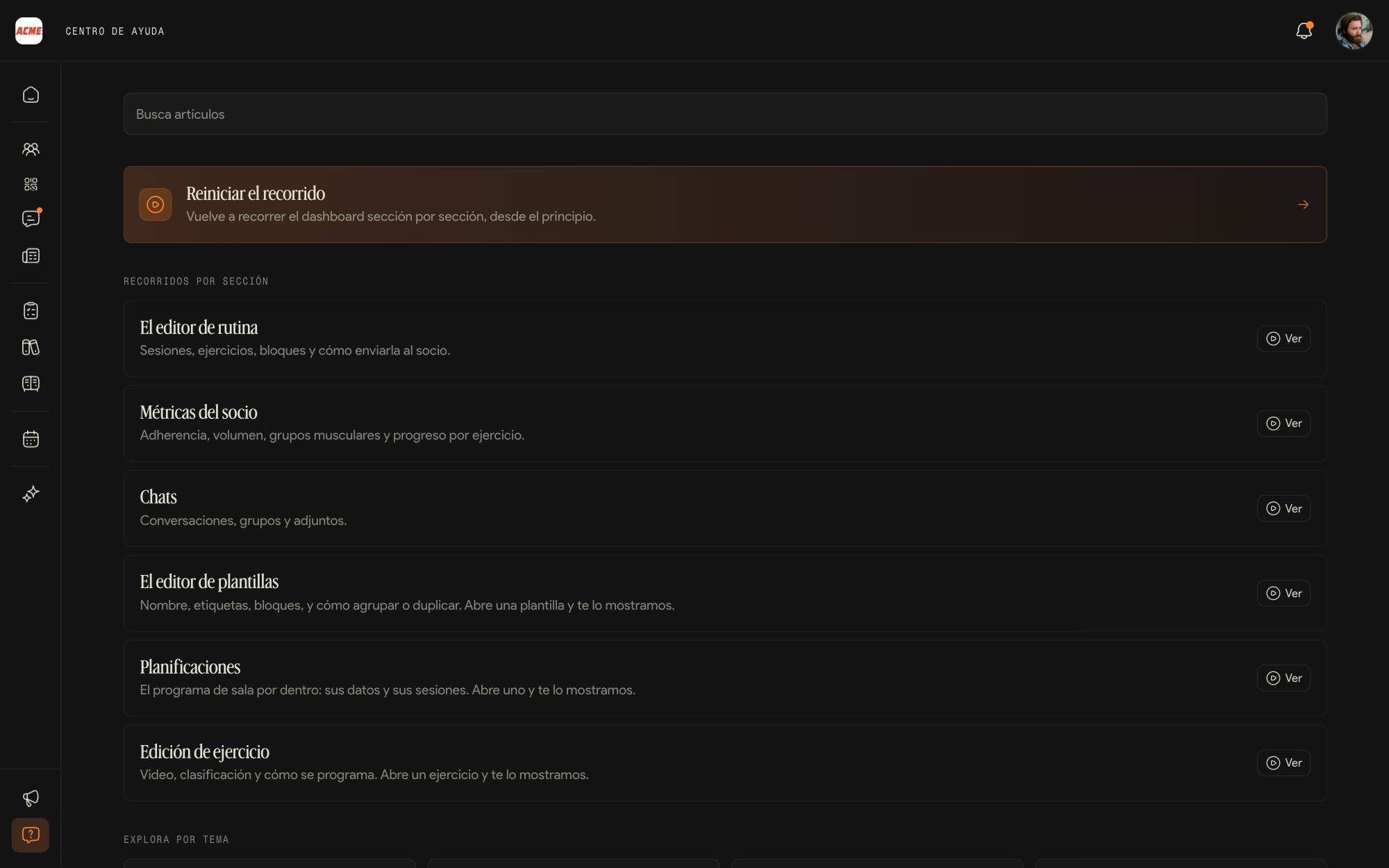
The Help Center, under the question mark icon at the bottom left, has short articles by topic and guided tours of every screen.
Tours
Restart the tour walks you through the dashboard again, section by section. You can also replay the tour of a single screen, such as the routine editor.
Articles
Search with the word you would use to describe it: member, booking, gym program, routine.
Your admin
If what you need depends on how the gym is set up (a permission, a class, a tag, a missing exercise), the admin is the one who sorts it out.
Kaizer support
If it is a problem with the platform, the button to write to us is at the bottom of the Help Center. Tell us what you were doing and what happened.
What each role does
The coach works with members; the admin also runs the gym. This is the difference, screen by screen.
| What | Coach | Admin |
|---|
| See members and their profiles | Yes | Yes |
|---|
| Build and edit routines | Yes | Yes |
|---|
| Assign a gym program to a member | Yes | Yes |
|---|
| Notes, injuries, files and tests | Yes | Yes |
|---|
| Add or remove members | No | Yes |
|---|
| A member's tags and settings | Sees them | Yes |
|---|
| Create, edit and publish gym programs | Sees them | Yes |
|---|
| Templates | Their own | Their own and the training plans |
|---|
| Exercise catalog | Uses it | Edits, imports and tags it |
|---|
| Bookings and attendance | Yes | Yes |
|---|
| Classes, schedules and activity types | No | Yes |
|---|
| Check-ins | Yes | Yes, and turns them on |
|---|
| Chats and groups | Yes | Yes, plus Kaizer support |
|---|
| News | Reads it | Publishes it |
|---|
| Staff, invitations, payments, benefits, analytics and reports | No | Yes |
|---|
| Gym settings and billing | No | Yes |
|---|